
Drama character swap skill: same lines and lip sync, one person becomes your character
A skill that swaps one chosen person in a live-action clip for your character, keeping the original lines, lip sync, other people and cuts, then delivers a 16:9 final and a 9:16 short. One clip and one photo is all it needs.
- Runs in
- YouViCo AI Agent · attach the skill file in chat
- Difficulty
- Advanced
- Time
- 5 min setup, plus agent run time (grows with the number of cuts)
Results
Only the cuts with the chosen person were swapped. Mouth shapes, hand and chopstick positions and head angles follow the original.
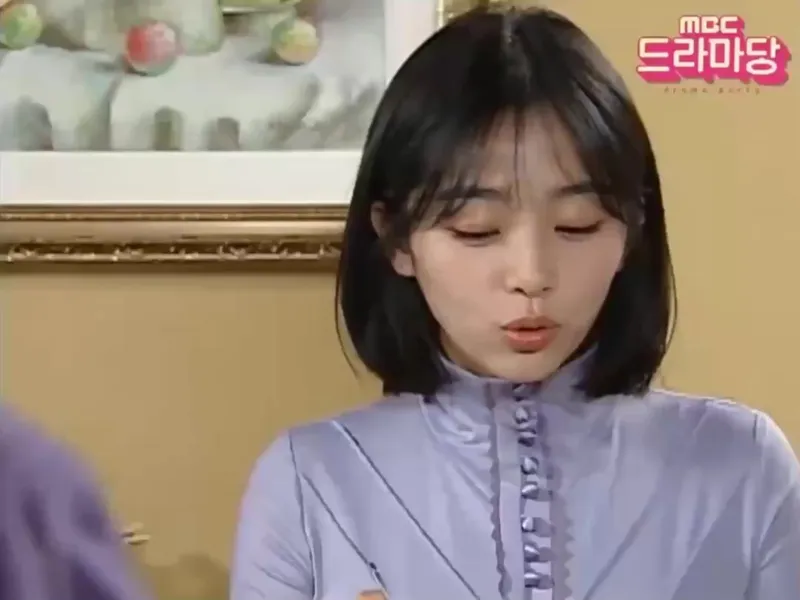
Result 0 s. The round 'oh' of the line lands at the same moment as in the original.
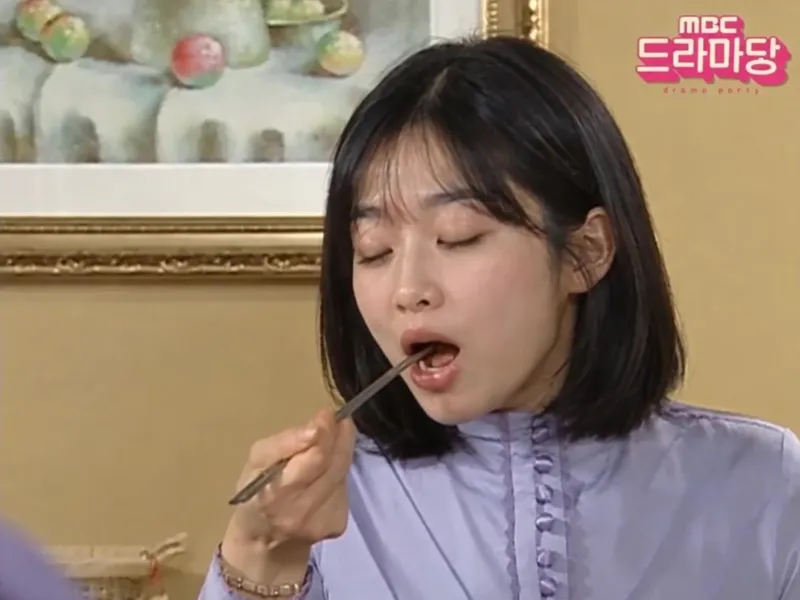
Result 5 s. The hand bringing the chopsticks to her mouth keeps the original position and timing.
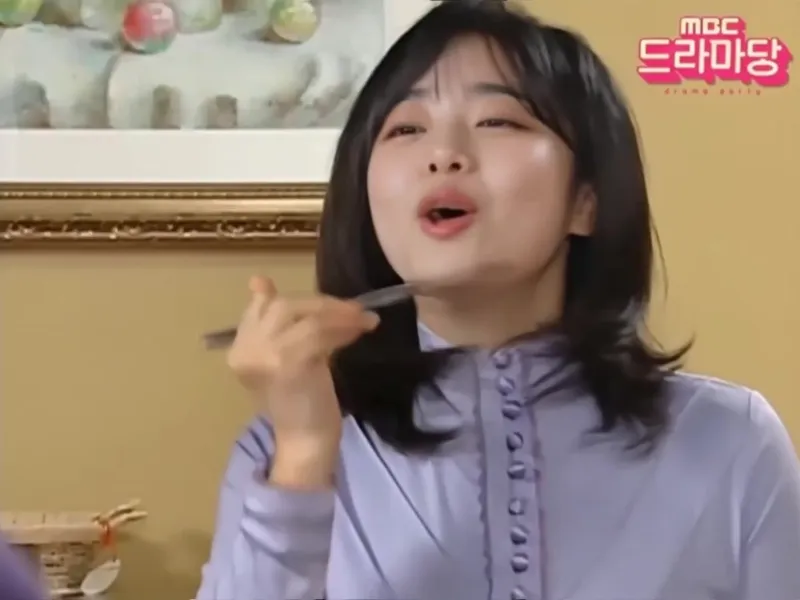
Result 22 s. A big laugh: the face is the character, the expression and head movement are the original's.
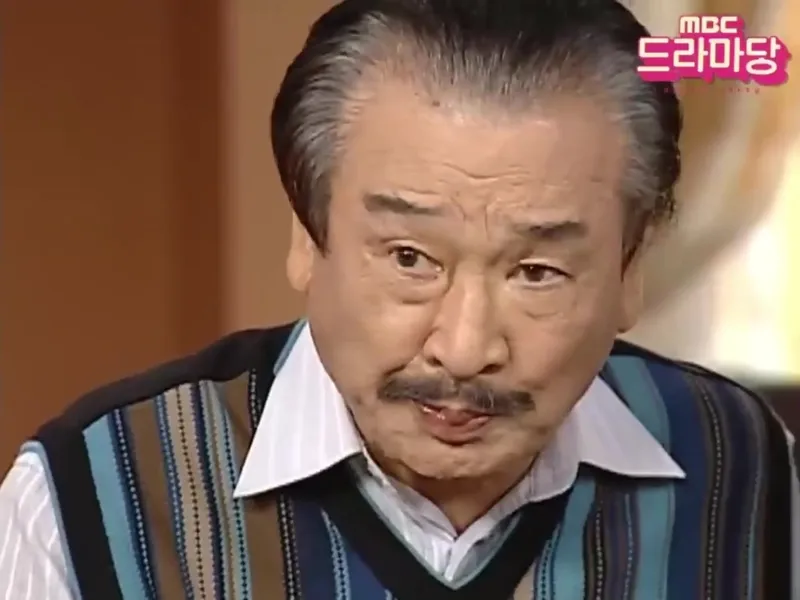
Result 26 s. In a two-shot, only the chosen person changes; the person beside her is untouched.
Downloads
The skill file to attach in the AI Agent chat.
- Drama character swap skill fileMD · 11 KB · Attach this markdown file as is in the AI Agent chat.Download
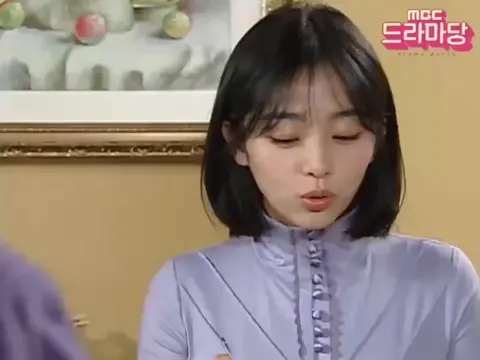 Source video (swapped result, 9:16)MP4 · 23.9 MB · The full-size file of the result above (1080×1920, 34 s). No original of your own? Use this as the original and swap in your character. Includes the original audio.Download
What you need
This is all the skill needs. Put it in your project before you ask the agent.
One live-action video
videoA drama, variety show or interview clip with people talking. Audio, other people and the cut structure stay as they are. The source video above works too.
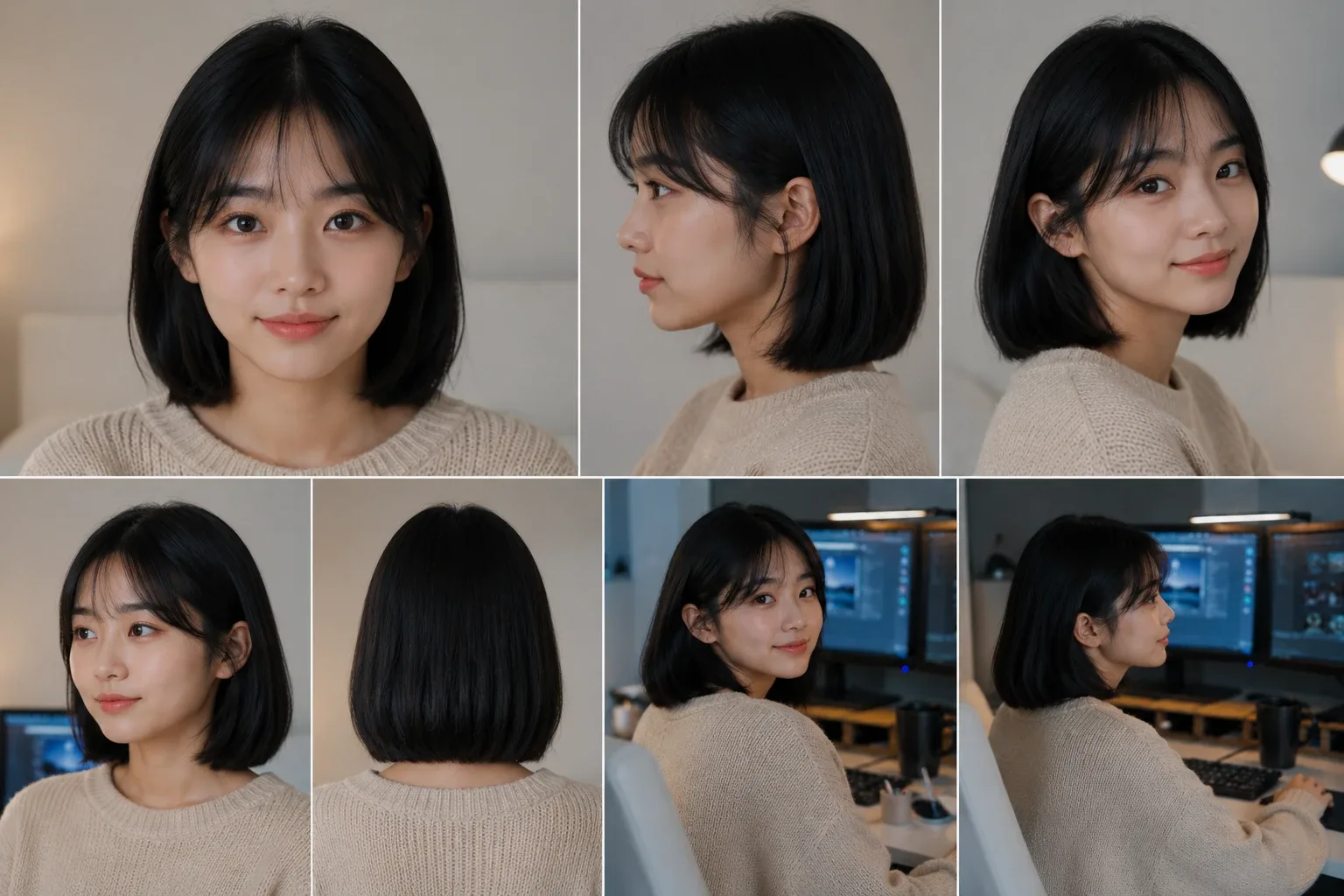
photoOne character photo
A character sheet with a front-facing face is recommended. The example used this sheet.
Who to swap
textPick out one person by clothes, hair and position, e.g. the woman with a bob in the purple blouse. If that could match more than one person on screen, the agent asks only that.
This skill swaps one person in a drama scene for your character and leaves the rest of the original alone. Lines and audio, lip sync, the other people at the table and the cut structure all stay as they were; only the chosen person’s face changes. Give the AI Agent one clip, one character photo and who to swap, and it delivers a 16:9 final and a 9:16 short.
What this skill makes
- A 16:9 final and a 9:16 short. The short is 1080×1920, centered, with black above and below.
- The original audio is kept, and only the cuts with the chosen person are swapped, one by one.
- Each cut is checked against the original at the same moments (mouth shapes, hands, prop angles) before moving to the next.
- The original file and the original edit are never touched; results are new files like
_v1,_v2, left in Needs review status.
How to run it
- Put the original video and the character photo in your project. No original? Use the source video from the downloads above as the original.
- In the YouViCo desktop app, open the AI Agent with the AI button in the title bar or Ctrl/Cmd+Shift+A. The AI Agent runs in the Windows and macOS desktop apps.
- Attach the skill file in the AI Agent chat with the paperclip button at the bottom left of the input. If you will reuse it, save it to My skills with Import SKILL.md in the Skills view. What is a skill? explains how skills work with the agent.
- Say who to swap.
Use this skill to swap the woman with a bob in the purple blouse for my character.
Keep the lip sync as in the original, and make a short when you're done.
The original video and the character photo are in the project.
What the agent asks first
This skill isn’t for remaking the example; it’s for making your own. Before starting, the agent asks these together and skips anything your request already answers. Say “use the defaults” and it follows the example’s choices.
- Which source video, and who to replace? Distinguish them by clothes, hair or position.
- Which character should they become? Point to a sheet or photo.
- Only the 16:9 final, or a 9:16 short too? Default: both.
- Add a title or captions in the short’s black bands? Default: none.
- Budget? Default: show the total estimate first, then proceed.
What the agent does
| Stage | What the agent does |
|---|---|
| Prepare | Makes folders and a new 16:9 edit, scans the original every 0.5 s and lists only the cuts with the chosen person, with three or more key moments per cut (mouth, hands, props). |
| Reference clip | Exports each cut at 1.0x speed as a reference. If a cut is shorter than the generation length, it pads with the last frame. |
| First frame | Saves the cut’s first frame and swaps only the face in it (Nano Banana Pro), keeping pose, hands, props and logo as they are. |
| Swap the cut | Edits the cut with Kling 3.0 Omni using the reference clip, the swapped first frame and the character image together. |
| Place | Reads the result’s real length, divides it by the reference length to set the speed (e.g. 4.0417 ÷ 4.0 = 1.0104), and trims at the cut’s end. |
| Check the cut | Captures the swap and the original alternately at each key moment and only locks in cuts that pass. |
| Final and short | Exports the 16:9 final, then drops it into a new 9:16 edit for the short. No credits for this step. |
Why the lip sync holds
The skill writes down the combination that kept lip sync after trying several approaches.
- Reference at 1.0x. A slowed-down reference puts mouth timing off the dialogue.
- Edit the video, don’t regenerate it from keyframes. The original cut goes in as input and only the face changes, so mouth shapes land at the same moments.
- Add the swapped first frame. With only the character image, lips and motion match but the original actor’s face stays or comes back midway. The swapped first frame starts the clip with the character’s face.
- Keep cut boundaries out of the reference. A boundary lets other people or fake cuts slip in. Shrink the reference inside the cut and pad with the last frame.
- Compute the speed. Results come back at 4.033 s, 4.042 s and so on, so the agent reads the real length and sets speed to six decimals.
If the same method fails twice, the agent changes the method instead of tweaking the prompt again.
Scale for the short
How the 16:9 final sits in the middle of a 9:16 frame depends on the original’s shape.
- Full 16:9 picture: 1080 ÷ 1920 = 0.5625
- A 4:3 picture with black side bars inside 16:9: 1080 ÷ 1440 = 0.75, pushing the bars off screen.
The example original is a 4:3 picture, so it went in at 0.75. The agent asks before putting a title or captions in the black bands, and uses editor text, never AI-drawn lettering.
Feedback
Leave a comment on the result like “lip sync is late from 12 s” and the agent remakes only that cut, leaving the others alone. It exports the new version as _v2 and replies to the comment with what changed, the moments it compared to the original, and where to check.
The full skill file
Same as the download. You can also copy it into a new file.
---
name: drama-character-swap-shorts
description: "Procedure that takes only one live-action source video (drama, variety show, interview etc.) and one character photo (or character sheet), replaces one chosen person in the video with that character, and keeps the original lines, lip sync, other people and cut structure, from start to finish through a 16:9 final and a 9:16 short. Includes applying feedback. Example triggers: replace the woman in this video with Yujeong, swap the person keeping the lip sync, 100% sync and change only the face, the lip sync is off so fix it from the feedback, make it a short, here are the original and a photo so make it, replace one person in this clip with my character keeping lip sync, then make a 9:16 short."
---

# Live-action character swap → feedback → short (from the original + a character only)

When to follow: requests to replace **only one chosen person** in a live-action source video with a character while keeping the original sound, other people and cut structure. For dance videos use dance-character-swap; for vehicle videos use vehicle-character-swap. UI names below are given in English; if the app shows them in another language (for example Korean), find the item with the same meaning. Write replies, comments and reports in the user's language.

## Ask the user before starting
The point of this skill is not to remake the example but to make the user's own video. Before starting, ask the questions below together, in one message.
- Skip anything the request already answers.
- If the user says "you decide" or "use the defaults", go with the defaults in parentheses.
- If the user seems to have no idea yet, briefly suggest 2–3 options that differ from the example.
- Once answered, show a one-line summary of what was decided, then start.

1. Which source video, and who to replace? Distinguish them by clothes, hair or position.
2. Which character should they become? Point to a sheet or photo.
3. Only the 16:9 final, or a 9:16 short too? (default: both)
4. Add a title or captions in the short's black bands? (default: none)
5. Budget? (default: show the total estimate first, then proceed)

## 0. Inputs and defaults
- Required inputs: ① the source video file ② the character image (a sheet including a front-facing face is recommended) ③ who to replace (distinguished by clothes, hair, position).
- Anything not answered in 'Ask the user before starting' uses the defaults below. If the person to replace could be read as more than one person on screen, confirm again.
  - Budget: if the user hasn't set one, show the total estimate first and proceed (in auto-approve mode, proceed at 1,000 or less).
  - Video model: Kling 3.0 Omni, 720p, 4 s (5–8 s for long cuts), 16:9, generateAudio false.
  - Image model: Nano Banana Pro.
  - Short: 1080×1920, centered, black above and below.
- Never modify the original edit or the original file. Leave results only as new files (_v1, _v2 …).
- If the source carries rights marks such as a broadcaster logo, note at the end of the report that rights need to be checked.
- Every generation: estimate → generate → record the actual charge. Keep the running total in the project memory.

## 1. Preparation (0 credits)
1. Make two folders: `{job}_AIGenerated` (references and generations), `{job}_Final` (exported results).
2. Make a **new 16:9 edit** (1920×1080, 30fps) and put the source on V1 (video) and A1 (sound) from 0 s.
3. Check the source's frame shape with a capture and record it.
   - Is the whole frame picture, or a 4:3 picture + black side bars (used for the short's scale)?
   - Also record the source's scale in the editor (e.g. 1.5).
4. Make a **cut table**. Scan the source with captures every 0.5 s and list only the cuts where the person to replace appears.

   | Cut | Start–end (s, 30fps frame boundaries) | Person size | Line | Key moments (mouth shapes, hands, props) |
   |---|---|---|---|---|

   - Confirm cut boundaries by capturing one frame (0.0333 s) before and after.
   - Pick three or more key moments per cut: laugh, round "oh", wide-open mouth, wide eyes, hand or chopstick position.

## 2. Per-cut replacement — proven method (lip sync first)
Take one cut all the way through before moving to the next.

### 2-1. Make a real-time reference clip (0 credits)
1. Put the source in again in an empty time range of the same 16:9 edit (e.g. after the source's end plus margin, after 40 s).
2. Trim that clip to leave only the cut's range. **Keep the speed at 1.0** (a reference stretched slower throws off mouth timing).
3. If the cut is shorter than the generation length (4 s), save the cut's last frame as a PNG with `Save current frame` and place it right after to fill the remaining time.
4. Export only that range with `export_draft` (start and end set) into the `_AIGenerated` folder.
   - Name example: `{job}_refcutNN_realtime_{start}-{end}s+hold{x}s.mp4`
   - Record the reference length R (e.g. 4.0 s).
5. After exporting, delete the working clip and PNG from the edit.

### 2-2. Save the first frame (0 credits)
- Move to the cut's start → Export → `Save current frame` → the `_AIGenerated` folder.
- Hide other clips on upper tracks with opacity 0 so you save **only the original picture**.

### 2-3. Face composite on the first frame (Nano Banana Pro, attachments: source frame + character)
Prompt skeleton:
"Edit image 1. Replace ONLY the [person description] woman's identity with the person in image 2 ([character traits: age, hair, face shape, skin, eyes, lips]). Her face must clearly be image 2's person. Keep EVERYTHING else identical to image 1: same 16:9 framing and black side bars, same crop, same head tilt, same expression and eye direction, same hands and props at the same place, same clothes, same hair length and silhouette, same background, same lighting and broadcast image quality, same logo unchanged. Do not add or remove anything."
- Open the result and check: is the face the character, and are pose, hands, props and logo the same as the original? If not, fix the prompt and remake only once.

### 2-4. Video edit generation (Kling 3.0 Omni)
- Attachments: [real-time reference clip, composited first frame, character image]
- Settings: resolution 720p, durationSeconds = reference length, generateAudio false, aspectRatio 16:9
- Prompt skeleton:
"Edit the input video so the [person description] becomes the person shown in the first image (edited first frame) and the character sheet. Use that face for EVERY frame; the original actor's face must never appear. Keep everything else from the input video unchanged and frame-accurate: identical timing, head movement, blinks, hand and prop motion, and identical mouth shapes at identical moments so the lips stay in sync with the original dialogue. Same framing, black bars, background, lighting, clothes and logo. One continuous shot, no cuts, no added motion."
- Estimate → generate → poll the status until done (never repeat the same request).

### When it fails (if the same method fails twice, change the method)
| Symptom | Cause | Fix |
|---|---|---|
| Mouth shapes ahead of or behind the line | Slowed-down reference, Seedance keyframe generation | Real-time reference at 1.0x + Kling Omni edit |
| Lips and motion match but the original actor's face remains | Only the character image was given to the Kling edit | Add the 2-3 composited first frame too |
| The original face comes back midway | The reference face leaks in | First-frame composite + stress "never the original actor" in the prompt |
| Other people or fake cuts slip in | The reference includes a cut boundary | Shrink the reference range inside the cut and fill with the last frame |

## 3. Placement (theoretically exact)
1. Put the generated result on **V3** at the cut's start time.
2. Read the actual length D from `get_editor_context` sourceDuration (it differs every time, like 4.033 or 4.042 s).
3. Speed = D ÷ R (e.g. 4.0417 ÷ 4.0 = 1.0104). Enter it to 6 decimal places.
4. Trim the end to the cut's end time.
5. Scale: 720p result → 1.5 in a 1920×1080 edit. Use the same scale and position as the source clip.

## 4. Cut review (required for every cut)
1. Move to each key moment → capture (swapped).
2. Swapped clip opacity 0 → capture at the same moment (original) → back to 1.
3. Pass criteria: the face is the character, and mouth shape, head position, hands and prop angles match the original. No jump one frame before or after the cut.
4. When it passes, move it to the same range on V2. If there is a previous clip, delete it and leave V3 empty. Add the outcome to the generated file's name (`_adopted`, `_faceNotReplaced` etc.).

## 5. 16:9 final export
1. When every cut passes, export `{job}_final_v1.mp4` into the `_Final` folder (range 0 – source length).
2. Put the result file on an empty V track for a moment (lower tracks at opacity 0) and capture one key moment per cut plus one unreplaced cut. After checking, delete it and restore.
3. Leave the status at "Needs review". Only a person decides "Approved".

## 6. Applying feedback
1. Read the comment's time range, content and drawing.
2. Remake only that cut with steps 2–4. Do not touch the other cuts.
3. Export as `_v{n+1}` and review with step 5.
4. Reply to the original comment: "[Agent] Applied — what was changed and how / moments compared with the original / where to check: file name mm:ss–mm:ss"
5. The new version's status is "Needs review".

## 7. Short (9:16, black above and below, centered) — 0 credits
1. Make a **new edit** at 9:16 (1080×1920). Leave the 16:9 edit as is.
2. Put the latest 16:9 final file on V1 from 0 s (sound on A1).
3. Scale (in this editor, scale 1 = the source's pixel size as is):
   - Whole frame is a 16:9 picture: 1080 ÷ 1920 = **0.5625**
   - 4:3 picture + black side bars inside 16:9: 1080 ÷ 1440 = **0.75** (the bars fall outside the frame)
   - x 0.5, y 0.5
4. If the exported 16:9 file is a few frames longer than the original length, trim the end to the original length (video and sound together).
5. Capture a wide cut, a swapped cut and a cut showing the logo to check nothing is cut off.
6. Export `{job}_short_9x16_v1.mp4` into the `_Final` folder. Put the result file on V2 for a moment with V1 hidden at 0 to check, then delete it and restore V1. Status "Needs review".
7. Ask the user whether to add a title or captions in the black bands above and below; if so, add them as editor text (never draw lettering with AI).

## 8. Report format
- Results: 16:9 final file, short file name, folder and status
- Checks: per-cut moments compared with the original and the outcome (table)
- Cost: model, outcome and actual charged credits per attempt, running total and budget
- What a person should check: play at real speed with sound to check lip sync, cut start frames, rights to the source
- Project memory: folder IDs, edit IDs (16:9 and 9:16), adopted file IDs, per-cut speed and scale, running credit total
Tips before you run it
- Check the rights to the original video. Dramas and variety shows belong to broadcasters and producers, and the other people on screen have portrait rights. The skill also notes at the end of its report when the original carries a broadcaster logo or similar rights mark.
- Use yourself, someone who agreed, or a fictional character. The character in the example is a fictional character from the project.
- Check lip sync at real speed with sound. The agent compares mouth shapes with captures, but reports that audio sync needs a person to play it back.
- Credits grow with the number of cuts. If you haven’t set a budget, the agent shows the total estimate before going ahead. Making the short is editing only and uses no credits.
FAQ
Can it swap more than one person?
This skill swaps one person. If who to swap could match more than one person on screen, the agent asks once.
Does it work for dance or vehicle videos?
For dance videos, use Dance character swap; to reshoot an original’s flow, see Motorcycle champagne shot.
What if I don’t like one cut?
Comment on that cut’s time range. The agent remakes just that cut and exports a new version.
Run this skill in YouViCo
Upload a photo to your project, open the AI Agent, attach the skill file in the chat, and ask it to make the video.