
Vehicle stunt skill: your character starring on a tank and a helicopter
A skill that builds a 9:16 short of your character toasting and staging a shot on a tank, helicopter, boat or supercar, with no source video. Beat plan, GPT Image 2.5 first frame, Seedance 2.5, song sync and local fixes in the editor.
- Runs in
- YouViCo AI Agent · attach the skill file in chat
- Difficulty
- Intermediate
- Time
- 10 min setup, plus agent run time
Results
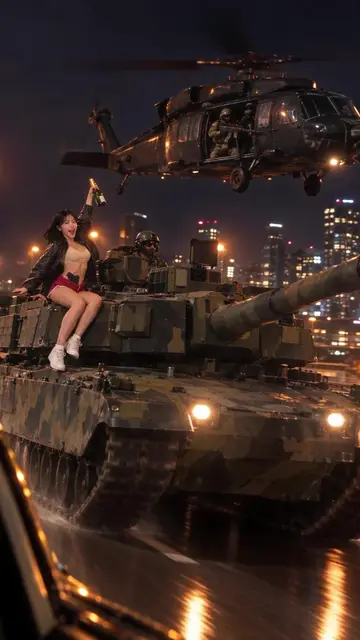
One first frame, then 10 seconds in four beats: pose and toast, drinking, the door-gun shot, and the tank driving off.
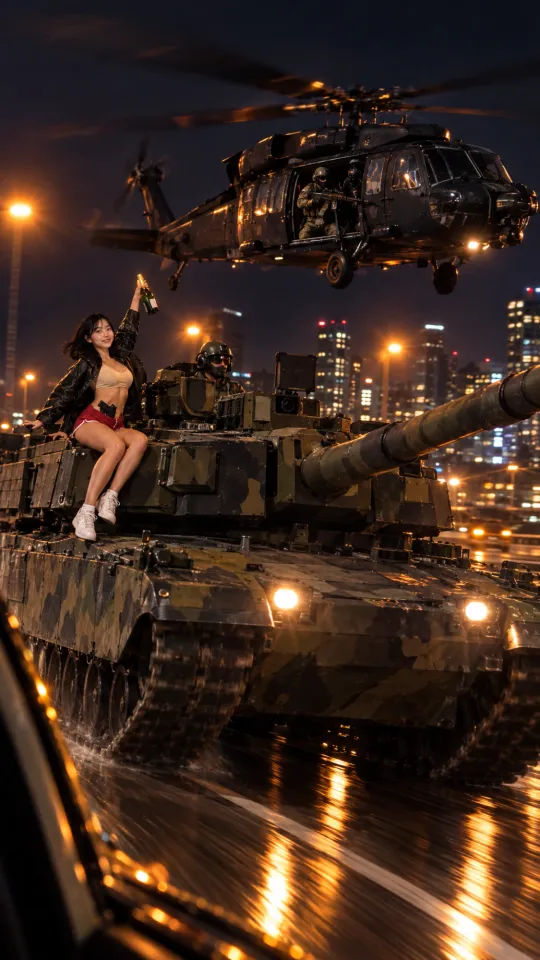
Result First frame (GPT Image 2.5). The person photo and real tank and helicopter photos lock the face and the vehicles' shapes.
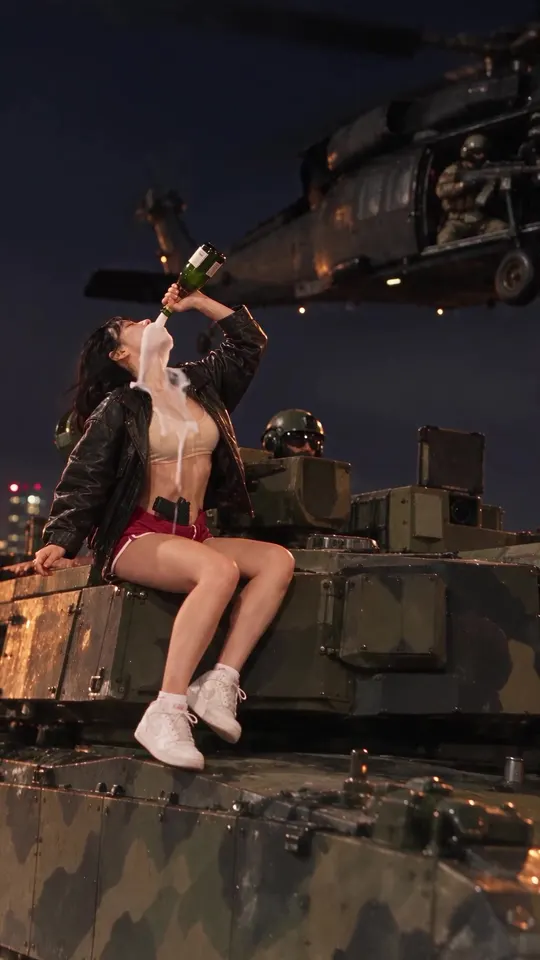
Result 3.5 s. On the tank, drinking the uncorked champagne straight from the bottle.
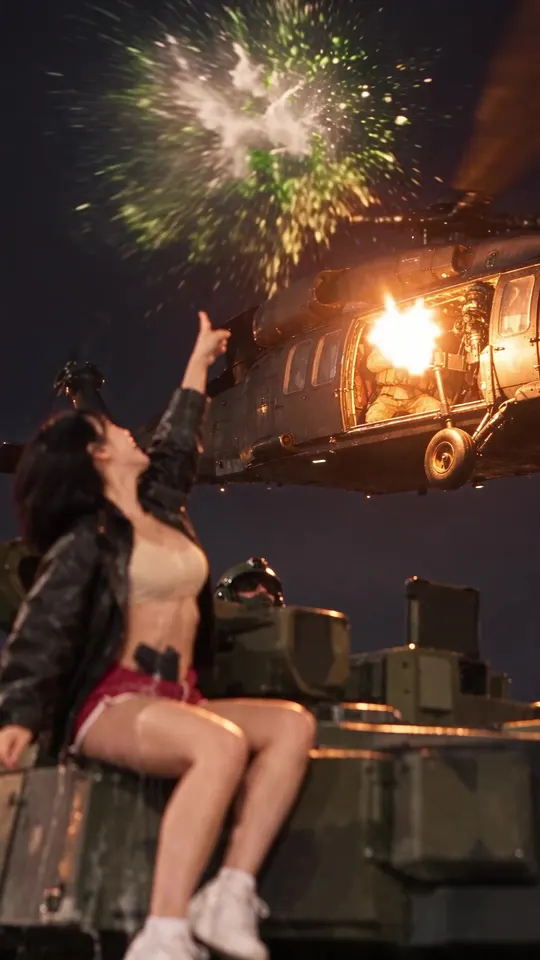
Result 6.3 s. The helicopter's door gun hits the tossed bottle; glass and champagne burst.
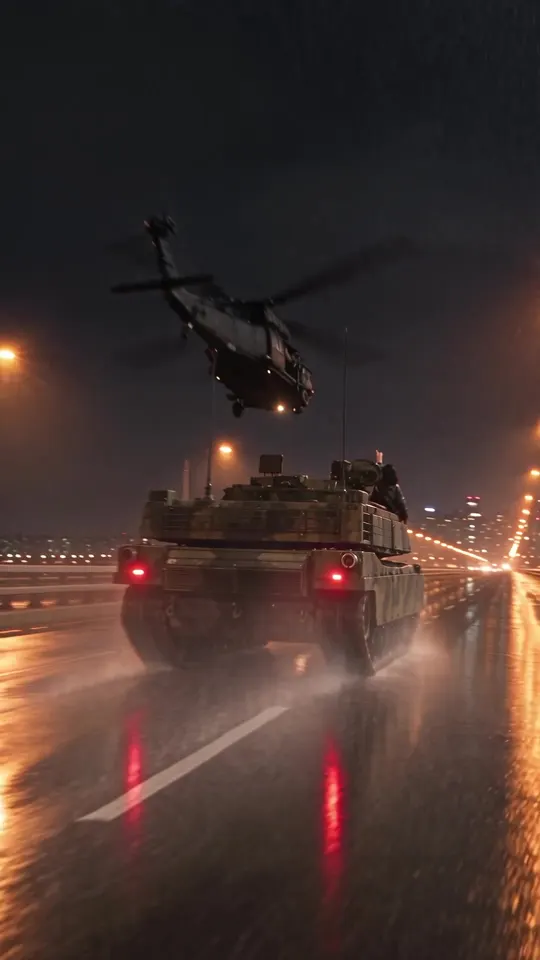
Result 8.6 s. The tank only ever drives forward, pulling away with the helicopter above.
Downloads
The skill file to attach in the AI Agent chat.
What you need
This is all the skill needs. Put it in your project before you ask the agent.
One photo of the person
photoA clear photo of the face or a character sheet. It is attached as a reference every time a first frame or a video is made.
One or two real photos of the vehicle
imageReal photos of the tank, helicopter or boat you want in the shot, to lock its shape, paint and turret or rotor. Add a photo of extra gear such as a door gun if needed. Use photos you have the rights to.
Song (optional)
audioIf you have one, the beats are timed to its drop and it goes on A1 in the editor.
This skill doesn’t copy a source video; it plans a scene from scratch. Your character sits on a tank drinking champagne, the door gun of the helicopter overhead hits the tossed bottle, and the tank charges off down a rainy night highway. It suits social shorts that grab attention by mixing things that don’t belong together, like military hardware and a party. Any ride works: tank, helicopter, armored vehicle, boat, jet ski, supercar or motorbike.
What this skill makes
- A 9:16 vertical clip, 1080p, 10 seconds. No audio is generated; the song is added in the editor.
- The first frame is made with GPT Image 2.5 and the video with Seedance 2.5.
- Logos, numbers and lettering are never generated; they go in as editor text, because generated text breaks easily.
- The result lands in the
05_Finalfolder asYJ_<vehicle>_<character>_<scene>_Final_1080p_vNwith Needs review status. A version you picked or edited is never overwritten; every take is a new file.
How to run it
- Put the person photo, one or two real photos of the vehicle, and the song if you have one in your project.
- In the YouViCo desktop app, open the AI Agent with the AI button in the title bar or Ctrl/Cmd+Shift+A. The AI Agent runs in the Windows and macOS desktop apps.
- Attach the skill file in the AI Agent chat with the paperclip button at the bottom left of the input. If you will reuse it, save it to My skills with Import SKILL.md in the Skills view. What is a skill? explains how skills work with the agent.
- Describe the scene in a line or two.
Use this skill to make a 10-second short: my character on a K2 tank drinks champagne,
the door gun of a helicopter overhead hits the bottle she tosses, and the tank drives off.
The person photo, tank and helicopter photos, and the song are in the project.
What the agent asks first
This skill isn’t for remaking the example; it’s for making your own. Before starting, the agent asks these together and skips anything your request already answers. Say “use the defaults” and it follows the example’s choices.
- Which vehicle? Tank, helicopter, boat, supercar and so on. Do you have real reference photos?
- Which character leads, in what outfit? Default: the project person in the photo’s outfit.
- What happens in the scene? Pose, dance, toast or staged shot, and the ending. With no idea yet, the agent suggests 2–3.
- Background and time of day? Default: a city road at night.
- Is there a song? How long? Default: no song, 10 s.
- Add captions or a logo? Default: none; if yes, as editor text.
What the agent does
| Stage | What the agent does |
|---|---|
| Plan | Splits 10 seconds into 3–4 beats and decides per beat what AI handles (driving, camera moves, shooting) and what the editor handles (captions, logos, numbers, masks). |
| First frame | Makes a GPT Image 2.5 first frame from the person and vehicle photos, zooms in on the face and vehicle to check them, and redoes it here if anything is off. |
| Generate | Attaches the first frame and the person photo and makes a Seedance 2.5 1080p 10-second clip, estimating with the exact arguments it will send and capping at that. |
| Sync | Puts the video on V3 and the song on A1 with the same start and length, and lays versions 12 seconds apart on the timeline to compare. |
| Local fix | Covers small defects in the version you like by editing, without regenerating. |
| Export | Exports the range to 05_Final, captures the start, beat changes, the shot and the ending to check them, and leaves a task comment. |
The heart of this skill: fix in the editor before regenerating
Regenerating gives you a whole new clip: not just the fix, but new speed, vehicle direction and expressions too. So when there is a “v6 is the best” version, the skill fixes it in this order.
- Local fix in the editor (0 credits, the default). Leave the original alone, lay the same clip at the same time on the track above only over the bad stretch, crop the overlay down to the problem area, and blur it, pixelate it or mask it.
- If you ask for a regeneration, attach the favorite version as a motion and speed reference and write “recreate the reference exactly, change only this”. Change one thing. Attaching a reference video raises the estimate (the skill’s example: 593 → 790).
- If the same defect shows up twice, stop editing the prompt and change the method, in this order: trim, dissolve, editor patch, regenerate.
Patching with a still frame is never used: the sky and background shift over time, so a rectangle’s edge shows.
What tends to break, and how to prompt around it
- The vehicle turns. Write movement flatly and list what it must not do, e.g. the tank drives straight forward the whole time; no turning, rotating, spinning, drifting or reversing.
- Gunfire turns shell casings into a string of orange rectangles. If you don’t need them, forbid casings, glowing orange rectangles and anything falling from the door. For the bottle, state only the result: it shatters into glass and liquid.
- It slows down. If speed matters, add “fast, same speed throughout, no slow motion”.
- The face or vehicle shape is off. That can’t be fixed at the video stage; remake the first frame.
The full skill file
Same as the download. You can also copy it into a new file.
---
name: vehicle-stunt-character-clip
description: Use when making a 9:16 social short where the project character (e.g. Yujeong) appears on a ride such as a tank, helicopter, armored vehicle, boat, jet ski, supercar or motorbike. Also for scenes that mix situations, like military hardware + a party. Runs in this order — first frame that locks the character's face → Seedance 2.5 video → sync to the original song → local fixes for defects in the editor → export and review. Example triggers — Yujeong on a K2 tank, shooting champagne from a helicopter, tank charging video, vehicle stunt video, remove the shell casings, the tank is turning, redo it like v2, character on a tank/helicopter, vehicle stunt short, keep the song timing.
---

# Vehicle stunt character video

## When to use
- When newly making or fixing a short vertical video where the character poses, dances, toasts or stages a shot on or beside a ride (military, civilian, water or air).
- Replacing the person of an existing source video as is belongs not to this skill but to dance-character-swap or vehicle-character-swap.
- UI names below are given in English; if the app shows them in another language (for example Korean), find the item with the same meaning. Write replies, comments and reports in the user's language.

## Fixed rules (the user's rules take priority if any)
- Use Seedance 2.5 for video and GPT Image 2.5 for images. Do not use Kling.
- Always keep the character's face. Attach the person photo (e.g. Yujeong.png) as a reference every time.
- Never change a status to Approved. Leave results in Needs review.
- Never overwrite the user's edit or a version the user picked. Always make a new version file.
- Do not generate logos, numbers or lettering; add them as editor text.

## Folder structure
Under a folder named after the vehicle, keep these subfolders.
- 01_Input: original song, reference video
- 02_FirstFrame
- 04_AIGenerated
- 05_Final

Keep real reference photos of the vehicle (e.g. K2 1.png, Blackhawk 3.jpg) directly in the vehicle folder.

## Ask the user before starting
The point of this skill is not to remake the example but to make the user's own video. Before starting, ask the questions below together, in one message.
- Skip anything the request already answers.
- If the user says "you decide" or "use the defaults", go with the defaults in parentheses.
- If the user seems to have no idea yet, briefly suggest 2–3 options that differ from the example.
- Once answered, show a one-line summary of what was decided, then start.

1. Which vehicle? Tank, helicopter, boat, supercar and so on. Do you have real reference photos?
2. Which character leads, in what outfit? (default: the project person in the photo's outfit)
3. What happens in the scene? Pose, dance, toast or staged shot, and the ending. With no idea yet, the agent suggests 2–3.
4. Background and time of day? (default: a city road at night)
5. Is there a song? How long? (default: no song, 10 s)
6. Add captions or a logo? (default: none; if yes, as editor text)

## 1. Planning: split the scene into "states" and "movements"
- For 10 seconds, split into 3–4 beats. Example:
  - 0–2 s: character pose
  - 2–5 s: helicopter appears, bottle toss
  - 5–8 s: shot destroys the bottle
  - 8–10 s: tank charging ending
- Decide who handles each beat.
  - AI handles: vehicle driving, camera moves, big motions like shooting
  - The editor handles: captions, logos, exact numbers, local masking
- If there is an original song, set beat times to its rhythm (the drop).

## 2. First frame (GPT Image 2.5)
- Attach as references:
  - 1 person photo
  - 1–2 real photos of the vehicle (to lock its shape, paint and turret)
  - if needed, photos of extra gear (e.g. a minigun door gun)
- Put in the prompt:
  - 9:16 vertical, cinematic live action
  - character position (e.g. standing on the tank turret)
  - vehicle direction (e.g. driving straight toward the camera)
  - background, time of day, lighting
  - "same face as reference"
- Zoom in and capture the face and the vehicle shape to check them. If something is off, remake at the first-frame stage. It will not be fixed at the video stage.

## 3. Video generation (Seedance 2.5)
- Enter configs explicitly every time: `{resolution:"1080p", durationSeconds:10, aspectRatio:"9:16", generateAudio:false}`
  - Sound off; lay the original song in the editor.
- Attach as references: first frame + person photo (+ the "favorite version video" from the regeneration rules below)
- Get the estimate with exactly the arguments you will send. Attaching a reference video raises the estimate (e.g. 593 → 790). Use the estimate as maxCredits.
- Write vehicle movement flatly, and list forbidden movements separately.
  - e.g. "The tank drives straight forward the entire time; no turning, rotating, spinning, drifting or reversing."
- Cautions when adding gunfire:
  - Shell casings, sparks and falling objects easily break into a string of orange rectangles.
  - If not needed, write: "absolutely NO shell casings, no glowing orange rectangles, nothing falling from the door"
  - For destroying a target (a bottle etc.), state only the result briefly, like "shatters into glass and liquid".
- If speed matters, add "fast, same speed throughout, no slow motion".

## 4. Regeneration rules (most important)
- Regenerating produces a whole new video. It is normal for things other than the fix (speed, vehicle rotation, expressions) to change.
- When the user says "vN is the best", handle it in this order.
  1. **Local fix by editing (0 credits, default)**
     - Leave the vN original as is.
     - Overlay the same time of vN on the track above, only over the problem stretch.
     - Crop the overlay clip (px) to leave only the problem area.
     - Apply an effect (blur 50–70, mosaic) or a cover mask.
  2. **If the user explicitly asks to regenerate**, attach the vN video as a motion and speed reference.
     - Prompt: "Recreate the reference video exactly (same shots, camera, speed, timing). ONLY CHANGE: …"
     - Write only one thing to change.
  3. If the same defect appears twice, stop editing the prompt. Change the method (trim → dissolve → editor patch → regenerate, in that order).
- Do not patch by covering with a still-frame image. Sky and background colors shift over time, so a rectangle's edge shows. Cover with the same moment of video.

## 5. Editing and sync
- Lay versions on the edit timeline 12 seconds apart to compare (e.g. 120·132·144 s…). Check the next free slot with get_timeline_layout.
- Put the video on V3 and the original song on A1 with the same start and the same length (frame-accurate, e.g. 10.0333 s).
- Keep local patch layers on the track directly above the original, with length only over the patched stretch.

## 6. Export and review
- export_draft range is the start–end of that stretch (e.g. 182–192.0333).
  - Name: `YJ_<vehicle>_<character>_<scene>_Final_1080p_vN`
  - Folder: 05_Final
- Confirm UPLOADED with get_project_file. Leave the status at Needs review.
- Leave a task comment: model, references, prompt essentials, the one thing changed, original fileId, moments for a person to check.
- Frame checks:
  - Open the editor fresh and wait 30 seconds.
  - Check in the order seek_editor → get_app_screen → canvas capture.
  - Moments to check: start, beat changes, the shooting stretch, ending.
- In this app, inspect_app_media fails to decode the mp4 codec. capture_app_screen locks for that run after 5 consecutive failures, so after 2 failures wait or reopen the editor.
- If you could not capture, write the moments and items you could not check in the report and the comment. Never say you checked them.

## 7. Checklist
- [ ] Does the character's face match the person photo?
- [ ] Does the vehicle's shape match the reference (turret, wheels, number of rotors)?
- [ ] Are the vehicle's direction and speed consistent from start to end (no turning, reversing or slow motion)?
- [ ] Do the shooting and destruction land on the beat, with no breakage such as shell casings or orange rectangles?
- [ ] Do the main actions match the original song's beat?
- [ ] Is everything that must not change from the previous version unchanged?

## 8. Report format
1. Result (file name, folder)
2. How and at which moments it was checked
3. What a person should check
4. Credits (estimate and actual charge kept separate)
Tips before you run it
- Use yourself, someone who agreed, or a fictional character. The lead in the example is a fictional character from the project.
- Check the rights to the vehicle photos and the song. Photos of military hardware are often press or agency photos; make sure you may use them, and the same goes for the song.
- It is a staged scene. It is an AI-made scene with real military equipment, a firearm and alcohol, so check the policies of the platform you post to.
- Unchecked moments are reported as such. If screen capture fails, the agent lists the moments and items it could not check in its report and comment, and never claims it checked them. Watch the face and listen to the sync yourself.
FAQ
Do I need a source video?
No. This skill plans the scene from the first frame. To replace the person in an existing social clip, use Dance character swap, or Motorcycle champagne shot to reshoot an original’s flow.
Does it work with vehicles other than tanks?
Yes. Helicopters, armored vehicles, boats, jet skis, supercars and motorbikes all follow the same steps; just attach real photos of that vehicle.
How many credits does it use?
The agent estimates with the exact arguments it will send and uses that as the cap. Regenerating with a reference video raises the estimate; local fixes in the editor cost nothing.
Run this skill in YouViCo
Upload a photo to your project, open the AI Agent, attach the skill file in the chat, and ask it to make the video.