
What is a skill? How YouViCo's AI Agent follows your playbook
A skill is a set of work instructions YouViCo's AI Agent follows. When it loads one, the four stages it runs, and how to write your own and share it with your team.
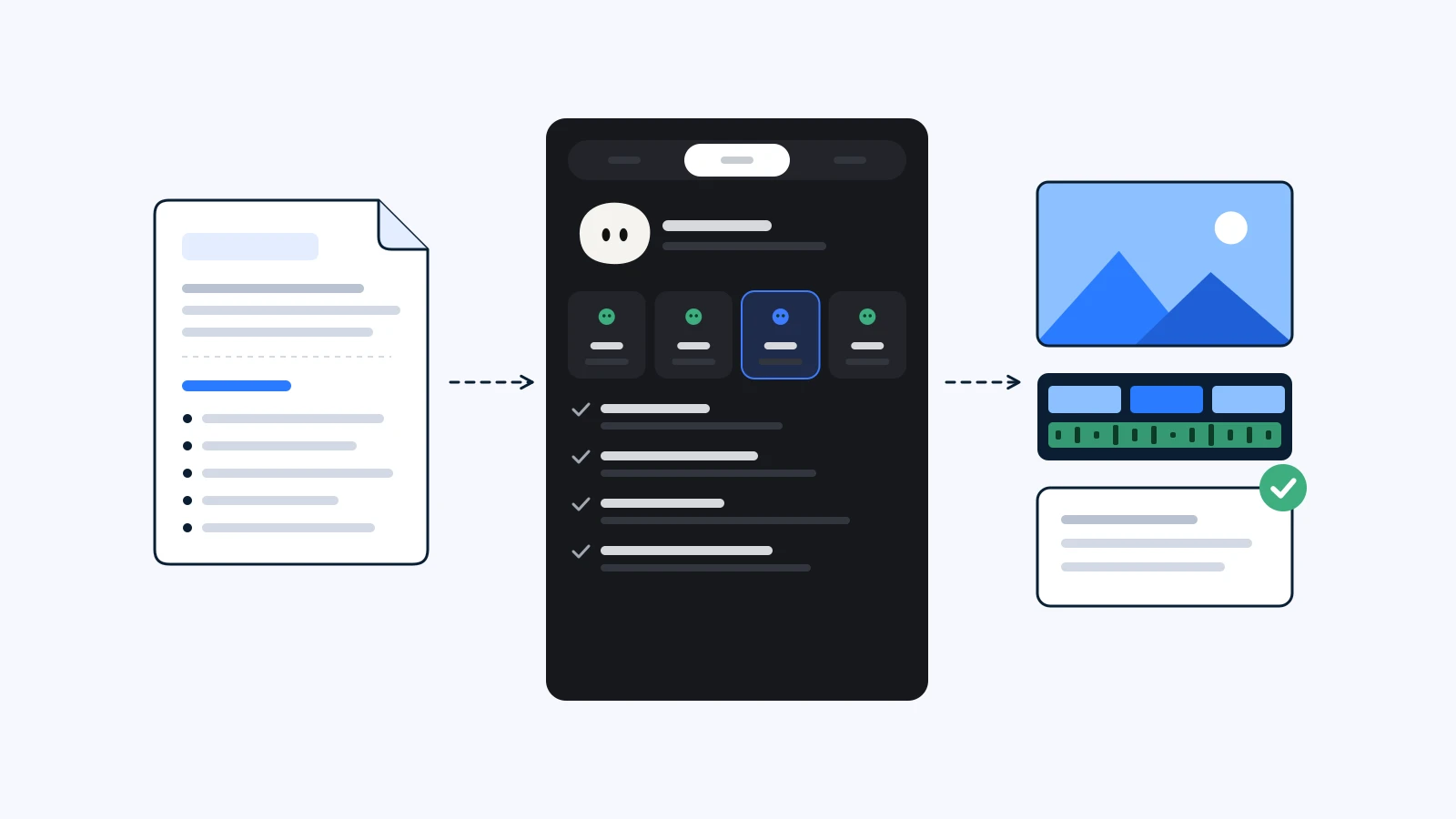
A skill is a set of work instructions that YouViCo’s AI Agent follows. The agent reads the when-to-use line of each active skill, loads the ones that match your request, and works through plan, explore, run, and review before leaving the result in your project. Save a way of working that went well as a skill, and next time a one-line request gets the same quality of work.
At a glance
- Skill = name + when to use + instructions. “When to use” is how the agent decides to pick it; the instructions are the steps it follows.
- Three ways in. The agent loads a skill on its own when the when-to-use line matches, you pick one from the / menu, or you attach a SKILL.md file in the chat.
- Four stages. Plan, explore, run, review. The Tasks tab shows which one is running.
- Skills never widen permissions. Deleting, share links, payment, and sign-in always come back to you, whatever the skill says.
- The AI Agent lives in the YouViCo desktop app. Open it from the AI button in the title bar of the Windows or macOS app, or with Ctrl/Cmd+Shift+A.
The agent panel’s interface is in Korean today. Labels below are given in English with the Korean label in parentheses where it helps.
Prompts versus skills
A prompt says what to make in one go. It fits work that one generation finishes: one image, one clip.
A skill says in what order to make it and what to check along the way: which file to make first, what to compare each result against, what goes where on the editor timeline, and how to fix the usual failures. Use one when you hand the agent a job that takes several generations, edits, an export, and a check.
| Prompt | Skill | |
|---|---|---|
| Holds | A description of the output | Steps, checks, and what to do on failure |
| Runs in | New file ▸ AI | The AI Agent (desktop app) |
| Does | One generation | Generate, edit, organize, export, and check |
| Reuse | Paste it again | Saved once, loaded whenever a request matches |
What a skill is made of
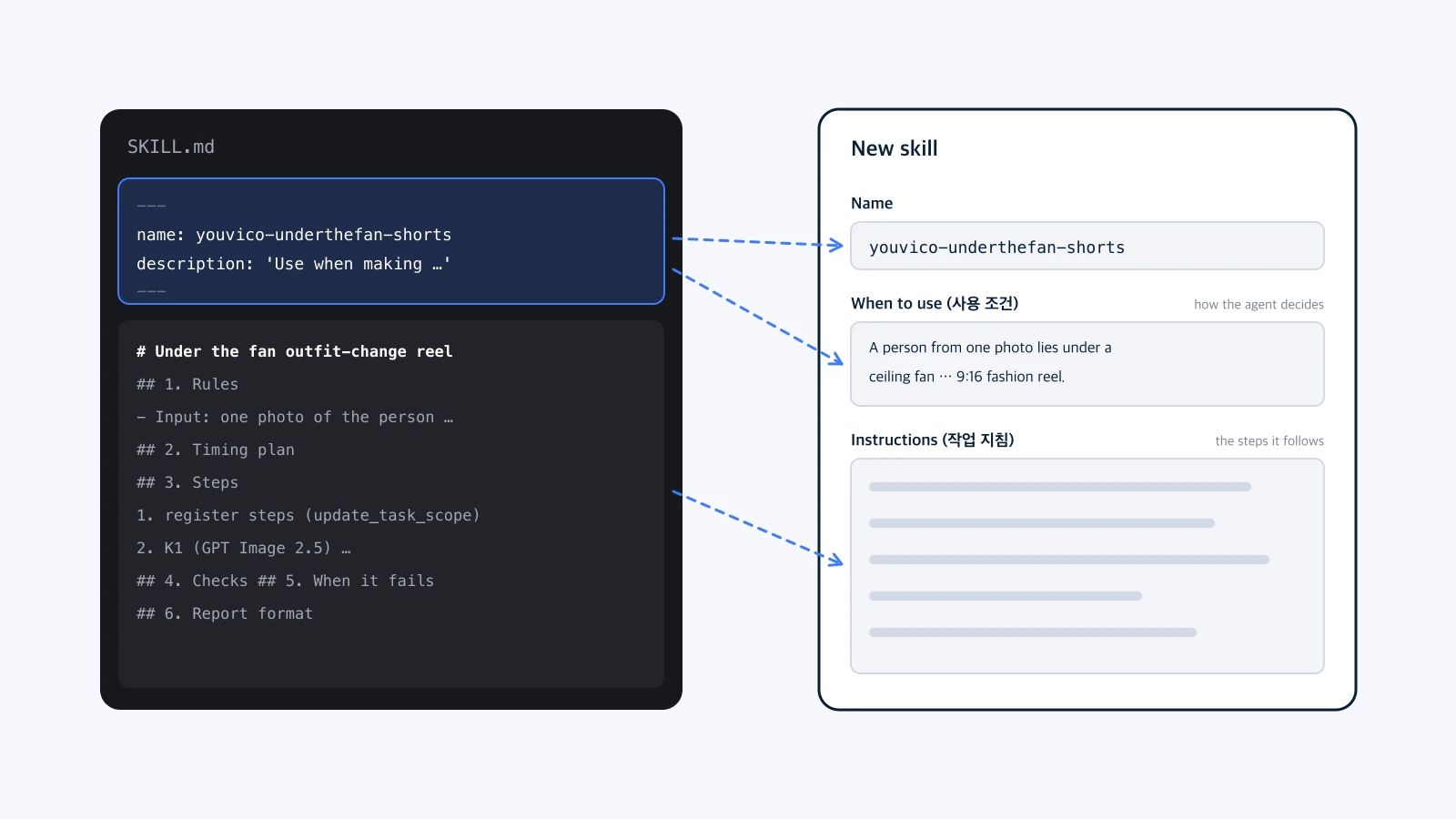
A new skill in the Skills view has three fields.
- Name (이름). How it appears in the / menu and the list.
- When to use (사용 조건). The description the agent uses to decide when to load it. The more specifically it says which requests and which outputs it is for, the more reliably it gets picked.
- Instructions (작업 지침). The steps and rules the agent follows: stages, checks, what to do when something fails, and the report format.
A SKILL.md file holds the same thing. In the front matter, name becomes the name and description becomes the when-to-use line; the body below becomes the instructions. Import SKILL.md (SKILL.md 가져오기) in the Skills view opens the form with all three filled in.
How the agent picks up a skill
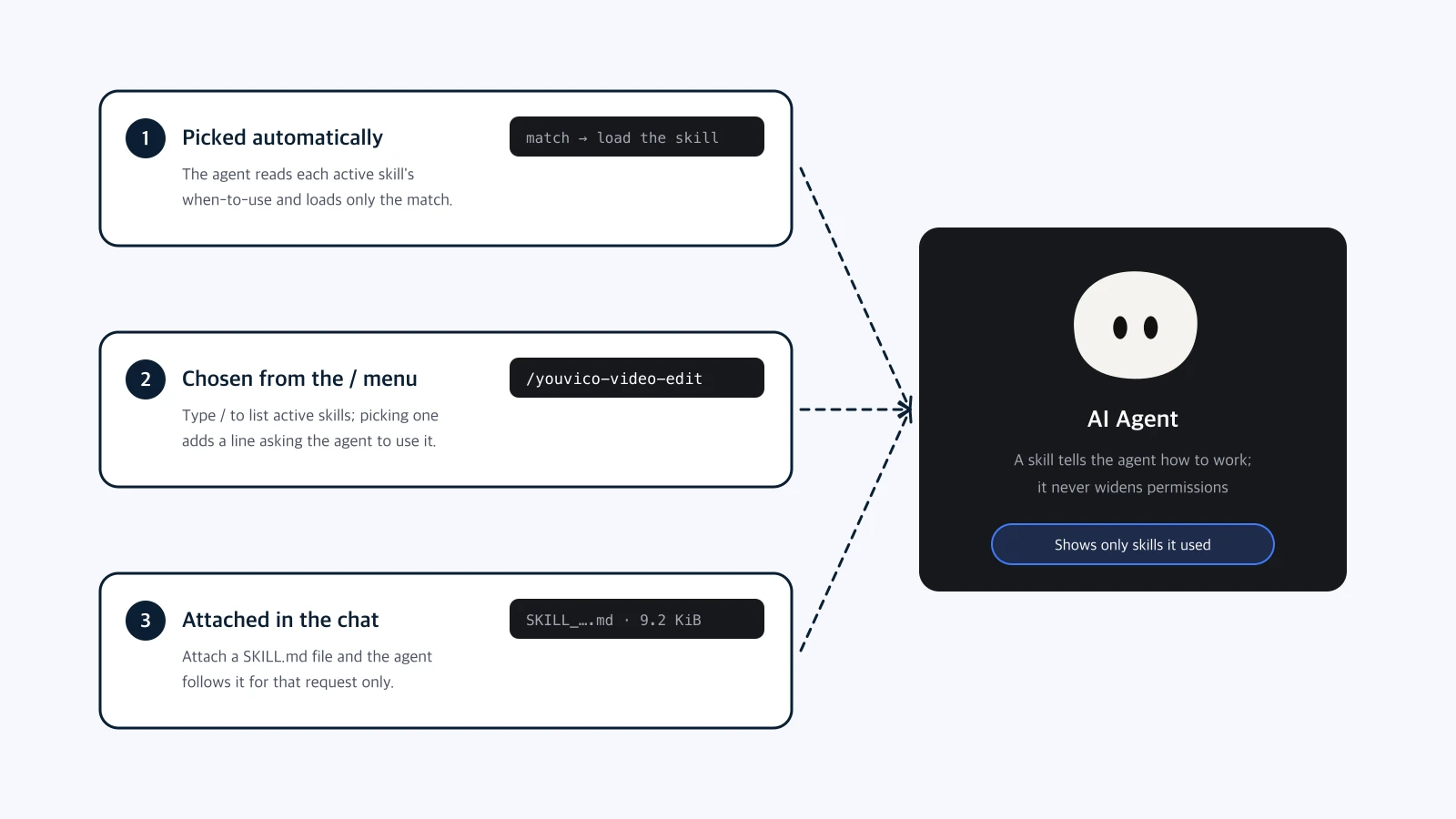
- Picked automatically. With every request, the agent first looks at the names and when-to-use lines of your active skills. If one matches what you asked, it reads that skill’s instructions; skills that don’t match are never read. It matches on meaning, so the language doesn’t have to be the same.
- Chosen from the / menu. Type / in the message box to list your active skills as /skill-name. Picking one adds a line asking the agent to load it for the next task. Use this when you want that exact skill.
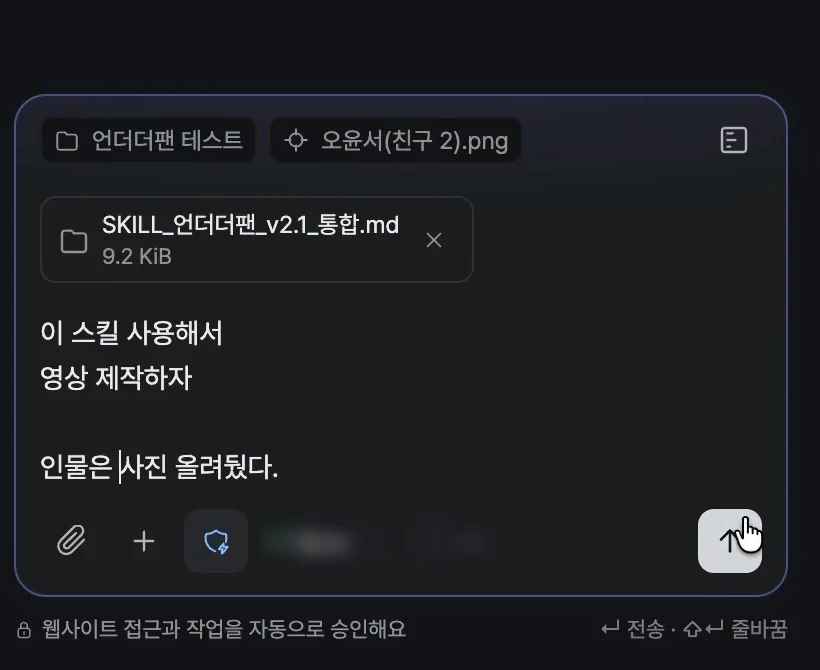
- Attached in the chat. Attach a SKILL.md file in the chat and the agent reads and follows it for that request. It is the quickest way to try a skill, with nothing to install. Attaching does not save it to your skills, so for one you will use often, save it with Import SKILL.md.
When a run finishes, it lists only the skills it actually used. Skills that were on but never loaded don’t show up.
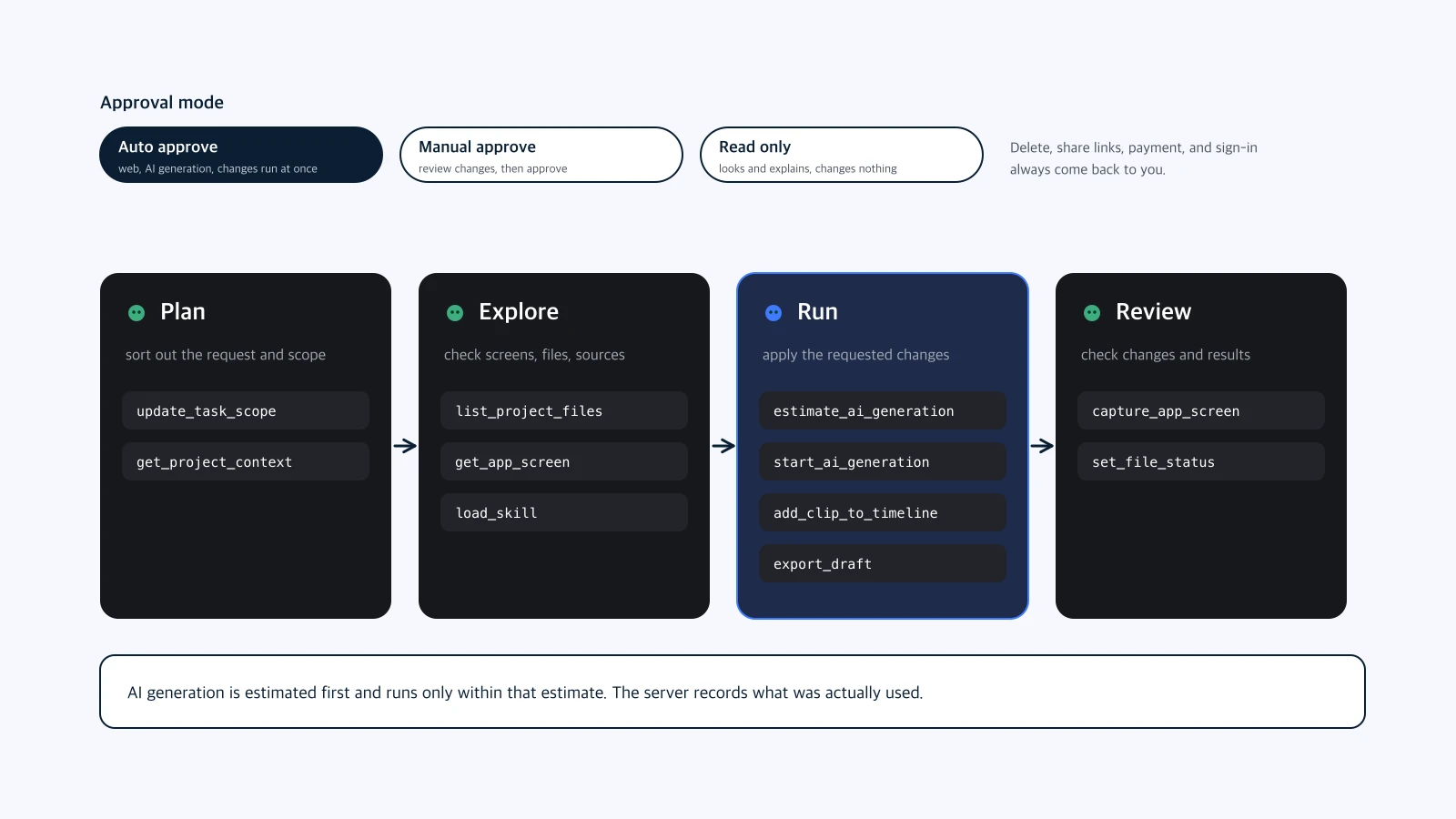
How a run flows
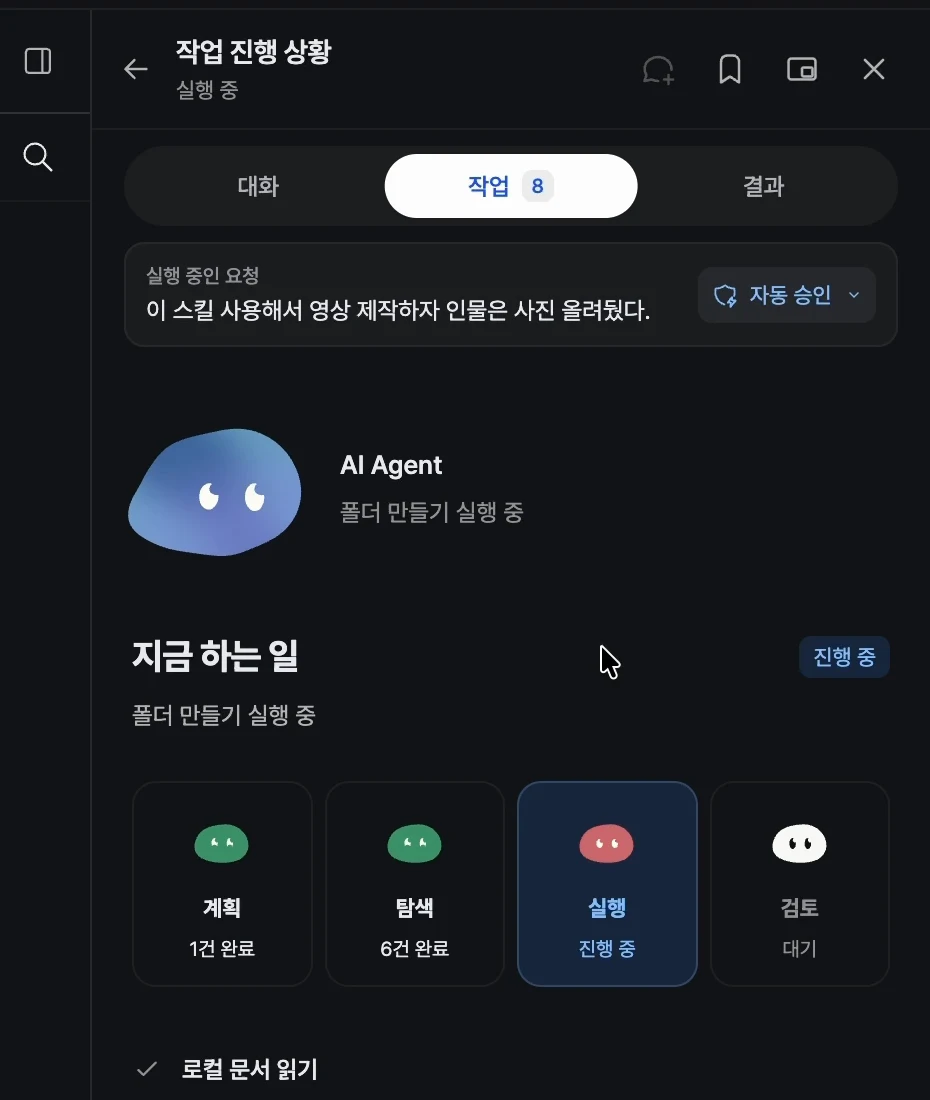
The agent panel has three tabs: Conversation (대화), Tasks (작업), and Results (결과). After you send a request, the Tasks tab moves through four stages.
| Stage | What happens | For example |
|---|---|---|
| Plan (계획) | Sort out the request and scope | Register the skill’s steps as a task list |
| Explore (탐색) | Check screens, files, and sources | Find project files, look at the current screen, load the skill |
| Run (실행) | Apply the requested changes | AI generation, folder cleanup, timeline edits, export |
| Review (검토) | Check the changes and results | Capture the screen to compare, set the file status to review |
The agent works inside YouViCo itself: projects and files, the video editor timeline, AI generation, reading and replying to feedback, and the app’s screens. A skill decides in what order it uses those tools.
There are three approval modes.
- Auto approve (자동 승인): website access, AI generation, and changes run right away.
- Manual approve (수동 승인): you review the changes, then approve.
- Read only (읽기 전용): it looks and explains, and changes nothing.
In every mode, deleting, share links, payment, and sign-in or permission changes come back to you for confirmation, even if a skill says otherwise. A skill tells the agent how to work; it never widens what the agent may do.
AI generation stays within the estimate. Before generating, the agent asks for a credit estimate with exactly the same settings and won’t run anything that goes over it. The actual usage comes from the server’s records. Generation uses workspace credits and needs a plan that includes AI generation, Standard or higher.
Built-in skills
The desktop app ships with skills made by YouViCo. They are always available, and the agent loads them when a request matches.
| Skill | What it does |
|---|---|
| youvico-image-prompt | Image generation and prompts, including references, layout, and lettering |
| youvico-video-prompt | Video generation prompts, first and last frames, reference videos |
| youvico-3d-generation | Generating and checking 3D assets |
| youvico-video-edit | Timeline placement, trims, captions, transitions, keyframes, export |
| youvico-image-edit | Pages, layers, text styles, and composition in the image editor |
| youvico-feedback-revision | Read comments and drawings, revise as a new version, reply |
| youvico-web-research | Research the web and import official media |
| youvico-project-ops | Organize folders, rename and move files |
| youvico-production-pipeline | Plan, generate, edit, export, and check in one run |
| youvico-quality-check | Check exported images, videos, and documents against the brief |
| youvico-skill-builder | Turn repeated work into a skill, or improve an existing one |
Writing your own and sharing it
The Skills view has two tabs: My skills (내 스킬) and Browse skills (스킬 찾아보기).
- Write one. In My skills, click New skill and fill in the name, when to use, and instructions.
- Import a file. Use Import SKILL.md to bring in a skill file, such as the ones in this blog’s Skills section.
- Ask the agent. After a job goes well, say “save what you just did as a skill” and the agent writes it up. When you repeat the same work, it may offer to save it first.
- Share with your team. Workspace skills are stored on the server with versions, and teammates can add them from Browse skills. The workspace’s shared skills load automatically. Server skills need the Standard plan or higher; built-in skills and skills saved locally on your device work on every plan.
Skills in My skills can be turned on and off, and a skill you turn on applies from your next request.
Tips for a good skill
- Make “when to use” specific. “When removing gaps between cuts and adding captions to a 9:16 short” works better than “video editing” and keeps the skill out of unrelated requests.
- Write checks the agent can run. A rule like “head and feet stay within 3% of the canvas height across shots” gives steadier results.
- Say what to do when it fails. List the usual problems and their fixes so the agent doesn’t repeat them.
- Fix the report format. Say what it should tell you at the end, and the Results tab comes out the same way every time.
The first public skill, Under the fan outfit change, follows this structure: one photo in, and the agent makes the keyframes, clips, fan rotation, transitions, music, and export.
FAQ
Can I use the AI Agent in a web browser?
No. The AI Agent runs in the YouViCo desktop app for Windows and macOS. Open it from the AI button in the title bar or with Ctrl/Cmd+Shift+A.
What do I need to connect?
For its reasoning, the agent uses your own ChatGPT or Claude account; there is no API key to enter. When it generates images or video, it uses your workspace credits.
Can a skill delete or share my files without asking?
No. Deleting, share links, payment, and sign-in or permission changes always need your confirmation, in every approval mode. A skill only tells the agent how to work.
Does attaching a skill file in the chat save it?
It is read as instructions for that request only. To keep using it, save it to My skills with Import SKILL.md.
What if several skills match?
The agent reads only the skills it needs, based on their when-to-use lines. Your request and your project rules come before skills, so if your request says otherwise, the agent follows the request.