
Ramp run · Iron Man landing skill: your character runs the road a car once drove, then lands
A skill that keeps a source video's camera path and timing but swaps the car for your character, who runs down a curved elevated ramp, flies off the end and lands like Iron Man in a 9:16 video.
- Runs in
- YouViCo AI Agent · attach the skill file in chat
- Difficulty
- Intermediate
- Time
- 5 min prep + agent run time (one generation)
Results
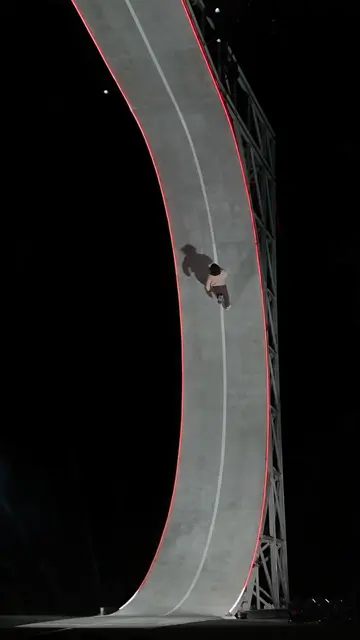
The camera path and timing follow the source; only the runner changed from a car to a person.
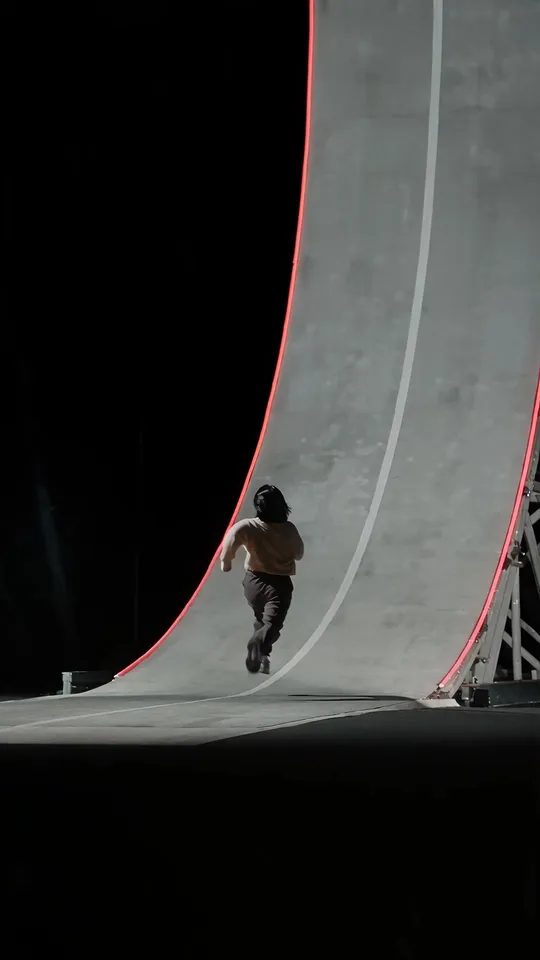
Result 0.8 s. Starting at the foot of the ramp, following the source's road shape and red light lines.
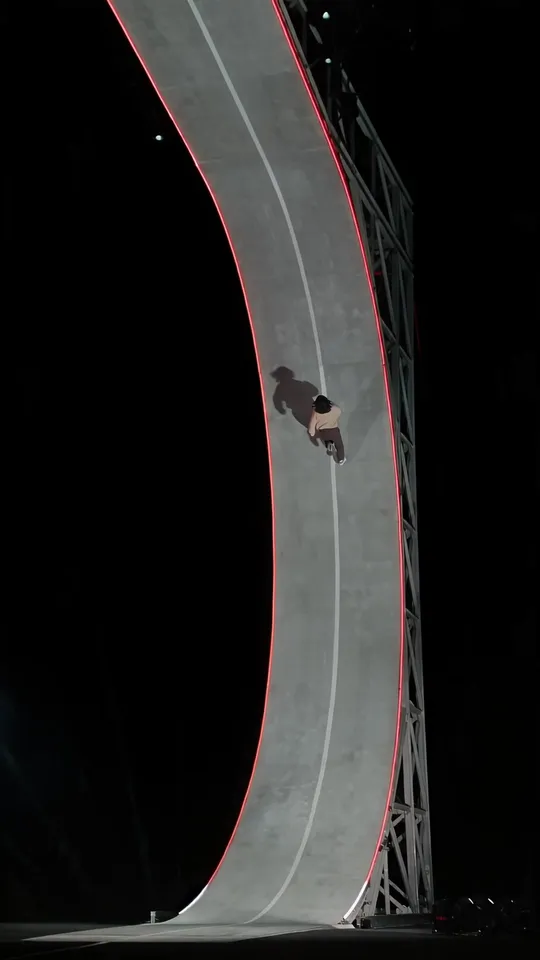
Result 4.5 s. Sprinting down the curved elevated ramp. The top-down camera flow matches the source too.
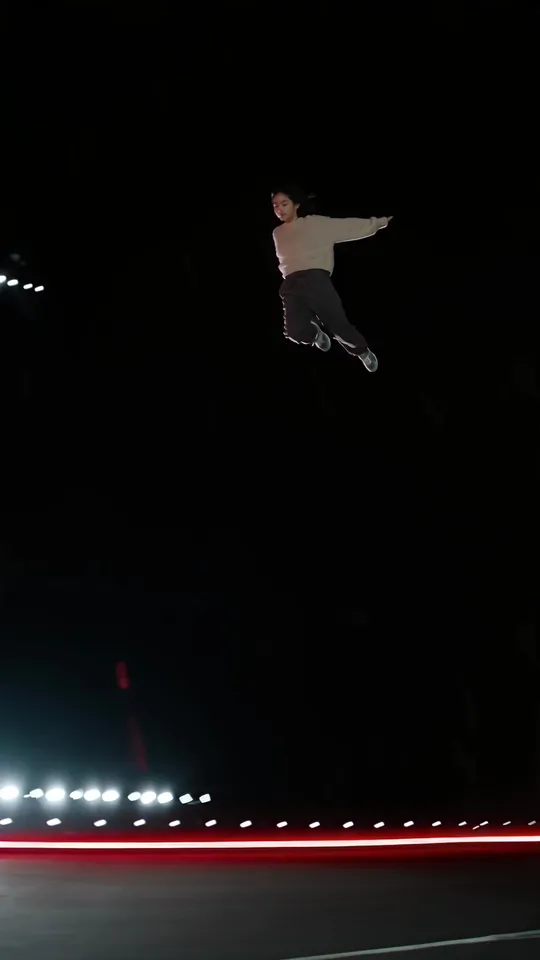
Result 9.4 s. The leap off the end of the ramp. This fast range gets checked in the editor every 0.25 s.
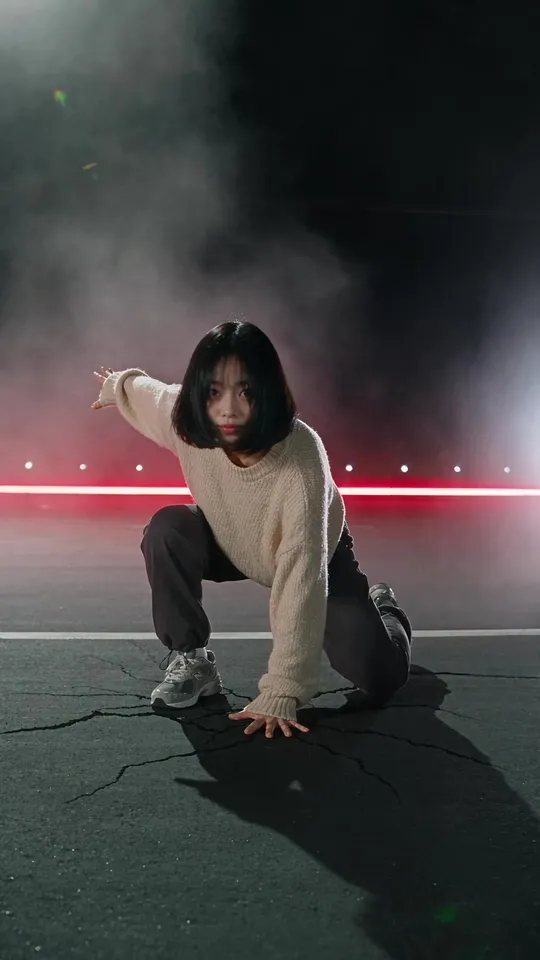
Result 13.5 s. The Iron Man landing with one knee and one hand on the ground, cracks and dust bursting out.
Downloads
The skill file to attach in the AI Agent chat.
- Ramp run · Iron Man landing skill fileMD · 4 KB · A Markdown file you can attach to the AI agent chat as is.Download
 Ramp run video for use as a source (result, 9:16)MP4 · 13.2 MB · The original file of the result above (1080×1920, 14 s). If you have no source to follow, use this video as the reference and make your own character run it.Download
What you need
This is all the skill needs. Put it in your project before you ask the agent.
One source video to follow
videoThe video whose camera path and jump-and-landing timing you want to follow. A 4–30 second range is cut out and used as the reference. The source video above works too.

photoPerson sheet
A sheet showing the runner's face and outfit. The example used this sheet of a person in a knit sweater.
This skill makes a person perform a source video’s motion. The example source was a car coming down a curved elevated ramp, flying off and landing. The skill keeps the camera path, road shape and jump-and-landing timing, and puts a person where the car was, so they run down themselves and land like Iron Man.
One generation is enough. Cut out only the range you want to follow, attach it with the person sheet, and generate with Seedance 2.5. The trade-off is that fast ranges like the landing get a careful look at 0.25-second steps.
What this skill makes
- A 9:16, 1080p video as long as the source range. The example is 14 seconds.
- The person runs, flies and lands along the source’s camera flow and road shape.
- Sound is generated too.
- The result lands in the same folder as the source with a needs-review status, and a production note comment is left at 0 s.
How to run it
- Upload the source video to follow and a person sheet to your project. If you have no source, use the source video downloaded above.
- In the YouViCo desktop app, click the AI button in the title bar or press Ctrl/Cmd+Shift+A to open the AI agent. The AI agent is available in the Windows and macOS desktop apps.
- Attach the skill file in the AI agent chat with the paperclip button at the bottom left of the input box. If you’ll use it often, save it to your skills with Import SKILL.md on the Skills screen. How skills work with the agent is covered in What is a skill?.
- Send a line or two about what you want. The agent asks first about anything missing.
Use this skill to make my character run down the ramp and land, like the source video.
Follow the source's 0–14 s range and end with an Iron Man landing.
What the agent asks first
This skill isn’t for remaking the example; it’s for making your own. Before starting, the agent asks these together and skips anything your request already answers. Say “use the defaults” and it follows the example’s choices.
- Which source video, and which range of it?
- Who runs? Point to the person sheet.
- What outfit? Default: the person sheet’s outfit as is.
- What ending move? E.g. sliding to a stop, waving after landing Default: Iron Man landing.
- Keep the background and lighting as in the source? Default: yes.
- Budget? Default: show the estimate first, then proceed.
What the agent does
| Step | What the agent does |
|---|---|
| Prep | Checks the face and outfit on the person sheet, then cuts only the range to follow out of the source and exports it as a reference video. |
| Estimate | Gets an estimate with the same settings first and sets that value as the credit cap. The example was about 992 credits for 14 s at 1080p. |
| Generate | Makes it in one go with Seedance 2.5, using the cut source range and the person sheet as references. |
| Review | Looks at the start, run, leap, landing and end, and captures the fast landing range in the editor every 0.25 s to check hands, limbs and landing pose. |
| Partial fix | If a defect is in one range only, replaces just that range with a first-frame image and a short video instead of remaking everything. |
| Wrap-up | Leaves the model, references, settings, times checked, ranges not seen and actual credits charged in a comment at 0 s, then reports. |
Tips for making a person run instead of a car
- Attach only the range you need. Seedance 2.5 accepts 4–30 second reference videos. Keeping only the motion to follow makes the camera path and timing follow accurately.
- Write the prompt as “what stays, and what changes”. Camera path, road shape, lighting and timing stay. Only the car becomes the person from the sheet.
- Describe the landing pose concretely. One knee and a fist on the ground, head down, then slowly looking up, plus ground cracks and dust. That’s what makes it read as an Iron Man landing.
- Check fast ranges every 0.25 s. The project player can’t jump to a chosen time, so the result goes into the editor and gets captured while moving the playhead. Limb counts and hand shapes tend to break in ranges like this.
The full skill file
Same content as the download. You can also copy it and save it as a new file.
---
name: ramp-run-landing
description: "Use when making a 9:16 video with Seedance 2.5 that keeps the camera path and timing of a source video (e.g. a car coming down a curved elevated ramp, flying and landing) but has the project person (e.g. Yujeong) run it herself instead of the car and land like Iron Man. Example triggers: make Yujeong run and land like this video, ramp run video, Iron Man landing, a person running instead of the car, follow the source's motion, make my character run down the ramp and do a superhero landing like the reference video."
---

# Ramp run · Iron Man landing video

When to use: only when making a new video where a person performs the source video's motion (camera path, road shape, jump and landing timing). For story reels, use the design-delivery-reel skill. Answer and report in the user's language. UI names below are given in English; if the app shows them in another language (for example Korean), find the item with the same meaning.

## Ask the user before starting
The point of this skill is not to remake the example but to make the user's own video. Before starting, ask the questions below together, in one message.
- Skip anything the request already answers.
- If the user says "you decide" or "use the defaults", go with the defaults in parentheses.
- If the user seems to have no idea yet, briefly suggest 2–3 options that differ from the example.
- Once answered, show a one-line summary of what was decided, then start.

1. Which source video, and which range of it?
2. Who runs? Point to the person sheet.
3. What outfit? (default: the person sheet's outfit as is)
4. What ending move? E.g. sliding to a stop, waving after landing (default: Iron Man landing)
5. Keep the background and lighting as in the source? (default: yes)
6. Budget? (default: show the estimate first, then proceed)

## 1. Prep
- Find the person sheet (e.g. Yujeong.png) and check the face and outfit with `get_project_file(includeImage=true)`.
- Open the source video and pick the range to follow (e.g. 0–14 s, coming down the ramp, flying and landing).
- Cut just that range out of the source as a reference video.
  - Put the source in a video edit and cut it with `trim_clip`.
  - Export it with `export_draft`. Name example: `source_0-14s_reference.mp4`, in the same folder as the source.
  - Seedance 2.5 accepts reference videos of 4–30 seconds.

## 2. Generate
- Model: Seedance 2.5
- References (attachmentIds): [the cut source range, the person sheet]
- configs: `resolution 1080p`, `durationSeconds` = source range length (e.g. 14), `aspectRatio 9:16`, `generateAudio true`
- Prompt skeleton (English):
  - Follow the exact camera path, road shape, lighting and timing of the reference video.
  - Replace the car with the woman from the character sheet, running at high speed down the curved elevated ramp.
  - At the end of the ramp she leaps into the air and lands in an Iron Man superhero landing: one knee and one fist on the ground, head down, then slowly looks up.
  - Ground cracks and dust burst on impact.
  - Keep her face, hair and outfit identical to the character sheet.
  - One continuous shot with no cuts. No text, no logo, no extra people.
- Cost: about 992 credits for 14 s at 1080p. Before starting, run `estimate_ai_generation` with the same arguments and use that value as `maxCredits`.
- Result name example: `Yujeong_ramp-run_iron-man-landing_v1.mp4`. Keep it in the same folder as the source and set its status to needs review.

## 3. Review
- Look at the start, mid-run, the leap, the landing and the end (for 14 s: 0, 4, 8, 10, 12, 14 s).
- For fast-moving ranges like the landing (about 9.5–11 s), put the result in the editor and capture the canvas every 0.25 s with `seek_editor`. The project player can't jump to a chosen time.
- What to check:
  - Face and outfit match the person sheet
  - Number of arms and legs, and hand shapes
  - Landing pose (one knee and a fist touching the ground)
  - Road shape and camera flow match the source
  - No lettering or logos appeared on screen
- If a defect is in one range only, don't remake the whole thing. Make a first-frame image for that range, then replace it with a short video (the same method as design-delivery-reel §4).

## 4. Wrap-up
- Leave a production note comment at 0 s. Include: model, reference files, settings, prompt gist, times checked, ranges not checked frame by frame, actual credits charged.
- Report: file name and folder / times checked / ranges not seen directly / credits (billedCredits from `get_ai_generation_status`).
Tips before you run it
- Check the rights to the source video. Ads, broadcasts and other creators’ videos belong to their makers. Even when you only use the motion as a reference, check the rights before public or commercial use. That’s why the example source isn’t on this blog; the result is shared as a source instead.
- Only use yourself, people who agreed, or virtual characters. The person in the example is also a virtual character from the project.
- Get the estimate first. Credits vary a lot with length and resolution. The agent sets the estimate as the cap before generating.
- If only one range looks wrong, fix only that range. It’s far cheaper than remaking everything. The method is the same as the partial regeneration in the design delivery reel skill.
FAQ
Can the source show something other than a car?
Yes. Videos of bikes, boards or another person running can be followed the same way. Just change the “Replace the car” part of the prompt to match your source.
Can I use a different ending instead of the landing?
Yes. The agent asks about the ending move before starting. Say what you want, like sliding to a stop or waving after landing.
How do I make a reel with a story?
For comic reels with several scenes in a row, use the design delivery reel skill. This skill is built for single-shot videos that follow a source’s motion.
Run this skill in YouViCo
Upload a photo to your project, open the AI Agent, attach the skill file in the chat, and ask it to make the video.