
Design delivery reel skill: a 20-second comic story with your character and a real car, remaking only the broken shot
A skill that makes a 20-second 9:16 comic reel with your character and a real car model (change request → flying dispatch → print delivery) and exports it with captions. When text breaks in one shot, it remakes only that range for about 29 credits instead of regenerating everything.
- Runs in
- YouViCo AI Agent · attach the skill file in chat
- Difficulty
- Intermediate
- Time
- 10 min prep + agent run time (one generation, plus two short ones for a fix)
Results
A 20-second reel of five beats. Only the phone screen in the first shot was swapped in with a partial regeneration; the rest is the first generation as is. The on-screen captions in these frames are Korean.
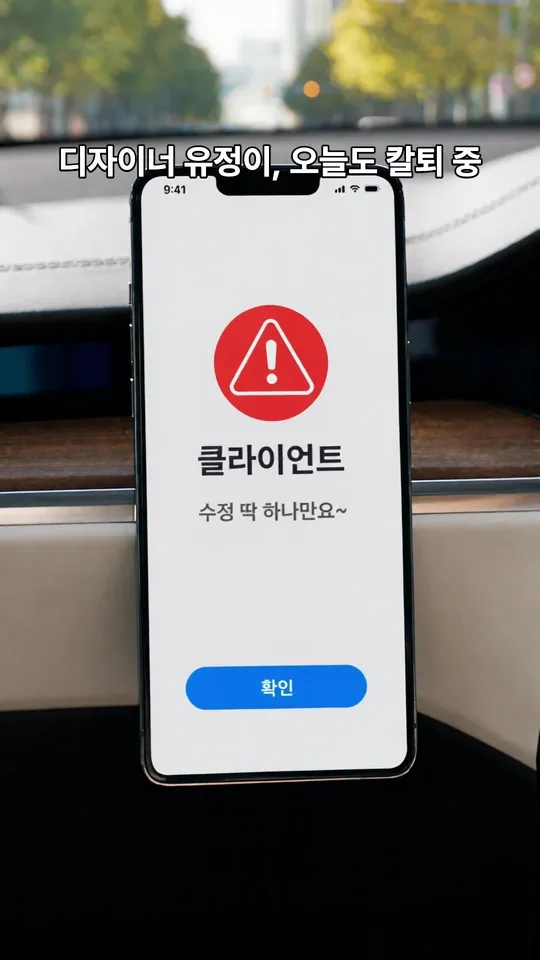
Result 1.8 s. The change request arrives on the phone. The text first came out garbled, so only this 1.2-second range was remade from a first-frame image and a 3-second video.
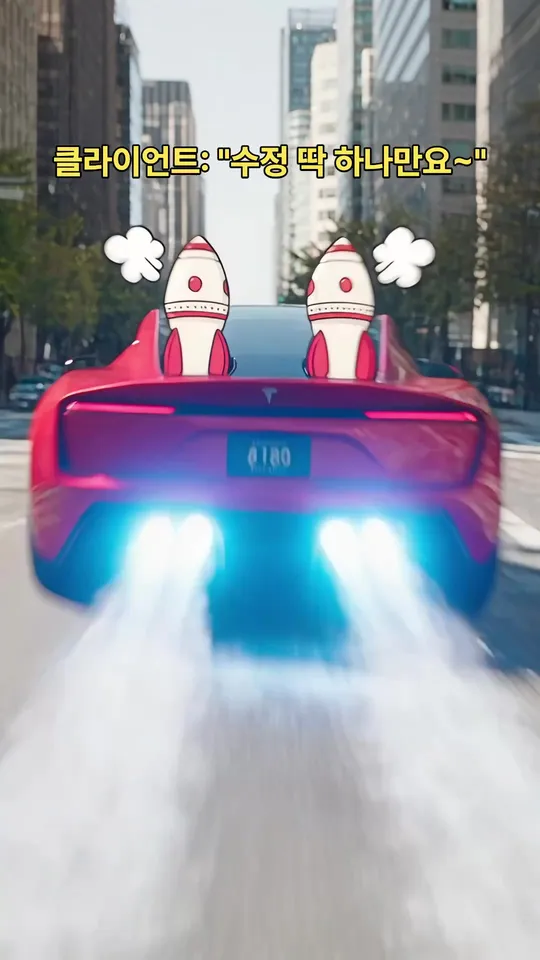
Result 5.6 s. Rockets pop up on the roof and the car flies off. The car model matches because a real photo was attached as a reference.
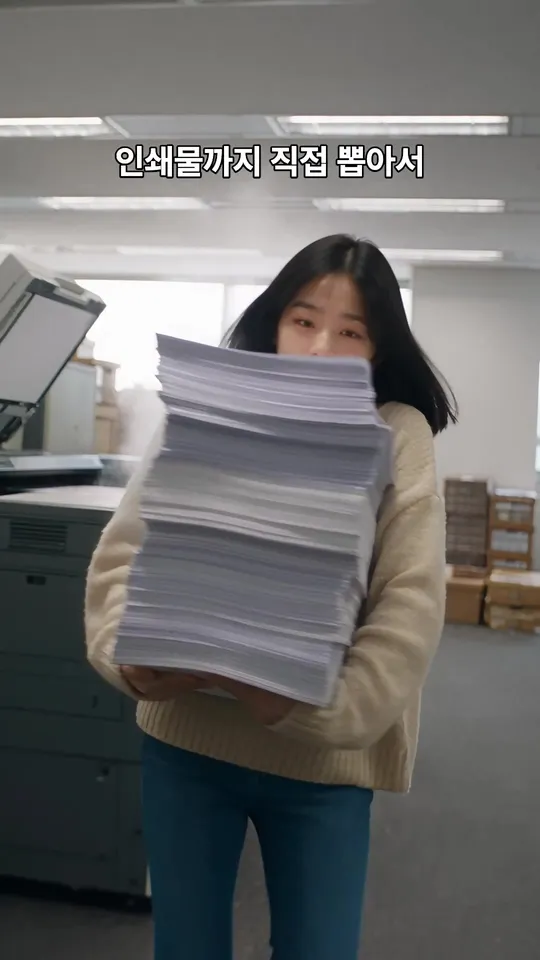
Result 10.5 s. Racing with an armful of prints. A caption sits on track V2 for each beat.
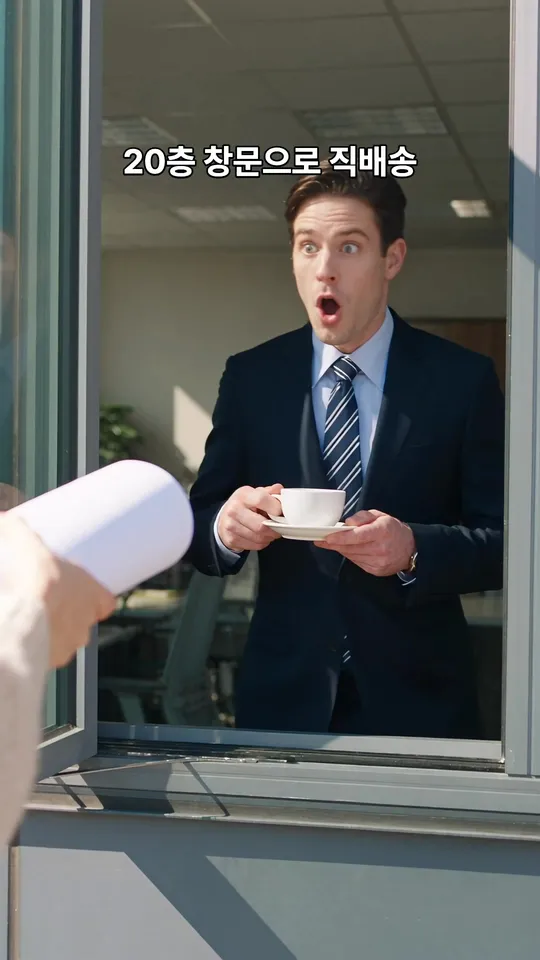
Result 14.6 s. Direct delivery to the 20th floor. The client's stunned face is the punchline of this beat.
Downloads
The skill file to attach in the AI Agent chat.
- Design delivery reel skill fileMD · 9 KB · A Markdown file you can attach to the AI agent chat as is.Download
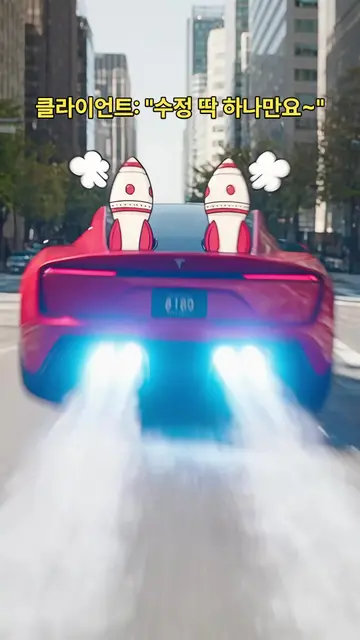 Design delivery reel for use as a source (Final_v3, 9:16)MP4 · 15.0 MB · The original file of the result above (1080×1920, 20 s, with Korean captions). Use it to practice partial regeneration or as a reference when remaking it with your own character.Download
What you need
This is all the skill needs. Put it in your project before you ask the agent.
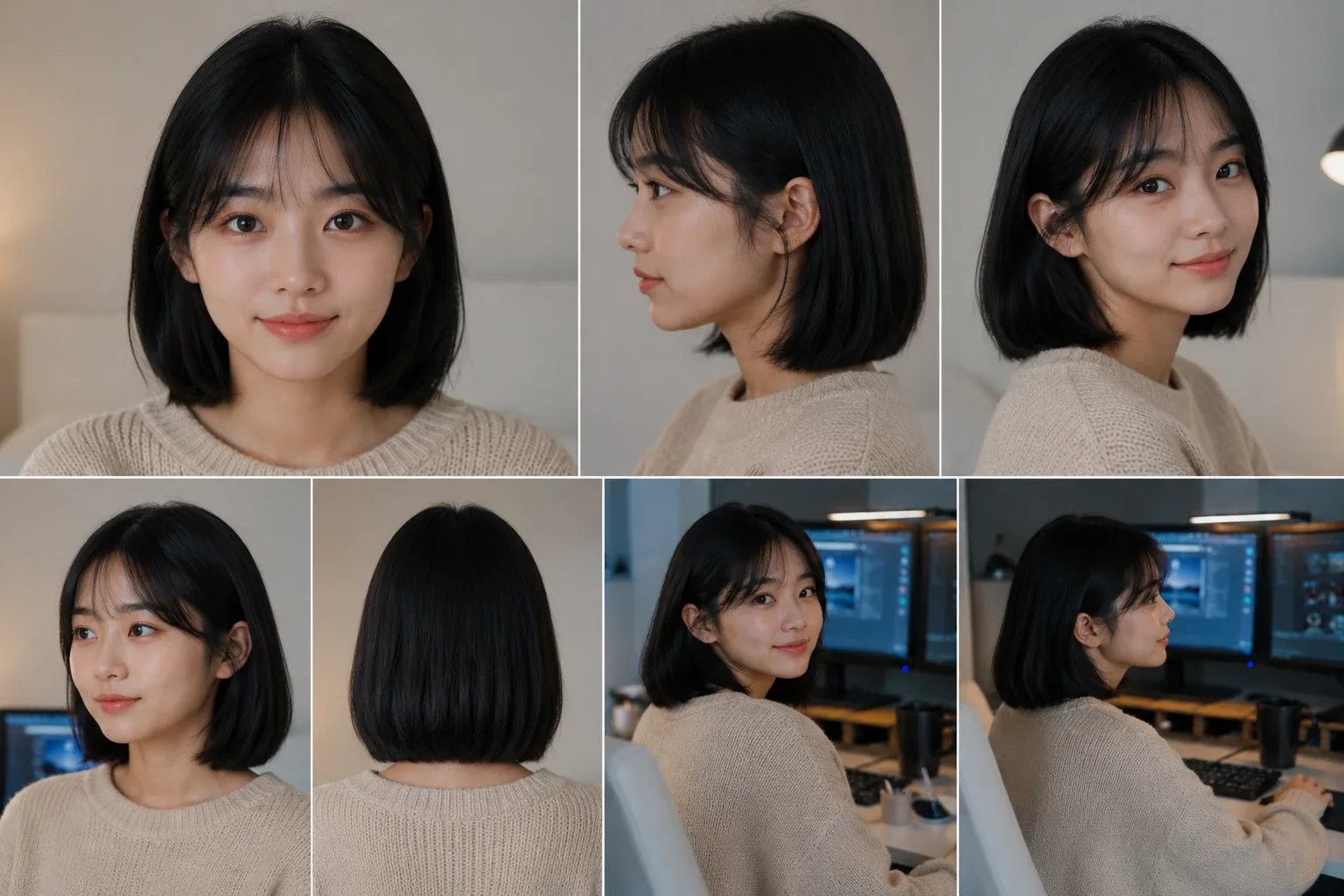
photoPerson sheet
A sheet showing the lead's face and outfit. Tell the agent details like their job in the chat. The example used this sheet of a character set up as a designer.
Real photo of the vehicle
photo_bA specific car model needs a real photo. Text alone gives a different car. If you have none, the agent finds a CC-licensed photo and adds it with its source.
This skill makes a short comic story reel with your character and a real car. In the example, designer Yujeong gets a “just one tiny change” message on the way home, launches her car like a rocket and delivers the prints all the way to a 20th-floor window, in 20 seconds. Generation happens in one go with Seedance 2.5, and captions go on per beat in the editor.
The most useful part of this skill is applying feedback. When the text on the phone screen in the first shot broke, remaking all 20 seconds would have cost about 1,186 credits. The skill remade only that 1.2-second range from a first-frame image and a 3-second video, swapped it in, and finished for about 29 credits.
What this skill makes
- A 9:16, 1080p comic reel of about 20 seconds in 5–6 beats. Sound is generated too.
- A Final file with a caption on each beat. Only the last caption is highlighted in yellow, on two lines.
- When feedback comes in, a new version like
_Final_v2or_Final_v3with only the problem range remade. The previous version is set to closed, and the original feedback comment gets a reply.
How to run it
- Upload a person sheet to your project. For a specific car model, upload a real photo of that car too.
- In the YouViCo desktop app, click the AI button in the title bar or press Ctrl/Cmd+Shift+A to open the AI agent. The AI agent is available in the Windows and macOS desktop apps.
- Attach the skill file in the AI agent chat with the paperclip button at the bottom left of the input box. If you’ll use it often, save it to your skills with Import SKILL.md on the Skills screen. How skills work with the agent is covered in What is a skill?.
- Send a line or two about what you want. The agent asks first about anything missing.
Use this skill to make a 20-second comic reel starring my character.
She's a designer who flies off in her car to deliver her work.
To apply feedback, ask like this.
The text on the phone screen in the Final file is garbled. Remake only that shot and splice it back in.What the agent asks first
This skill isn’t for remaking the example; it’s for making your own. Before starting, the agent asks these together and skips anything your request already answers. Say “use the defaults” and it follows the example’s choices.
- Who is the lead, and what are their details, like a job?
- Which vehicle? Do you have a real reference photo? Default: if not, find and use a CC-licensed photo.
- What story? A flow of 5–6 beats. With no idea yet, the agent suggests 2–3.
- Any text visible on screen (phone, sign, document)? What exact wording? Default: screens with no text.
- Captions in which language and tone? Default: one line per beat in the user’s language.
- Length and budget? Default: 20 s, show the estimate first.
What the agent does
| Step | What the agent does |
|---|---|
| Prep | Checks the person sheet. With no real photo of the car, finds a CC-licensed one on Wikimedia Commons and puts the license and author in the file name. |
| Storyboard | Splits the story into 5–6 beats and fixes the wording of any shot where text shows, like a phone, sign or document. |
| Generate | Makes all 20 seconds in one go with Seedance 2.5, with the person sheet and car photo as references. Gets the estimate first and sets it as the cap. |
| Edit → Final | Puts the clip in a new edit, adds a caption per beat, exports, and leaves a production note comment at 0 s. |
| Partial regeneration | Finds the problem shot’s boundary frames, then remakes it as clean source frame → GPT Image 2.5 first frame → Kling 3.0 3-second video and drops it in the same spot on V1. |
| Version cleanup | Exports the new version, sets the previous one to closed, and replies to the original feedback comment with the range changed, the method and the cost. |
Why the car model and the text get settled first
- Point to the car with a photo. On the first try the prompt just said Tesla Roadster, and a Ferrari came out. Only after attaching a real photo as the second reference and pointing to “the exact car shown in the second reference photo” did the right car appear.
- Decide on-screen text in advance. For shots where text shows, like a phone, sign or document, write the exact wording or make a screen with no text at all. It still breaks easily, so the safest way is to make that shot’s first-frame image first, check it letter by letter, then turn it into video.
Swapping in only the broken shot
This is what was actually done in the example. The text on the phone screen in the first shot was garbled.
| Order | What was done | Cost |
|---|---|---|
| Find the cut | Captured while moving the playhead in the editor and found the problem shot at 1.3–2.5 s (frames 39–75 at 30 fps) | 0 |
| Save source frame | Hid the caption tracks and added the 1.9 s frame to the project with Save current frame | 0 |
| First-frame image | GPT Image 2.5 rewrote only the screen text exactly, keeping the same phone, hand and framing | about 3 |
| Short video | Kling 3.0, locked camera, 3 seconds, no sound | about 26 |
| Replace | Split the V1 source clip at the range edges, deleted the middle and put the new clip in the same spot; sound untouched | 0 |
It was fixed for about 29 credits instead of a full 20-second regeneration (about 1,186 credits). Put the new clip in the same spot on V1, not on V3, where it would cover the V2 captions.
The full skill file
Same content as the download. You can also copy it and save it as a new file.
---
name: design-delivery-reel
description: "Use when making a ~20-second 9:16 comic story reel with Seedance 2.5 starring the project person (e.g. designer Yujeong) and a real car model (e.g. Tesla Roadster), built from beats like change request → flying dispatch → print delivery; adding captions and exporting a Final; and handling feedback like garbled text by regenerating only the broken range into v2 or v3. Example triggers: make a Yujeong reel, design delivery, funny reel flying in a Tesla, 20-second reel, remake only the part where the text broke, regenerate just that part and splice it in, funny story reel with my character and a car, fix only the broken part."
---

# Design delivery story reel (generate → captions → partial regeneration)

When to use: only when making a comic short with several beats starring a person and a vehicle, or when applying feedback on a reel made that way. For work that follows a source video's motion, use the ramp-run-landing skill. Answer and report in the user's language. UI names below are given in English; if the app shows them in another language (for example Korean), find the item with the same meaning.

## Ask the user before starting
The point of this skill is not to remake the example but to make the user's own video. Before starting, ask the questions below together, in one message.
- Skip anything the request already answers.
- If the user says "you decide" or "use the defaults", go with the defaults in parentheses.
- If the user seems to have no idea yet, briefly suggest 2–3 options that differ from the example.
- Once answered, show a one-line summary of what was decided, then start.

1. Who is the lead, and what are their details, like a job?
2. Which vehicle? Do you have a real reference photo? (default: if not, find and use a CC-licensed photo)
3. What story? A flow of 5–6 beats. With no idea yet, the agent suggests 2–3.
4. Any text visible on screen (phone, sign, document)? What exact wording? (default: screens with no text)
5. Captions in which language and tone? (default: one line per beat in the user's language)
6. Length and budget? (default: 20 s, show the estimate first)

## 0. Prep
- Check the person sheet with `includeImage=true`. Use character details like their job only if confirmed in the conversation or memory (e.g. Yujeong is a designer).
- **For a specific car model, always attach a real photo as a reference.** Text alone gives a different car (in v1 a Ferrari actually came out instead of the Tesla).
  - If the project has no photo, find a CC-licensed photo on Wikimedia Commons and bring it into the asset folder with `import_web_asset`.
  - Put the license and author in the file name. Example: `TeslaRoadster_reference_CC-BY_Jurvetson.jpg`

## 1. Storyboard (5–6 beats)
Example:
1. Driving home from work
2. Gets a "Just one tiny change~" request on the phone
3. The car flies off like a rocket
4. Races with the prints in hand
5. Delivers them through a high-rise window
6. Ends by leaving into the sky

**Decide in advance any shot where text is visible (phone, signs, documents) (project rule).**
- Write the screen content and the exact wording in the prompt. Example: phone screen shows only "Client" and "Just one tiny change~" with a blue "OK" button, nothing else. Use the user's own wording and language for these strings.
- Or make it a screen with no text (blank glowing screen, no readable text).
- The safest way is to make that shot's first-frame image separately first, check the text, then turn it into video (§4 steps 3–4).

## 2. Generate
- Model: Seedance 2.5
- References: [person sheet, car photo]
- configs: `1080p`, `durationSeconds 20`, `aspectRatio 9:16`, `generateAudio true`
- Prompt:
  - Write the beats in time order (first…, then…, finally…).
  - Point to the car through the reference photo, like "the exact car shown in the second reference photo (same body shape, color, headlights)".
  - Keep face and outfit, comic tone, and end with No logo.
- Cost: about 1,186 credits for 20 s. Get the estimate first and use that value as `maxCredits`.
- Check times: 0, 3, 7, 11, 14, 18, 20 s. Look at the car model, face, beat order and text.
- For a failed attempt, add the reason to the end of its name like `_try1_rejected(wrong-car)`, change its status to rejected and leave the reason in a comment.

## 3. Edit → Final
- Make a new video edit and put the clip on V1. Its sound links to A1 (`add_clip_to_timeline`).
- Put captions on V2 per beat with `add_text_clip`, leaving 0.1 s between captions. Style (`set_text_style`):
  - pretendard, weight 700, 68px, x 0.5, y 0.17, centered
  - outline #000000, width 0.12, text color white
  - only the last caption at 76px, y 0.2, color #FFE14D, two lines
- Export with `export_draft`. Name example: `Yujeong_design-delivery_reel_20s_Final.mp4`. Keep it in the same folder as the source and set its status to needs review.
- Leave a production note comment at 0 s. Include: model, references, beat structure, caption list, times checked, license source, credits.

## 4. Feedback: a problem in one range → regenerate only that range (the Final_v3 method)
Don't remake the whole thing. A 20 s regeneration is about 1,186 credits; a partial one is about 29 credits.
1. **Find the cut boundaries**: move through the editor with `seek_editor`, capture the canvas and find the problem cut's first and last frames. Example: frame 39 at 1.3 s – frame 75 at 2.5 s (30 fps).
2. **Save a clean source frame**
   - Hide the V2·V3 caption tracks and move to the middle of the cut (e.g. 1.9 s).
   - Save it with `Export → Save current frame → Add to project`.
   - Move the saved file to the asset folder. Name example: `phone-cut_source-frame_1.9s_reference.png`
   - Unhide the tracks again.
3. **Remake the first-frame image**
   - Model: GPT Image 2.5, with the one source frame as the reference (about 3 credits)
   - Prompt: "Use the attached reference frame as the base: keep exactly the same smartphone, hand, framing and lighting. Update ONLY the content of the phone screen: '9:41' / 'Client' / 'Just one tiny change~' / 'OK' button. Nothing else on the screen, no gibberish, text spelled exactly as given, no extra text. Save as PNG." Replace the quoted strings with the user's own wording and language.
   - Compare the result letter by letter. If it's wrong, write the wording more clearly and remake it only once.
4. **Turn it into a short video**
   - Model: Kling 3.0, first frame = the image above
   - configs: `1080p`, `3 s`, `9:16`, `generateAudio false` (about 26 credits)
   - Prompt: "Cinematic live-action footage, perfectly locked static camera, subtle natural motion only. The phone screen content stays perfectly still. No new text appears. One continuous shot with no cuts. First frame:"
5. **Replace**
   - Split the V1 source clip at the start and end of the problem range with `split_clip(includeLinked=false)`. Leave the A1 sound running as is.
   - Delete the middle piece.
   - Add the new clip, fit it to the range length (e.g. 1.2 s) with `trim_clip`, then place it with `move_clips` **in the same spot on V1**. On V3 it would cover the V2 captions.
6. **Check**
   - Use `get_timeline_layout` to confirm V1 is in the order [source | new cut | source].
   - Capture the new cut's start, middle and end, and the boundary frames before and after it.
7. **Wrap-up**
   - Export with a bumped version like `_Final_v3` and set its status to needs review.
   - Comment "replaced by v3" on the previous version and change it to closed.
   - Reply to the original feedback comment (range changed, method, cost, where to check). Look up the commentId first with `list_feedback`.
   - Leave a production note comment on the new version. Set the reference frame image to closed.
- Only when it must be hidden urgently, cover it with a white text card. If the user wants regeneration, follow 1–7 above.

## 5. Review tips and traps
- The project player can't jump to a chosen time. Capturing during playback only catches every 2–3 seconds, so a 1-second range gets missed. For short ranges, `seek_editor` in the editor and capture with the canvas ref. The capture can update one beat late, so retake it if in doubt.
- A newly uploaded file blocks capture for about 30 seconds until conversion finishes.
- Report any range of the exported file you didn't see directly as "needs a person to play and check".
- If you get the "The user operated the work screen" error, query again with `get_app_screen` and then continue.

## 6. Report
File name and folder / times checked / ranges not seen directly / actual credits charged (this task and cumulative) / rules to apply next time.
Tips before you run it
- Car models and logos are third-party trademarks. If you use a video with a real branded car like the Tesla in the example for ads or commercial purposes, check trademark use. That’s also why the prompt says No logo.
- Follow the license terms of CC photos. CC BY photos require crediting the author. The agent puts the license and author in the file name and lists the source in the production note comment.
- Only use yourself, people who agreed, or virtual characters. The person in the example is a virtual character from the project, and details like a job are used only when the user gives them.
- Cover it if it’s urgent, remake it if you have time. If it has to be hidden right away, a white text card can cover it, but partial regeneration gives a better result.
FAQ
Does it work with vehicles other than cars?
Yes. Any vehicle with a real photo, like a motorbike, bicycle or helicopter, can be pointed to the same way. The agent asks about the vehicle and reference photo before starting.
Can I change the captions to another language?
Yes. Captions are editor text, so just change the wording and export again without regenerating. Text inside the picture (like the phone screen) is part of the generated image, so changing it means a partial regeneration of that shot.
What if I want to follow a source video’s motion?
Use the ramp run · Iron Man landing skill. It’s built for single-shot videos that keep the source’s camera path and timing and change only the lead.
Run this skill in YouViCo
Upload a photo to your project, open the AI Agent, attach the skill file in the chat, and ask it to make the video.