
AI dance challenge: your dog does Soyeon's “I'm Quitting” dance
Swap the dancer, room, and onlookers in Soyeon's viral “퇴사할게여” (I'm Quitting) dance with file tags. Seedance 2.5 settings, the prompt, and the music.
- Model
- YouViCo AI generation · New file ▸ AI, output type Video · Seedance 2.5
- Difficulty
- Intermediate
- Time
- 20 min, plus generation time
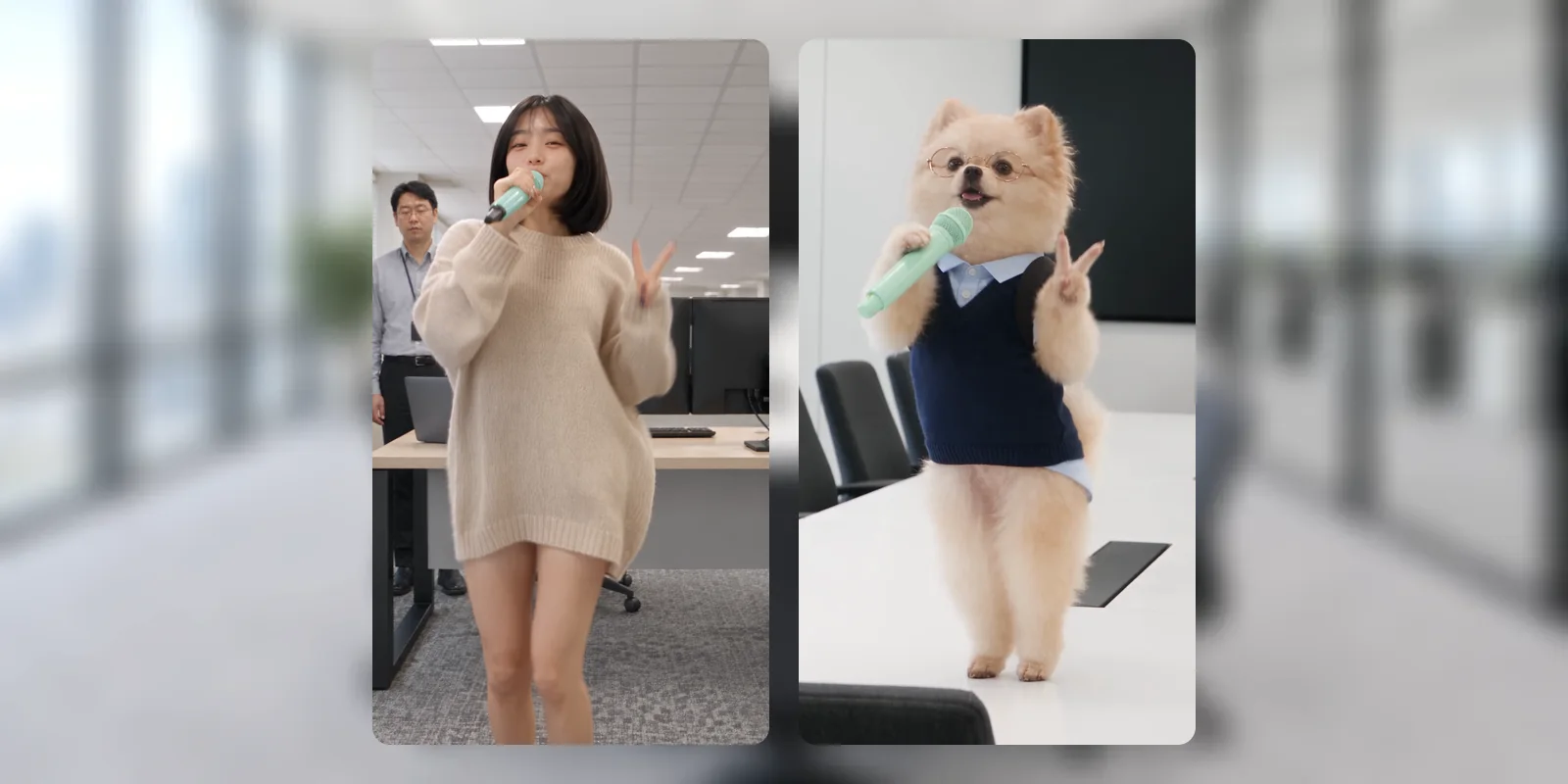
Before and after
The source and the result at the same moments. The dance and the camera stay; the dancer and the room change.
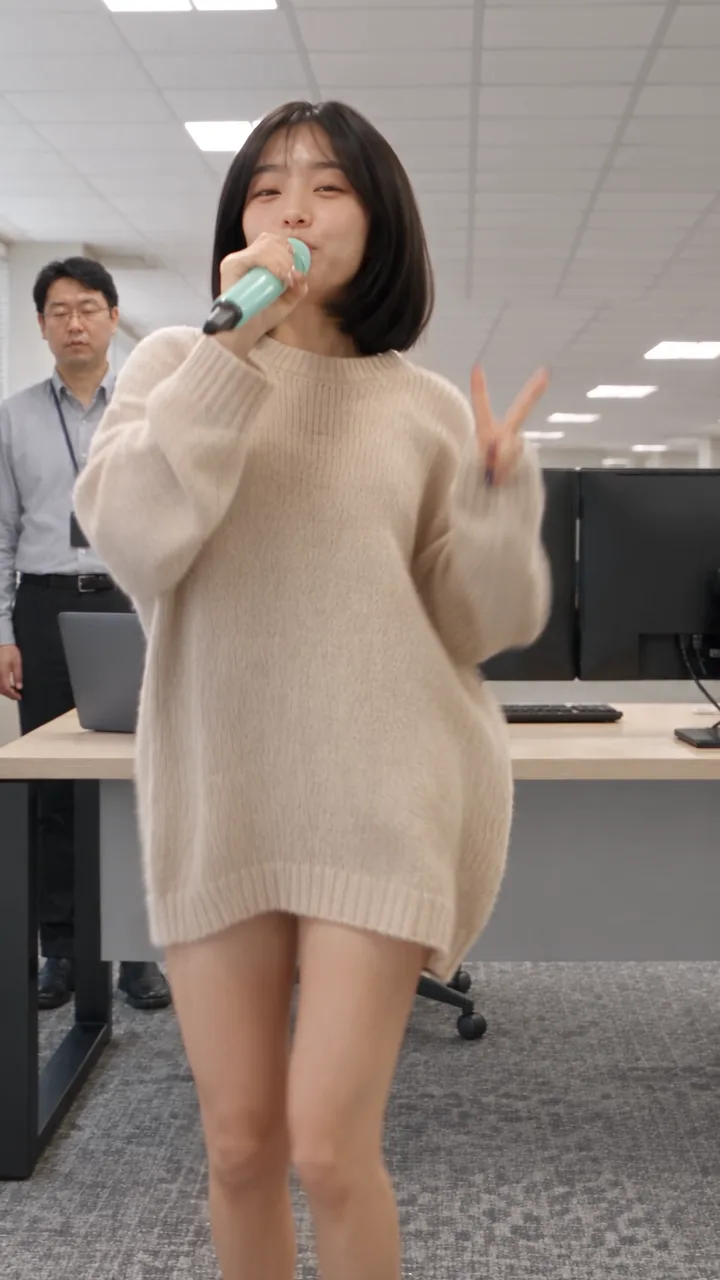
Input 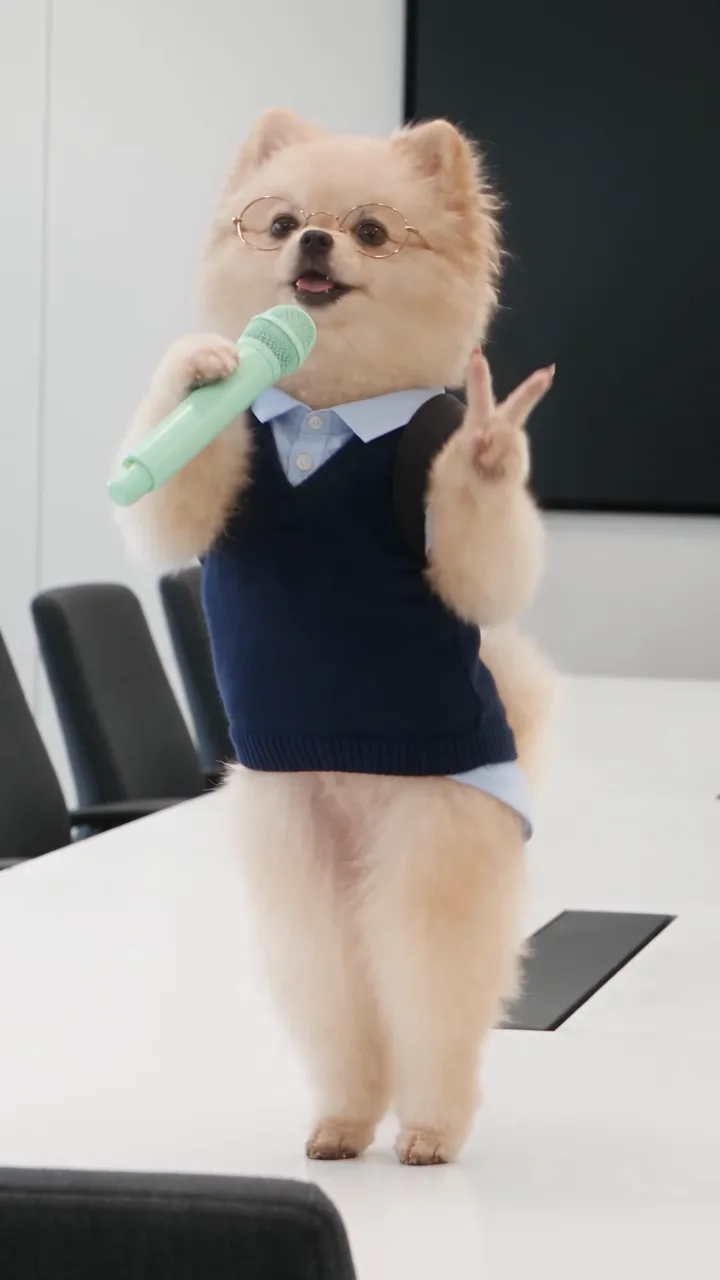
Result 5 s. The microphone hand and the V sign land on the same beat.
Input 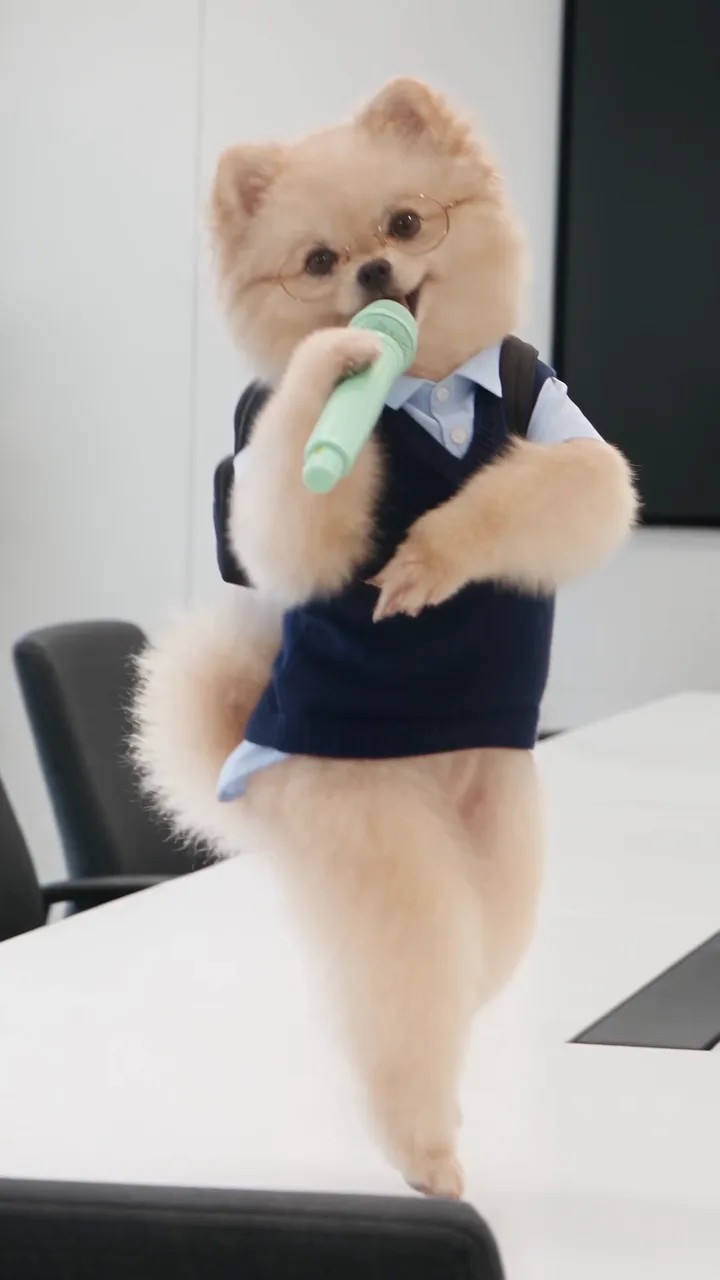
Result 15 s. The office has become the white table and black chairs of the room photo.
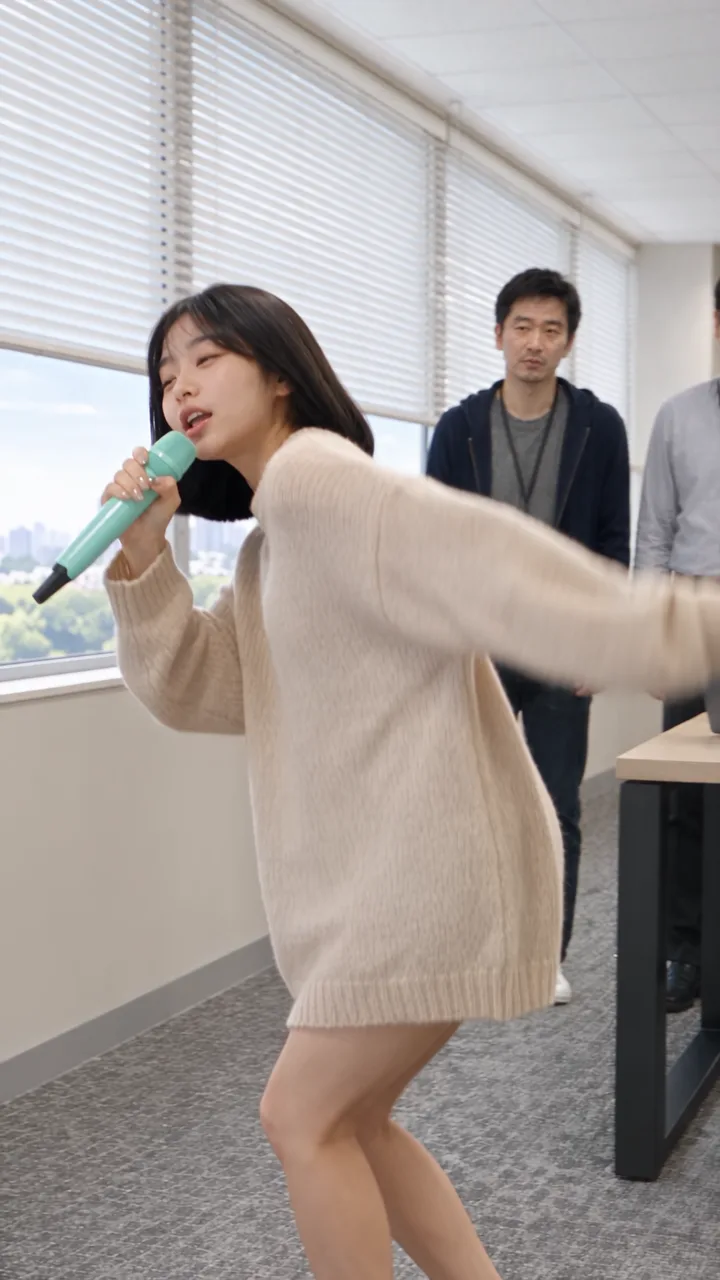
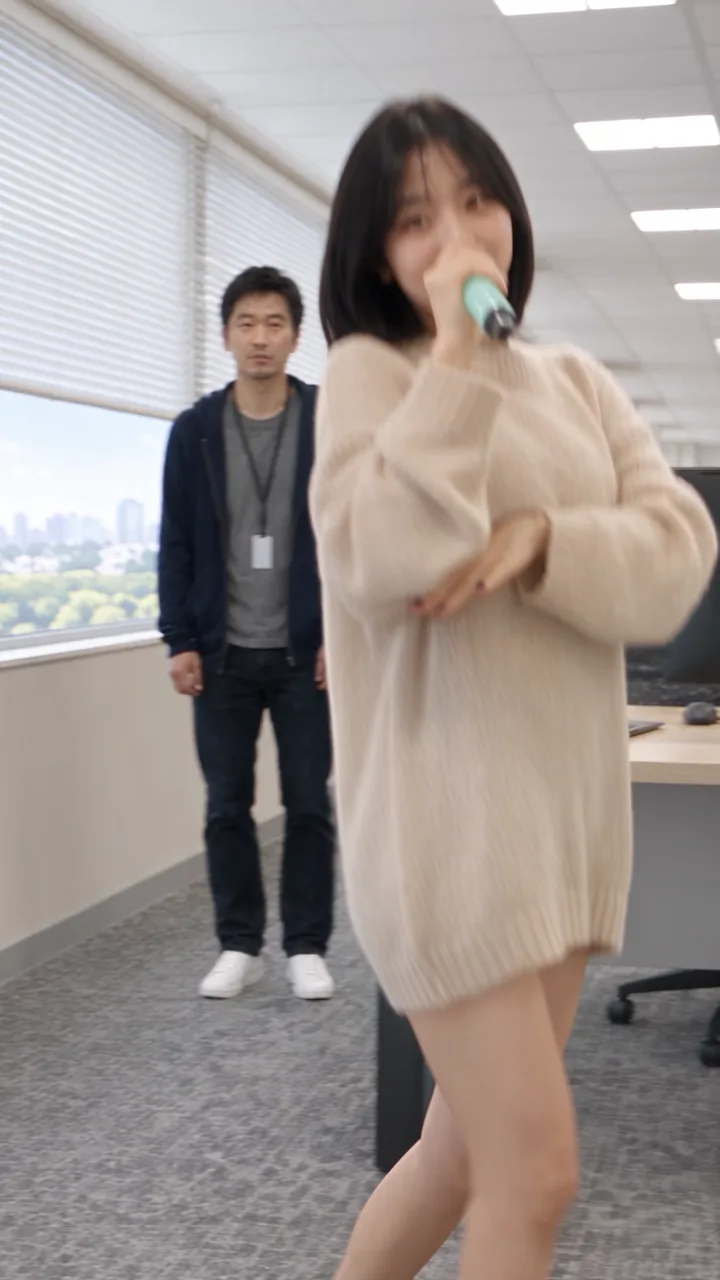
Input 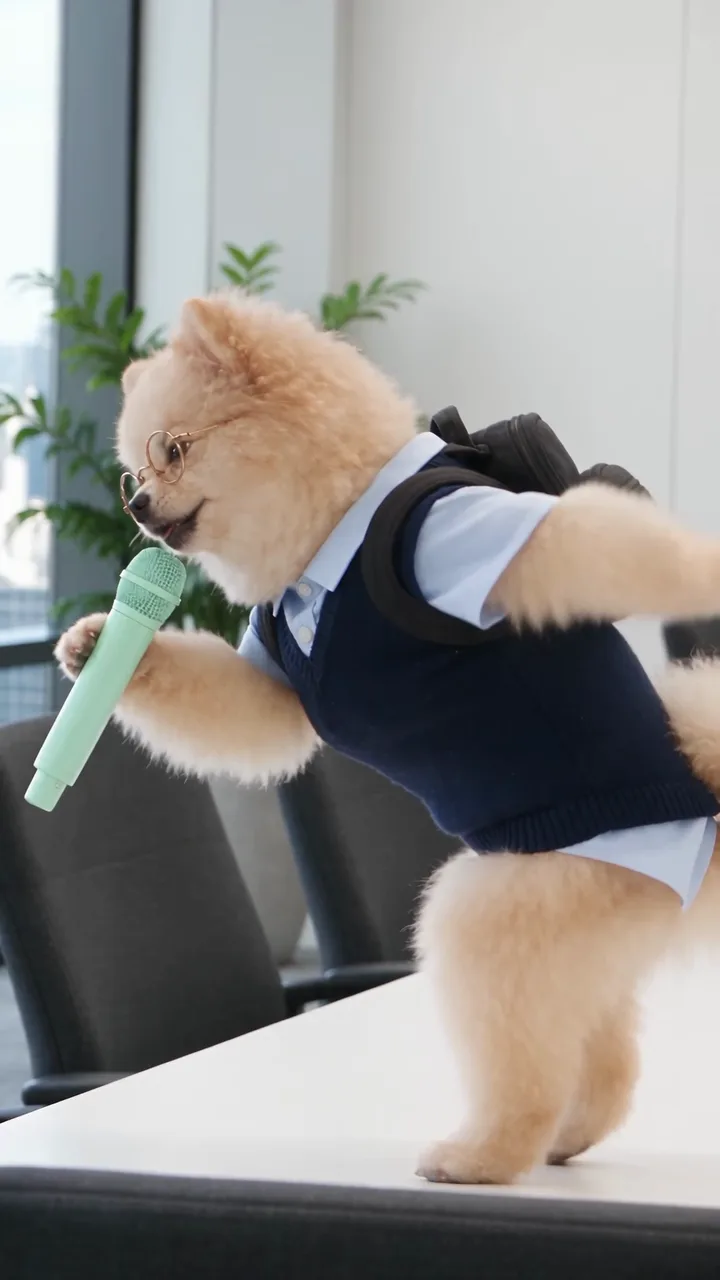
Result 22.5 s. When the camera turns toward the window, the skyline comes from the room photo too.
Downloads
Sample files to try the prompt with.
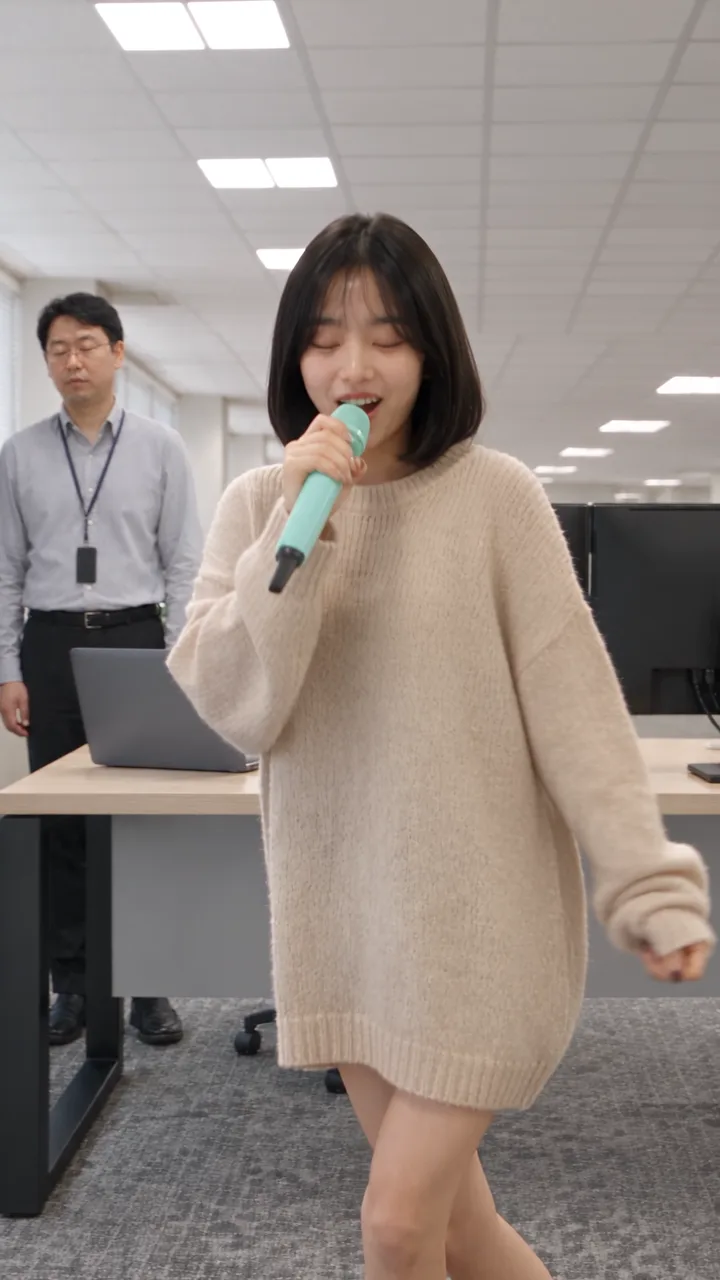 Source dance clipMP4 · 12.6 MB · The 29-second 9:16 clip for <#source>. No sound.Download
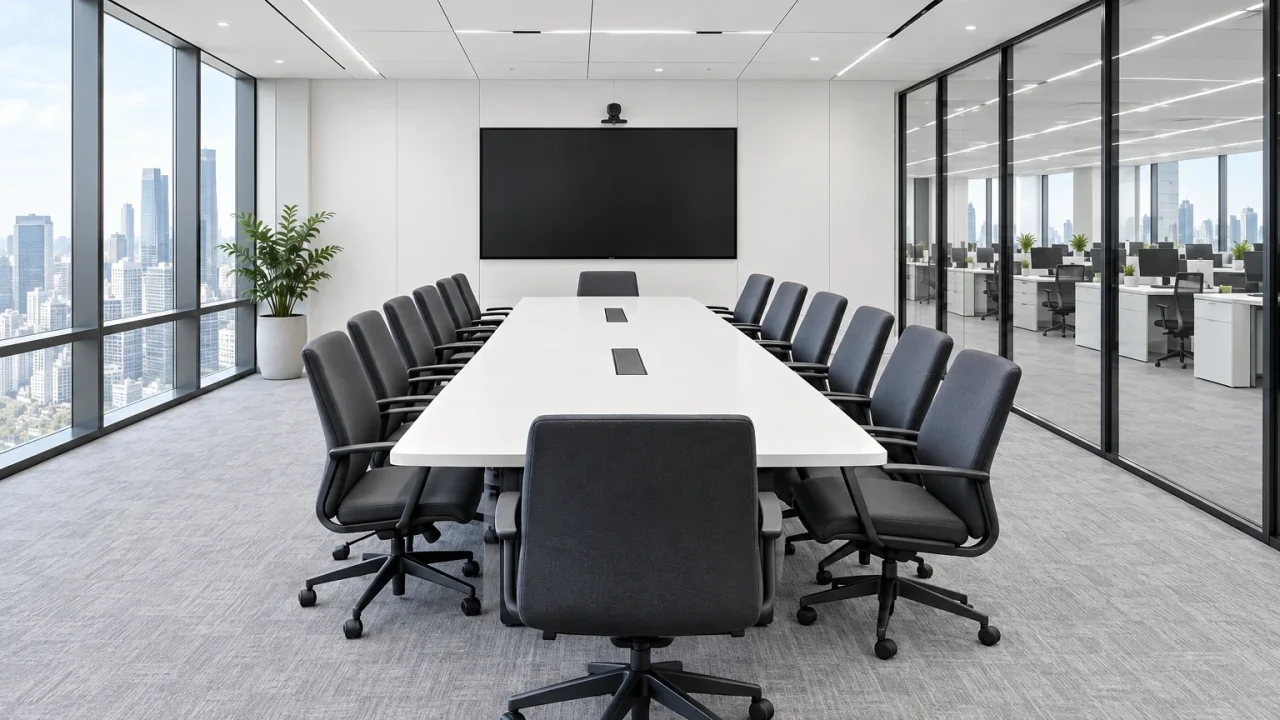 Dance space image (meeting room)JPG · 340 KB · The image for <#dance space>. It is the background of the example.Download
- Music (MP3)MP3 · 684 KB · 29 seconds of audio taken from the finished example. You add it in the video editor in step 4.Download

What you need
Prepare these before you start. Slot names map to the placeholders in the prompt.
#sourceSource dance clip (required)
The clip that carries the routine and the camera. Use the one you downloaded above.
Lead character sheet (required)
#tagged characterA character sheet for whoever dances. A person or a pet both work. The example uses a Pomeranian in glasses.
#dance spaceSpace image (required)
The image that supplies the background, floor, lighting, and color. The example uses the meeting room above.
Onlooker sheets (optional)
#person 1 #person 2People who watch the lead. If you do not want them, delete that sentence from the prompt. The example is the version without them.
Soyeon’s “퇴사할게여” (“I’m quitting”) dance, the one performed with a microphone in the middle of an office, can be danced by your dog on a meeting-room table instead.
This prompt runs on three file tags: the dance clip, a lead character sheet, and a space image. You can add up to two onlooker sheets on top. What you put in each tag decides who dances, where, and who stands around watching.
What each tag changes
Every <#…> in the prompt is a tag that points to a project file. Each tag owns one part of the video, so to change something you only swap the file behind its tag.
| Tag | File to attach | What it controls in the video | In the example |
|---|---|---|---|
<#source> | Source dance clip | Choreography, speed, camera angle and move | The 29-second source above |
<#tagged character> | Lead character sheet | The dancer’s face and outfit | A Pomeranian in glasses |
<#dance space> | Space image | Background, building, floor, light, color | The meeting-room image |
<#person 1> <#person 2> | Onlooker sheets | People watching with a weary look (optional) | Not used (sentence deleted) |
Put the other way round, the source clip only lends its movement. The person and the office in it do not survive into the result; the character sheet and the space image take their place. That is why the woman in the source became a dog, and the men standing behind her and the office became an empty meeting room.
Mix and match
With the same source clip you can:
- Change only the dancer. Attach a different sheet to
<#tagged character>and replace[OOOO e.g. Korean woman, dog]right after it with words that fit that sheet. The example says “dog”. - Change only the place. Attach another image to
<#dance space>. A convenience store, a classroom, or a rooftop photo moves the dance there. - Add onlookers. Upload people’s sheets and link them to
<#person 1>and<#person 2>. Coworkers or family members will stand there watching with a weary look. - Remove onlookers. Delete the whole sentence that starts “Near the space, three people…”. The example did this, so the dog is alone in the room.
- Leave these alone. Keep the camera paragraph and the “every expression and movement exactly as in the original” sentence. They are what keep the result on the original routine.
A generation takes up to five reference files. Source, lead, and space plus two onlookers is exactly five.
Step 1. Upload the files to your project
Download the source dance clip and the meeting-room image above and upload them to a project. Keep the lead character sheet in the same project.
If you do not have a sheet yet, make a 16:9 character sheet from one or two photos first, as in step 0 of the STORM II guide. A selfie works on its own, but a sheet with front, side, and full-body views carries the face and outfit much better.
Step 2. Set up the video in New file ▸ AI
Click New file, open the AI tab, and match the settings below. Aspect ratio, resolution, length, and audio are in the advanced settings behind the button next to the model.
| Setting | Value |
|---|---|
| Output type | Video |
| Model | Seedance 2.5 |
| Aspect ratio | 9:16 |
| Resolution | 1080p |
| Length | 29 s |
| Audio | Off |
Turn audio off. The output must not contain the song. Generate the picture silently and add the music in step 4.
Keep the length at 29 seconds to match the source. Then add the source clip, the lead sheet, and the space image as reference files, plus the onlooker sheets if you use them.
Step 3. Paste the prompt and link the tags
Paste the prompt below. Delete each <#…> placeholder, type # in its place, and pick the matching file; it turns into a blue chip. Replace [OOOO e.g. Korean woman, dog] with words for your lead.
Using <#source> as the base, create a new live-action video of a person.

Change the lead to the [OOOO e.g. Korean woman, dog] in <#tagged character> — reflect the face and the outfit from the character sheet.

The new lead woman performs the same choreography as the original video, at the same speed.

Follow the original video's camera angle, movement, speed, field of view, and framing exactly.
It is one continuous take with no cuts. Do not create new camera moves or reframing.
For the background, building, floor, lighting, and color, reference the space in the image <#dance space> exactly.
Near the space, three people (<#person 1> <#person 2> ) just watch the lead woman dance with a weary expression. (You can freely keep or remove this sentence.)
The lead keeps the same movements and expressions as the original person they replaced.
In particular, every expression and movement must be exactly the same as the original.
She must hold the microphone the same way, too

No subtitles, captions, logos, or inserted text.
Check the estimated credits at the bottom of the modal and click Create file.
Step 4. Add the music in the video editor
The generated clip is silent. Add the music (MP3) you downloaded above in the video editor.
- Upload the MP3 to the same project.
- Open Edit ▸ Video editor in the sidebar.
- Drag the generated clip from the file list onto track V1.
- Drag the MP3 onto track A1 and line both clips up at the very start.
- Click Export, name the file, and click Export again.
The clip and the music are both 29 seconds long, so if they start together the dance and the song stay in sync to the end.
Tips before you run it
- If the lead is not a woman, change “woman” too. “The new lead woman” and “the lead woman” describe the source dancer. When you switch to a dog, changing those two spots to “dog” keeps the result steadier. Likewise “She must hold the microphone” becomes “It must hold the microphone”.
- Match the onlooker count to the tags. The prompt says “three people” but has two tags. References cap at five, so two onlookers is the maximum; when you use two, “two people” is more accurate.
- Keep the microphone sentence. Half of this routine is the hand holding the microphone. It is why the dog in the example holds it to the end.
- Test at a lower resolution first. 29 seconds at 1080p uses a fair amount of credits. Run once at a lower resolution to check the lead and the room, then move up to 1080p.
- Use only your own photos or photos of people who agreed. That includes the onlooker sheets. Making a video with someone else’s face is a portrait-rights problem.
- Respect the original. This guide is a fan remake of Soyeon’s “퇴사할게여” dance. The rights to the song and the choreography belong to their creators, so keep what you make for your personal accounts and do not use it in ads or commercial videos.
FAQ
Can I keep the original office instead of a space image?
Yes. Replace the sentence with <#dance space> by “Keep the background, building, floor, lighting, and color as in the original.” and the source video’s office stays.
The men from the source are still in my result.
First check that the “Near the space, three people…” sentence is gone completely, including the note in parentheses. If it is and they are still there, generating again is the quickest fix.
Can I make a horizontal version?
The source is 9:16, so we recommend keeping the aspect ratio at 9:16. Changing it conflicts with the instruction to follow the original framing.
The music is off the beat.
Check that both clips start at the very beginning of the timeline (0 s). Any empty gap before the clip makes the song run ahead by that much.
Make your own version
Open your project in YouViCo, attach the references, paste the prompt, and share what you make.