
Remake the STORM II crowd shot: swap the lead and the whole crowd with your own characters
The one-take crowd scene from STORM II that took over TikTok. With one green chroma-key template and two 16:9 character sheets you can replace the lead and every person in the crowd. Seedance 2.5 settings, the prompt, and how to put the music back.
- Model
- YouViCo AI generation · New file ▸ AI, output type Video · Seedance 2.5
- Difficulty
- Intermediate
- Time
- 30 min, plus generation time
Before and after
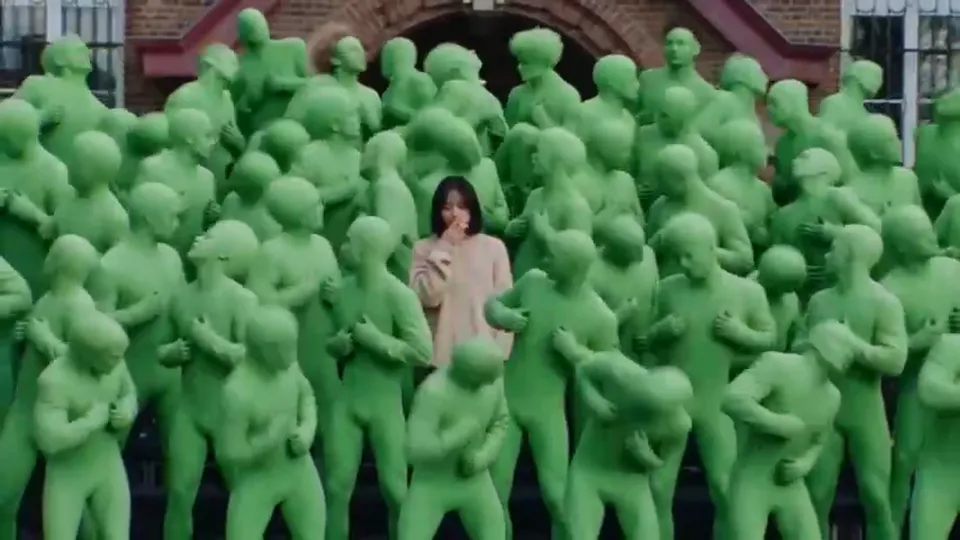
The template and the result at the same moments. Camera and movement stay; only the people change.
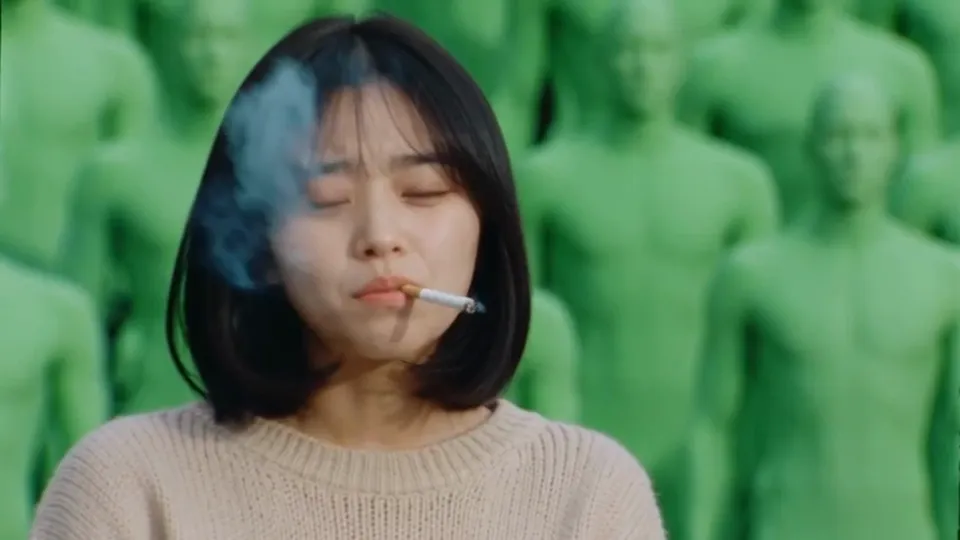
Input 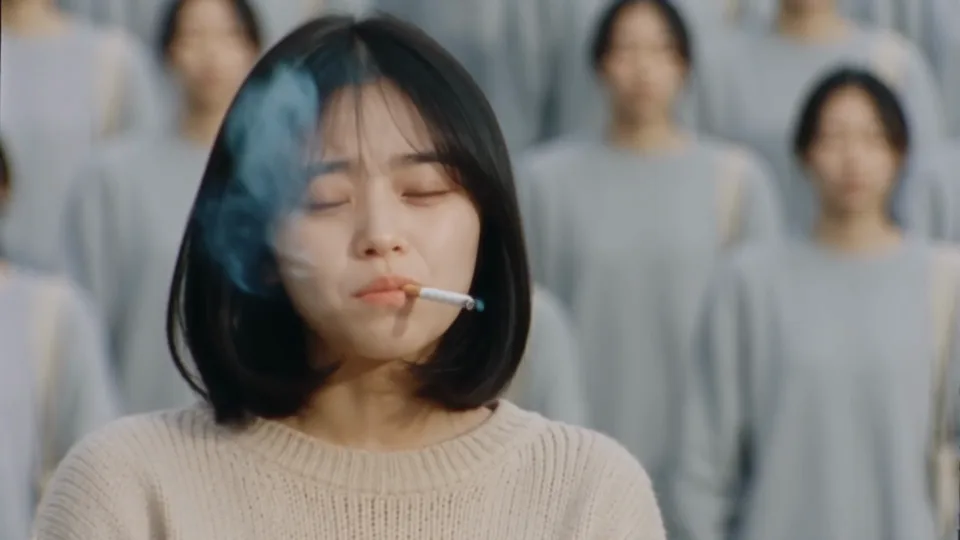
Result The opening close-up. The smoke and the expression carry over.
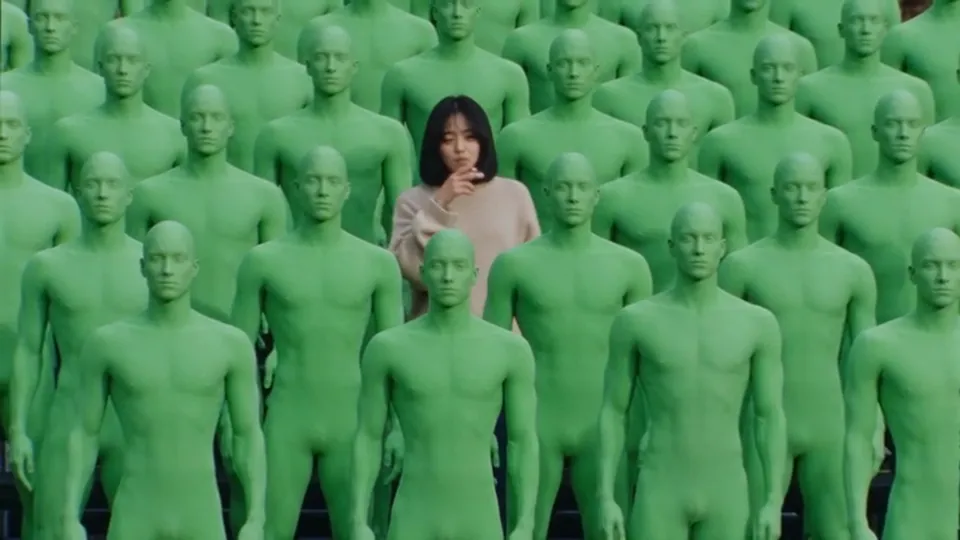
Input 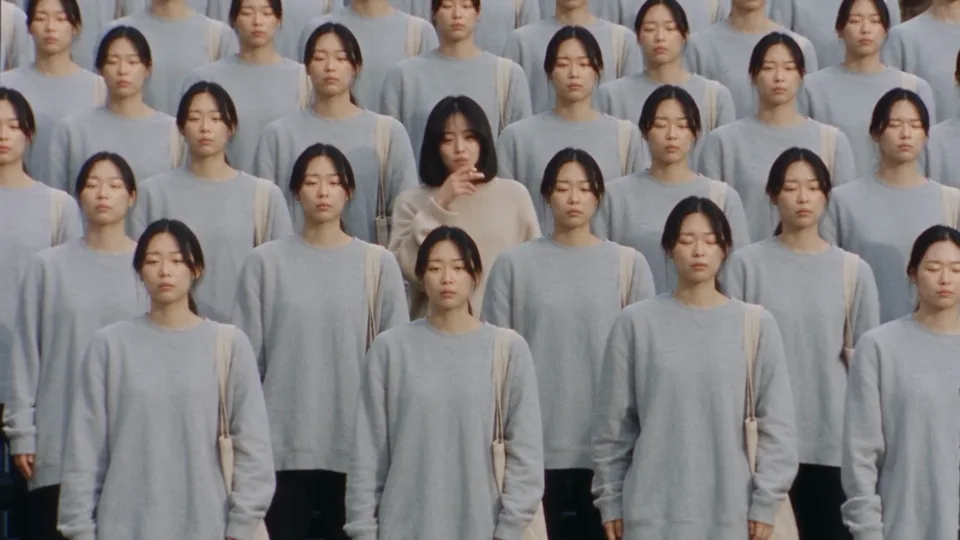
Result In the middle of the crowd. Every row is filled with the same person.
Input 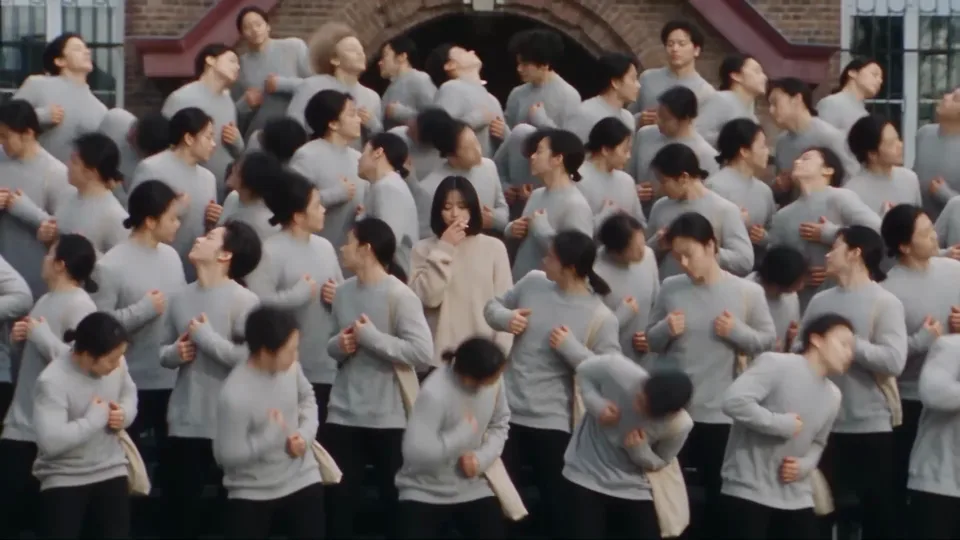
Result The final wide shot. The building and the timing of the choreography match the template.
Downloads
Sample files to try the prompt with.
What you need
Prepare these before you start. Slot names map to the placeholders in the prompt.
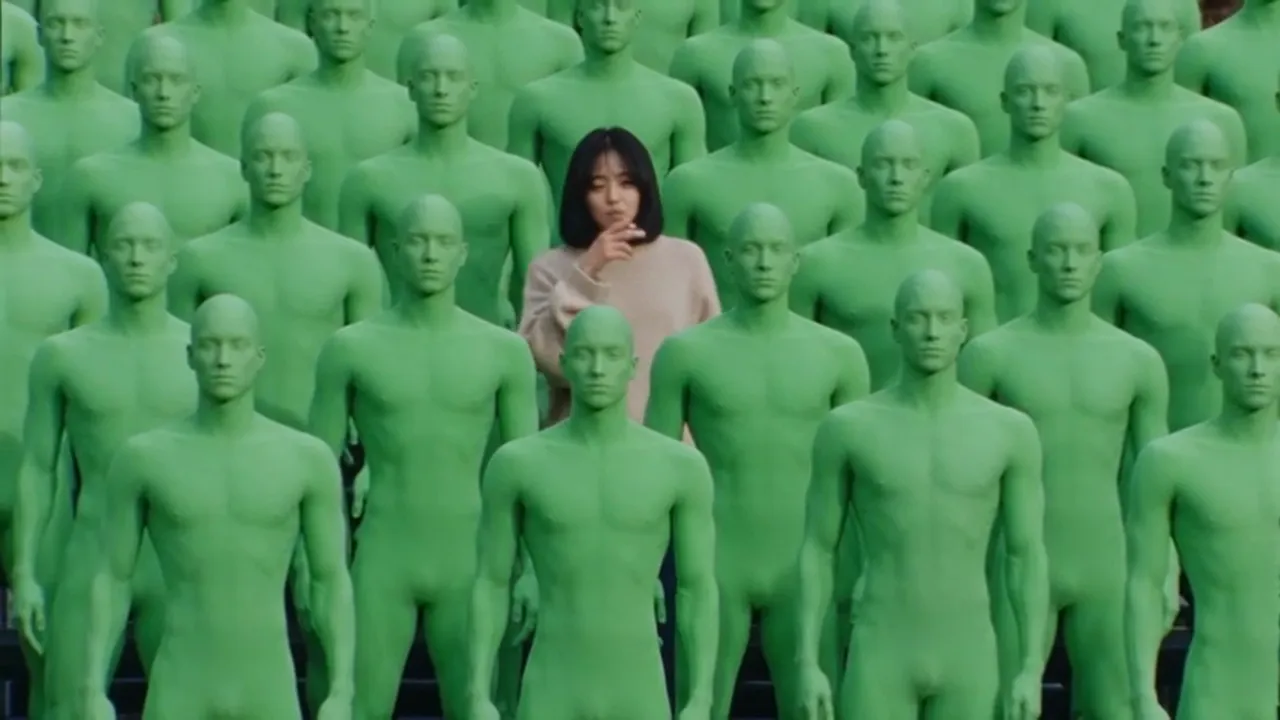
#storm-ii-chromakey.mp4Chroma-key template video
The 28-second clip from the download above. The whole crowd is green chroma-key figures, so the model cannot mistake what to replace.
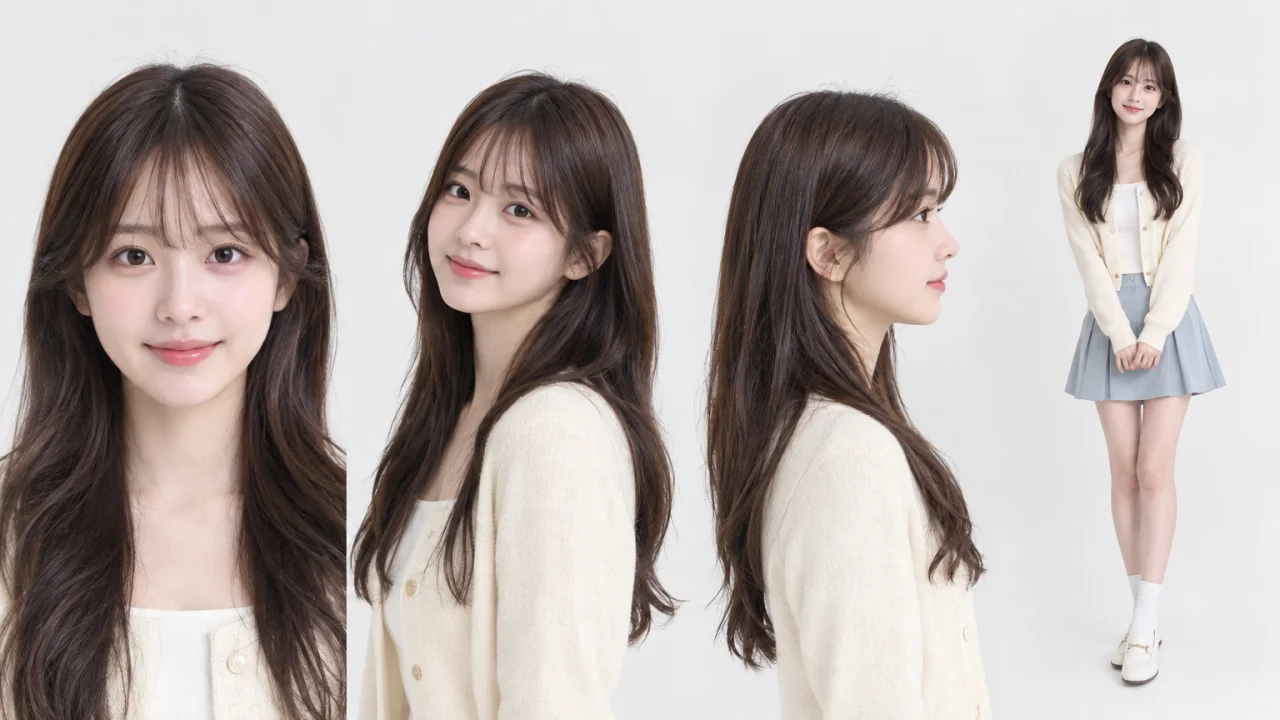
#lead-sheet.pngLead character sheet (16:9)
A sheet of the person who becomes the lead. A 16:9 image with front, side, and full-body views on one page transfers best.
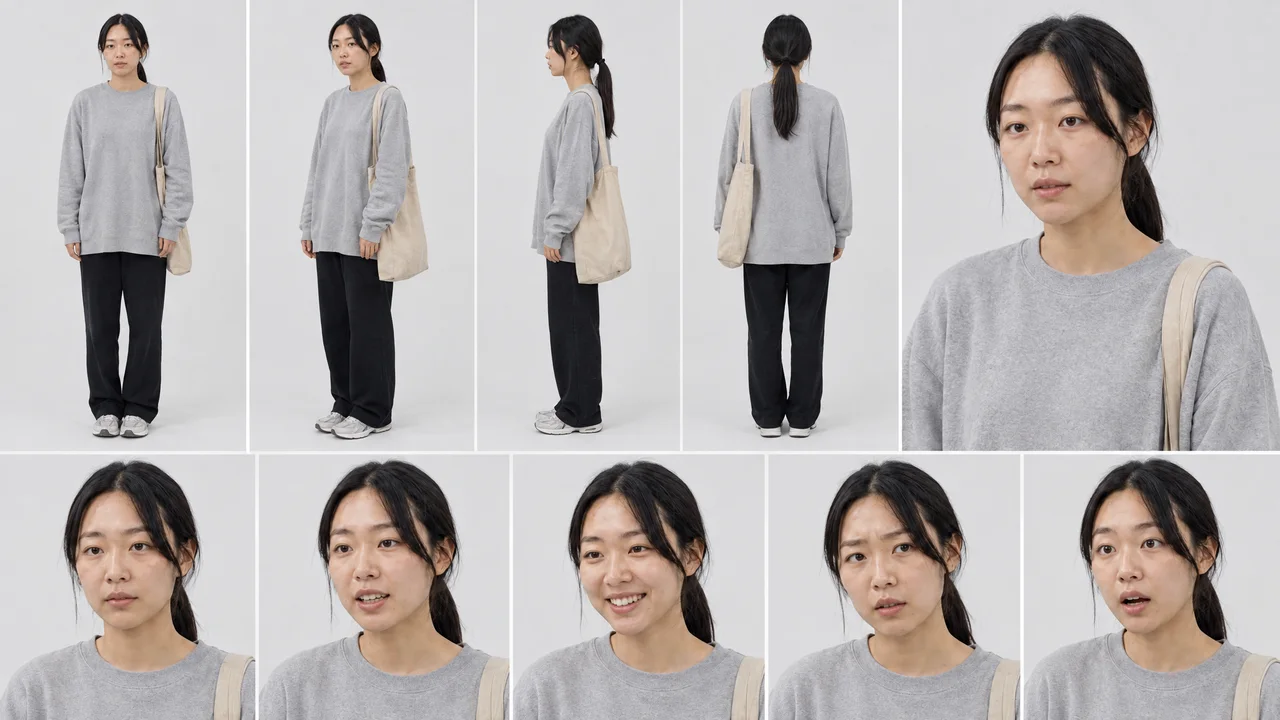
#crowd-sheet.pngCrowd character sheet (16:9)
A sheet of the person who fills the crowd. The crowd in the example video came from this single sheet.
The scene that took over TikTok: one person standing alone in the middle of a crowd, in the single take from STORM II. You can fill that entire crowd with your own character.
You need three things. A 28-second template video whose crowd is made of green chroma-key figures, one character sheet for the lead, and one character sheet for the crowd. The template is in the download above, and you can make the character sheets inside YouViCo from two selfies.
What we are making
A 28-second live-action video that follows the template’s camera exactly. It is one take that starts on a close-up and pulls back to reveal a crowd packed in front of a building, and the angle, movement, speed, background, and lighting stay as they are in the original. Only the people change. The lead takes the face and clothes from the lead sheet, and every green figure, from the front row to the far background, becomes the person on the crowd sheet.
The example above replaces the crowd with a character in a gray sweatshirt carrying a tote bag. The lead was left as the template’s bob-haired character.
The template’s crowd is green for a reason. The thing to replace is unmistakable, so one line, “do not leave a single chroma-key man,” settles the instruction.
Step 0. Make a 16:9 character sheet
A plain selfie does work. But a 16:9 character sheet with front, side, and full-body views on one page carries the face and clothes over far better. You can make the sheet right in YouViCo.
- In New file ▸ AI, set the output type to Image and choose GPT 2.5 as the model.
- Upload one or two selfies or full-body photos to the project and add them as reference files.
- Paste the prompt below, delete the
<#photo 1>and<#photo 2>placeholders, and type#in their place to pick the photos you uploaded. Change the gender and nationality to match your character.
<#photo 1> <#photo 2> Make a character sheet of this person. Korean man, output in 16:9.Make one for the lead and one for the crowd. They can be two different people, or the same person in two different outfits.
Reference images must be 16:9 or close to it. An image more than 2.5 times wider than it is tall is rejected as input.
Step 1. Upload the three files to a project
Put the template video, the lead sheet, and the crowd sheet in the same project. Sheets made in Step 0 are already project files.
Step 2. Set up the video in New file ▸ AI
Click New file, open the AI tab, and match the settings below. Aspect ratio, resolution, length, and audio live in the advanced settings behind the button next to the model.
| Setting | Value |
|---|---|
| Output type | Video |
| Model | Seedance 2.5 |
| Aspect ratio | Auto |
| Resolution | 1080p |
| Length | 28 s |
| Audio | Off |
Here is what it looks like.
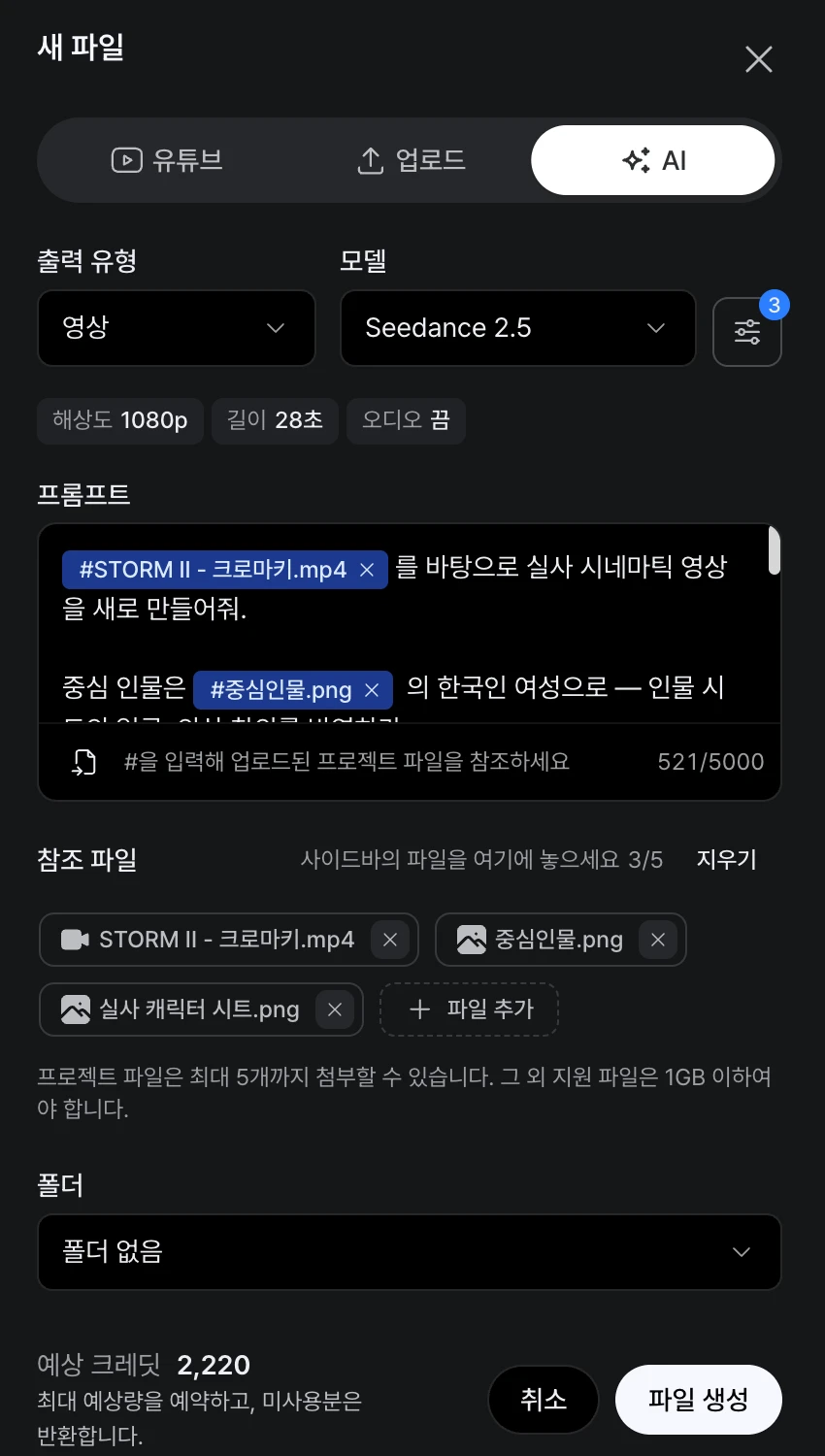
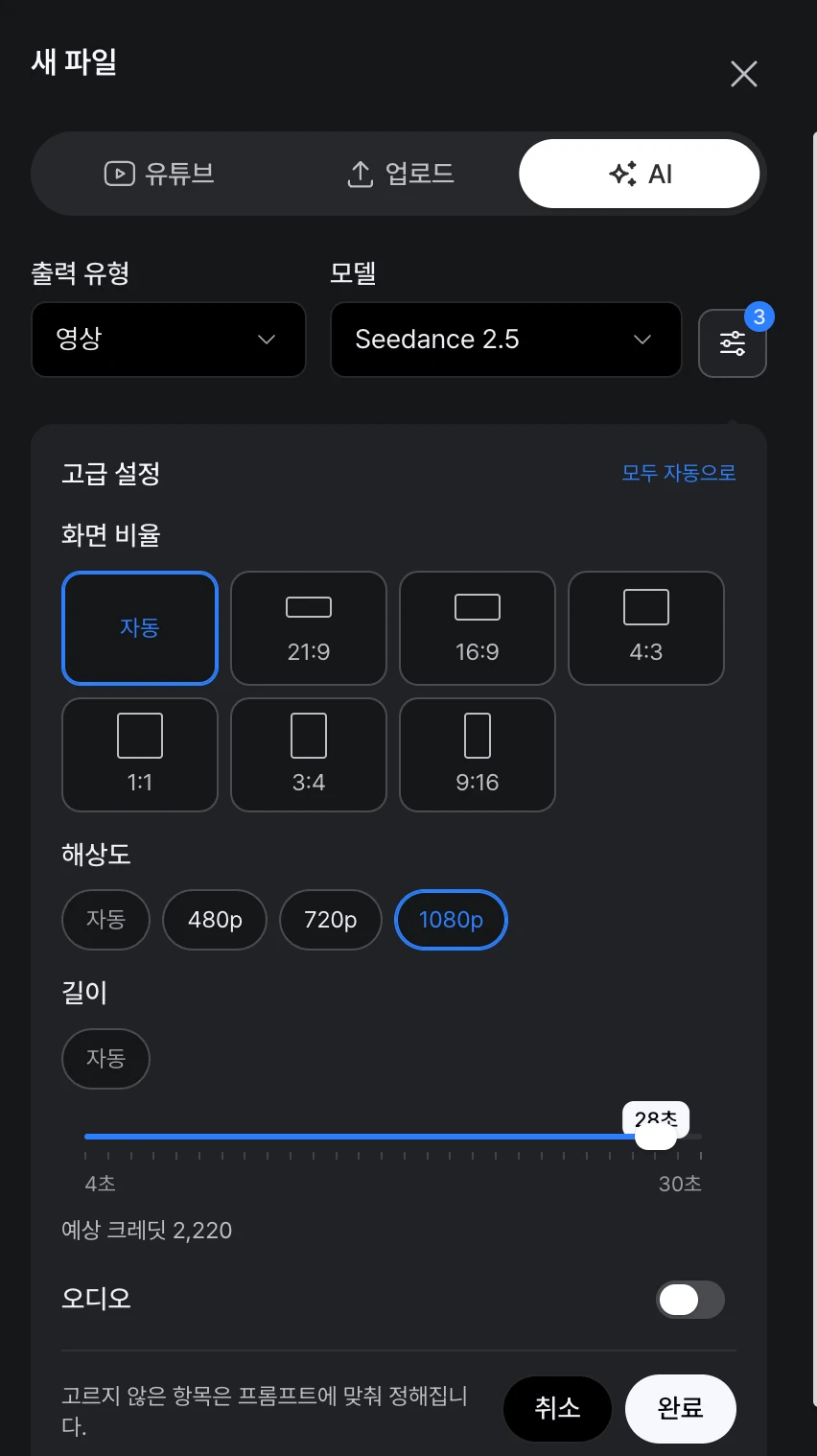
Audio must be off. With audio on, the music in the template trips a copyright check and nothing is generated. The music goes back on in the last step.
Keep the length at 28 seconds, the same as the template. Then add the template video and the two sheets as reference files. You can attach up to five.
Step 3. Paste the prompt and link the files
Paste the prompt below. The three <#…> spots are placeholders. Delete each one and type # in its place to pick the matching file; it turns into a blue chip, as in the prompt box of the capture above.
Using <#storm-ii-chromakey.mp4> as the base, create a new live-action cinematic video.

The lead is the Korean woman in <#lead-sheet.png> — reflect the face and the outfit from the character sheet.

Replace the surrounding crowd with the person in <#crowd-sheet.png>.
Fill the front row, left and right, the middle rows, and the background entirely with the person from this character sheet,
and do not leave a single chroma-key man from the original.

The camera follows the original video's angle, movement, speed, field of view, and framing exactly.
It is one take with no cuts. Do not invent new camera moves or reframing.
Background, building, ground, lighting, and color stay as in the original.
Each person keeps the same position, the same size, the same movement and expression as the original person they replace.
In particular, every expression and action of the lead must match the original exactly.
Do not miss a single detail: the cigarette smoke, the feel of it being lit, the expressions, the lead grabbing the shoulders of people in the crowd and climbing up.

No subtitles, captions, logos, or inserted text.
Check the estimated credits at the bottom of the modal and click Create file. As of September 2026, 1080p at 28 seconds showed 2,220 credits. That figure reserves the maximum estimate, and the unused part is returned.
Step 4. Put the music back in the video editor
The generated video is silent. Put the music from the template back on in the video editor.
- Open Edit ▸ Video editor from the sidebar.
- Drag the generated result from the file list onto the V2 track of the timeline.
- Drag the template video in. Its picture lands on V1 and its audio on A1 as a green waveform.
- Delete the template’s picture clip on V1 and keep only the audio on A1.
- Click Export, name the file, and click Export again. You get an MP4 at 1920×1080, 24 fps.
The result and the template are the same length, so once both clips start at zero the music and the movement stay in sync to the end.
Swapping the lead and the crowd
- Lead only. Point the sheet reference in the second paragraph at your sheet and change “Korean woman” to match the person on it.
- Crowd only. Change just the sheet reference in the third paragraph. The example video is this case.
- The same person for both. Make two sheets of the same person in different outfits and use one for the lead and one for the crowd, so the lead stands out.
- Leave these alone. Keep the camera paragraph and the detail paragraph as they are. They are what makes the model follow the template, and editing them tends to break the one take.
Tips before you run it
- Check at a lower resolution first. Twenty-eight seconds at 1080p costs a fair number of credits. Run once at a lower resolution to see that the people swap correctly, then go to 1080p.
- Match the gender and nationality to the sheet. If “Korean woman” in the prompt and the person on the sheet disagree, the result wobbles.
- Keep the sheet bright and simple. A sheet like the examples, with front, side, and full-body views on a white background, carries the face and the outfit best.
- Use photos of yourself or of people who agreed. Making a video with someone else’s face is a likeness problem.
- Respect the original. This guide is a fan remake of one scene from GENER8ION’s STORM (starring Yung Lean, directed by Romain Gavras, choreography by Damien Jalet, 2026). The music and the original film belong to their owners, so keep what you make for your personal accounts and do not use it in ads or commercial work.
Frequently asked questions
Does a selfie alone work?
Yes. But one selfie carries no profile or full-body information, so people tend to wobble in the shots from behind and in the wide shot. A sheet from Step 0 is made once and can be reused for other videos.
The generation is rejected or fails.
Check two things first. That Audio is off in the advanced settings, and that none of the reference images is more than 2.5 times wider than it is tall.
Green chroma-key men are still in the result.
Regenerating is the fastest fix. Also check that you did not delete the sentences “front row, left and right, the middle rows, and the background entirely” and “do not leave a single.”
Can I make it vertical?
The template is 16:9, so leaving the aspect ratio on Auto is recommended. Changing the ratio conflicts with the instruction to follow the original framing.
Make your own version
Open your project in YouViCo, attach the references, paste the prompt, and share what you make.