
Make It Again: Use AI Generation Records to Continue a Series
Reproducible AI generation starts with a record, not memory. Keep the recipe on the approved file, then change only what's new in episode two.
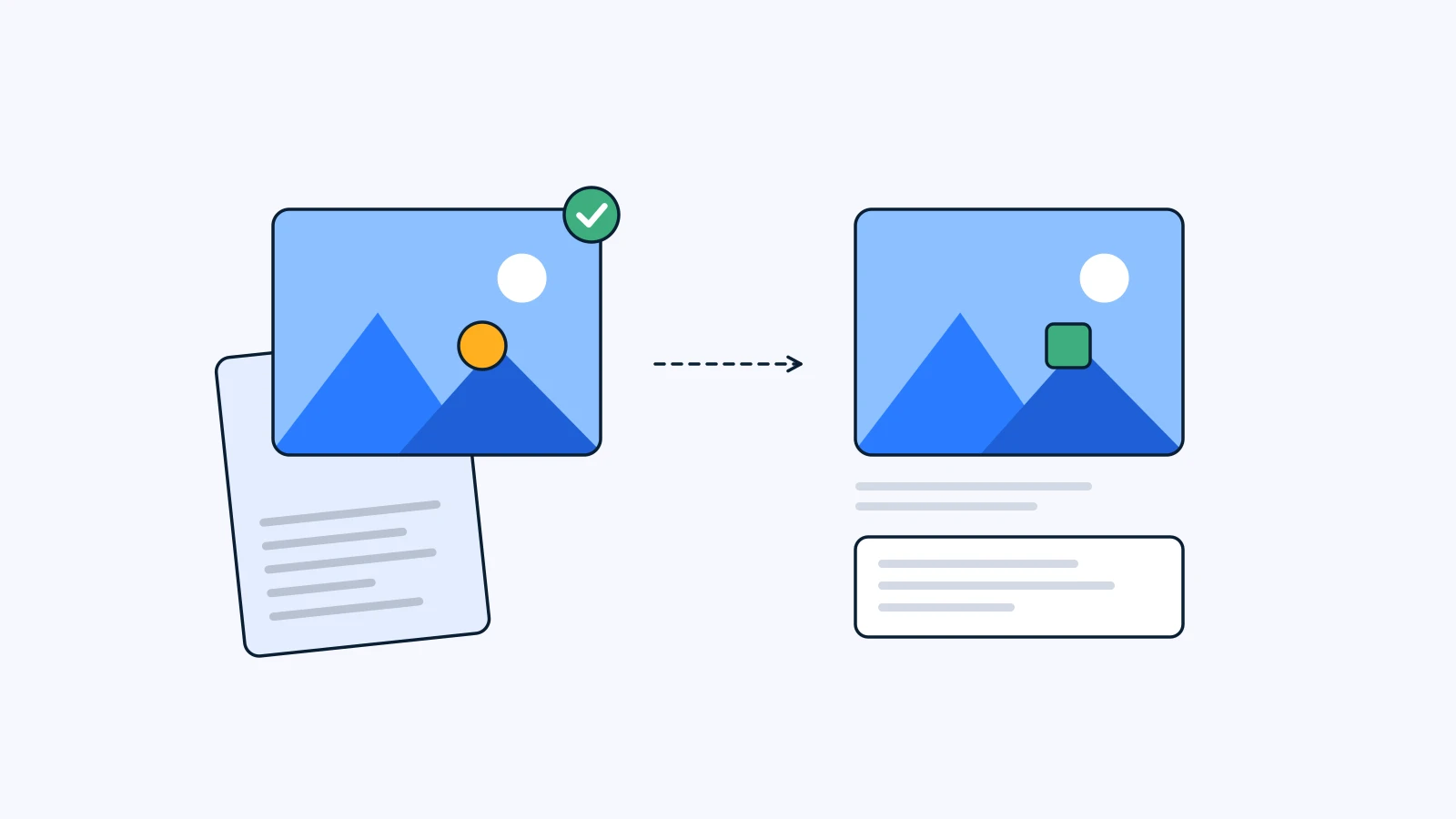
To continue an AI-made series in the same style, attach the recipe behind the approved result (model, output type, prompt, reference files) to the result file itself, and start the next episode from that recipe. The same prompt won’t give you the same output twice, so start from a record, not from memory or an old chat thread. Episode two begins with the same prompt and the same references, changes only what needs to change, and gets approved side by side with episode one.
Key takeaways
- The same prompt does not guarantee the same result. Keep the model, references, and approved version along with the prompt.
- A recipe gets lost the moment it’s separated from its output. Keep it next to the result file, not in a notes app or a chat thread.
- Episode two doesn’t start from a blank page. Open the approved episode one, check the record, start from the same references, and edit only what’s different.
- The record also pays off when someone asks “how did you make this?”, when the owner of the series changes, and when a model is replaced.
Why doesn’t the same prompt give the same result?
“One more, same feel as last month’s.” If you run a monthly social series or a seasonal campaign, you’ve heard this. You dig up last month’s prompt, paste it in as is, and the result is subtly off. There are two main reasons.
First, generative models produce something slightly different every time by design. Many image and video models start from random noise and refine it step by step toward something that matches the prompt (more in What Is AI Video Generation?). Because the starting point changes each run, the same sentence yields different composition, expressions, and lighting details. That’s not a bug, it’s how these models work. Give the same brief to the same illustrator twice and you won’t get identical drawings either.
Second, models change. Even under the same product name, an updated model reads the same sentence differently. Move to a different model and the gap gets wider. That’s a common reason attempts to recreate a months-old result “with the exact same prompt” fall short.
So change the goal. You’re not trying to get the same pixels back. You’re trying to restart the approved direction from the same starting point. A series needs consistency, not copies, and consistency comes most easily from a shared starting point. That starting point is the record.
What to keep so you can make it again
A prompt on its own isn’t enough. The same sentence can give very different results depending on which model it went into and which images were attached. Keep these six things together.
| Item | Why it matters | What happens without it |
|---|---|---|
| Model | Each model reads the same prompt differently | You start on a different model and the tone is off from the first frame |
| Output type | Image and video have different models and different vocabulary | You end up rebuilding a video episode around image settings |
| Prompt | The actual sentences that set the scene and style | You rewrite from memory and drop the key words |
| Reference files | Carry palette, light, and product shape more precisely than words | You hunt for similar photos and the look drifts |
| Approved version | Tells you which of many attempts was final | Episode two gets built on a rejected draft |
| Comments from that round | Decisions like “warmer background” or “keep space around the logo” | You fix the same problem in episode two that you already fixed in episode one |
The first four are set at generation time. The last two come out of review. You need both for a complete recipe. A record with only the prompt is like a recipe with the ingredient list but without the note that says “they asked for less salt.”
Record generation the way you version edits
Video editing teams already have this habit. They stack revisions as V1, V2, V3, mark which one was approved, and compare against the previous version side by side. We cover why that matters in What Is Version Control for Video?.
AI generation works the same way, with one difference. An edit file carries both the result and the work that went into it. A generated image doesn’t. Looking at the output alone, you can’t tell which words and which references made it. So with generation, you have to bind the result and the recipe together on purpose.
In YouViCo that binding happens on its own. Anything you create with New file ▸ AI inside a project lands as a normal project file, and the file info panel has a generation block showing the model, output type, prompt, and the reference files used. Because it’s an ordinary project file, comments, drawing, and approval status all work on it. In terms of the table above, the four generation-time items live in the generation block, and the two review items live on the same file as status and comments.
Folder structure is part of the record too. YouViCo supports folders five levels deep. With a structure like “Brand > 2026 season > November > Episode 1 > Drafts”, the approved episode one is easy to find when episode two comes up.
How to make episode two in five steps
Say episode one is approved and episode two is next. Follow this order and only the intended things change while everything else carries over.
- Open the approved episode one. Among the drafts, find the file marked approved. Starting from a rejected draft takes you back to a direction the client already turned down. The approval status makes that distinction for you.
- Check the generation block and comments. In the file info panel, confirm the model, output type, prompt, and references, then skim the comments on the same file. If a change from episode one’s review (“make the person a bit smaller”) was fixed in post but never made it into the prompt, put it into episode two’s prompt.
- Start from the same references. In the same project, open New file ▸ AI, choose the same output type and model as episode one, and attach the reference files listed in the generation block. You can pick up to five project files as references. You can also add the approved episode one file as a reference to anchor the look.
- Rewrite only what changes. Take episode one’s prompt and change only what’s different this time, usually one or two things: a seasonal prop, a product, the time of day in the background. Leave the sentences about style, light, and composition alone. If you change several things at once and the result shifts, you won’t know which change caused it.
- Compare side by side and approve. Put episode two next to the approved episode one and compare tone, color, figure scale, and negative space. Where they differ, mark it with comments and drawing. When they match, set the approval status. That approved episode two becomes the starting point for episode three.
Before step 4, write down what changes. One line like “Changes this episode: swap the maple leaf prop for a gift box” is enough. It keeps the prompt edit honest, and it saves the reviewer from asking why only that changed.
A handoff brief you can copy
When you hand a series to a teammate, send this brief along with it. For anything already in the generation block, “see the approved file’s generation block” is enough.
[Series continuation brief]

Series:
This episode:
Approved file to build from: (project > folder > file name)

Keep the same
- Model / output type: see the approved file's generation block
- Reference files: see the approved file's generation block
- Style, light, and composition sentences: do not edit

What changes this episode (one or two things)
-
-

Decisions from episode one's review (comment summary)
-
-

Comparison check: side by side with the approved episode one for tone, color, figure scale, negative space
Final approver:
The two fields that matter most are “what changes this episode” and “decisions from episode one’s review.” The first narrows the scope of change. The second stops the same note from coming back. Naming the final approver matters for the reason covered in What Is a Video Approval Workflow?: when it’s clear who signs off, nobody has to guess whether “looks good” was an approval or an opinion.
Other moments when the record pays off
The next episode isn’t the only time you’ll want the record.
- When someone asks “how did you make this?” A client or another team likes a result and wants to know how. Instead of reconstructing it from memory, open the file info panel and show them. It also makes good internal training material.
- When the owner changes. If the person who built the series goes on leave or moves to another project, the recipe stays on the file and the next person picks up from the same spot.
- When a model changes or shuts down. Models get updated, and sometimes a service closes entirely. If the prompts and references are still around, you can run short tests on a new model and steer back to the same direction. If the recipe only lived inside that generation tool, it goes away with the tool. We cover what to gather in that situation in After the Sora Shutdown: 5 Things to Take With Your AI Video Work.
In YouViCo you can choose models such as Seedance 2.5 for video and GPT Image 2.5 for images. Since the chosen model is recorded in the generation block, it’s clear what you’re moving from and to when you switch later. When you rerun the same prompt with the same references to get a better take, it costs fewer credits, because references that were already read aren’t read twice. The reasoning behind these choices is in How AI Generation in YouViCo Is Designed. AI generation is available from the Standard plan.
FAQ
Can I get the exact same image again?
No, don’t expect a pixel-identical result. Generative models start from a different point each time, so even with the same prompt and references the details will differ. Starting from the same recipe does get you much closer in tone and style. If you need the identical image, don’t regenerate it. Use the approved original file.
Can I continue a series on a different model?
Yes, but assume the same prompt won’t produce the same result. Rather than making the real episode right away, run a short test with the approved episode one attached as a reference, then compare the two side by side to check the tone. If you edit the prompt, keep the original alongside the new version.
What does the generation record contain?
In YouViCo, the file info panel of a generated file has a generation block that records the model, output type, prompt, and the reference files used. Approval status and comments sit on the same file, so the recipe and the review decisions are in one place.
Who can see the record?
The record travels with the result file, so assume anyone who can open the file can also see its record. Before sharing a file with a client or outside collaborator, check that the prompt and references don’t include anything that shouldn’t go out.
Can’t I just track prompts in a spreadsheet or Notion?
Tracking them is fine. The risk is that once the record is separate from the result file, the link between a prompt and the approved output it made breaks easily. If you keep a separate doc, treat the record on the result file as the source of truth, and use the doc for the series plan and what changes per episode.