
After the Sora Shutdown: 5 Things to Take With Your AI Video Work
The Sora shutdown is complete: the app closed April 26, the API September 24. Five things to gather before moving your AI video work, and what to re-test.
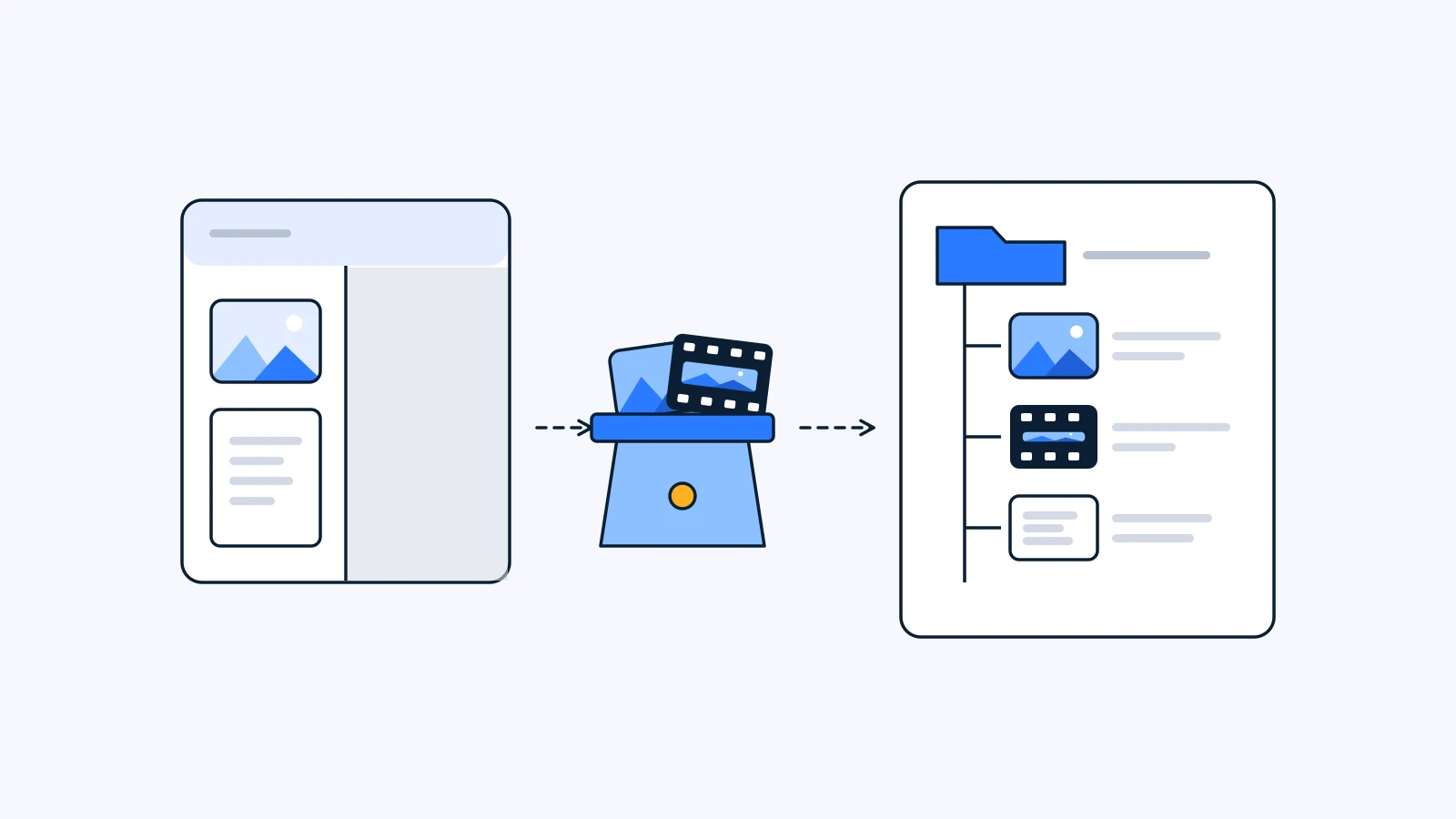
Sora is gone: OpenAI closed the Sora app and web experience on April 26, 2026 and discontinued the Sora API on September 24, 2026, following an announcement on March 24. Before you move your AI video work to a new tool, gather five things into one folder per project: the original output files, the prompts, the reference files, the feedback and approval history, and notes on aspect ratio and length. Then run a short test on the new model, assuming the same prompt will not give you the same result, before you move the real work.
Key Takeaways
- The Sora app and web closed on April 26, 2026. The API followed on September 24, 2026. For any remaining export options or data retention details, check OpenAI’s help article directly.
- The video is only part of what you need. Take the recipe that made it (prompt, references, settings) and the decisions made about it (feedback, approvals), or you can’t pick up where you left off.
- In the next tool, keep outputs and recipes in your own project, not inside one app. Tools will keep changing.
Sora shutdown dates: what ended, and when
OpenAI announced the end of Sora on March 24, 2026, and shut it down in two stages.
| What | Shutdown date | Who it affected |
|---|---|---|
| Sora app and web | April 26, 2026 | Creators generating directly in the app or on sora.com |
| Sora API | September 24, 2026 | Services and teams that called Sora through the API |
With the API closed, there is no way left to generate new video with Sora, and teams that built on the Sora API need a replacement model. This post won’t make claims about whether past videos can still be downloaded or how long account data is kept. The authoritative answer is OpenAI’s own help article on the Sora discontinuation.
So the checklist below is less about “what can I pull out of Sora” and more about “how do I collect what’s already scattered across my work.” Downloaded clips, prompts sitting in chat threads, clips placed in edit projects, and emails with clients all stayed in your hands when Sora closed.
Five things to gather before you move off Sora
The simplest approach: one folder per piece of work, with these five things inside it.
| What to gather | Why it matters | Where to look |
|---|---|---|
| 1. Original output files | The baseline for editing and reuse | Downloads folder, edit projects, cloud drives |
| 2. Prompts | Lets the next episode start from the same place | Notes apps, chat threads, briefs, spreadsheets |
| 3. Reference files | Carry the look more precisely than words | Storyboards, product shots, character sheets, earlier cuts |
| 4. Feedback and approvals | Records what passed and why things changed | Email, chat, comments in review tools |
| 5. Aspect ratio and length notes | Your target when you rebuild on a new model | Delivery specs, edit timelines, memory |
1. Original output files
If you re-download a video from a social platform, you get a copy that has been compressed again. If you still have the file you downloaded right after generating it, treat that as the original. Clips you used in an edit can usually be found by following the paths your edit project points to.
This is also a good moment to rename files. Date, project name and shot number beat dozens of files called video_final_2.mp4.
2. Prompts
A prompt is the recipe for a result. If a client loved a particular shot, copy the exact prompt that made it into a text file next to the video. If you rewrote it several times, keep the final version plus, if you can, a one-line note on what change made it better.
3. Reference files
If you generated from an image, that starting image is half the result. Put the first-frame photo, character sheet, product shot and mood references in the same folder. They are the first thing you’ll need when you rebuild on a new model.
4. Feedback and approvals
Notes like “this shot is approved,” “redo the hands” or “color is too cold” are the easiest to lose, and losing them means repeating the same mistakes. Pull the decisions about this piece of work out of email and chat into one document. Even just knowing which version was approved as final solves half the problem. For a fuller take on tracking versions and approval status, see What is version control for video?
5. Aspect ratio and length notes
Write down whether it was vertical 9:16 or horizontal 16:9, how long each shot ran and how many clips you stitched together. Models differ in which aspect ratios and lengths they support, so this note shows you right away what needs adjusting in the new tool.
What to re-test on a new model
Start from this assumption: the same prompt will not give you the same result. Even on one model, every generation differs, and a different model reads your prompt differently in the first place. A short test before moving the real work saves both time and money.
- Pick one representative piece of work, ideally one with a good result and a complete recipe.
- Match the aspect ratio first. Check that the new model supports it and that your reference images aren’t at an extreme ratio.
- Check the length. If the new model can’t produce the original shot length in one go, plan to generate shorter clips and join them in the edit.
- Rewrite the motion description. Camera moves, character actions and pacing are where models differ most, so expect to rework this part the most.
- Generate with your reference files attached, then put the result side by side with the original. Note what held and what changed.
- Save the revised prompt as a new version. Keep the old one alongside it.
For the basics of how AI video generation works and the most common reasons it fails, see What is AI video generation?
The lesson: keep outputs and recipes in your project, not in an app
The biggest lesson from the Sora shutdown isn’t about whether any one model was good or bad. It’s that when your results and the way you made them live only inside one app, the context of your work disappears the day that app closes.
Whatever tool you use next, three habits make the next switch much lighter:
- Bring generated results into your own project folder right away.
- Keep the prompt, reference files and model name next to each result.
- Record feedback and approvals close to the result file.
Models will keep arriving and disappearing. If the recipe lives in your project, the next episode starts where you stopped yesterday, not from scratch, even when the model changes.
How this works in YouViCo
YouViCo is one option that builds these habits into the tool. It isn’t a like-for-like replacement for Sora. It’s a workspace where generation, editing and review happen inside the same project.
- Video generation starts inside a project from New file ▸ AI. Seedance 2.5 is available as a video model.
- You pick up to 5 files from the project as references, so the starting images and character sheets you gathered above can be used directly.
- The result arrives as a normal project file. Its generation block in the file info records the model, output type, prompt and reference files, so the recipe stays attached to the result.
- Before generating, it shows the maximum credits the run can use, and failed generations are refunded.
- Clips in the project can be cut together in the browser video editor, with multi-track V1-V3 and A1-A3, trim, ripple edit and export.
AI generation is available from the Standard plan. The reasoning behind the design is in How AI generation in YouViCo is designed, and where browser editing fits is covered in What is browser-based video editing?
FAQ
Can I keep using videos I made with Sora?
A service shutting down and your rights to outputs you already made can be separate questions. Commercial use depends on the terms you agreed to, so if you plan to keep using Sora output in client work, check OpenAI’s terms of use and its Sora discontinuation article directly. This post isn’t legal advice.
What is the best Sora alternative?
The answer depends on the job, so we won’t rank tools. Decide on criteria instead: does it support the aspect ratios and lengths you use most, can you attach images or reference files, can you keep the result as an original file in your own project, is it easy to share for feedback, and how is cost handled when a generation fails. Testing two or three options with one representative project is the most reliable way to choose.
Can I reuse my Sora prompts as they are?
They’re a good starting point, but don’t expect the same result. Each model interprets prompts differently, and camera and motion descriptions in particular often need rewriting. Keep the original prompt and save the version you adapted for the new model separately.
What if I don’t have any of my output files left?
Start with what you posted to social platforms, clips used in edit projects, and drafts you sent to clients. Even a lower-quality copy works fine as a reference file. If you still have the prompts and notes, you can rebuild in a similar direction on a new model.