
AI Generation Credits Explained: Reserve, Refund, Top Up, Limit
AI generation credits explained: when they are reserved, when a failed generation is refunded, how top-ups and member limits work, and how to use fewer.
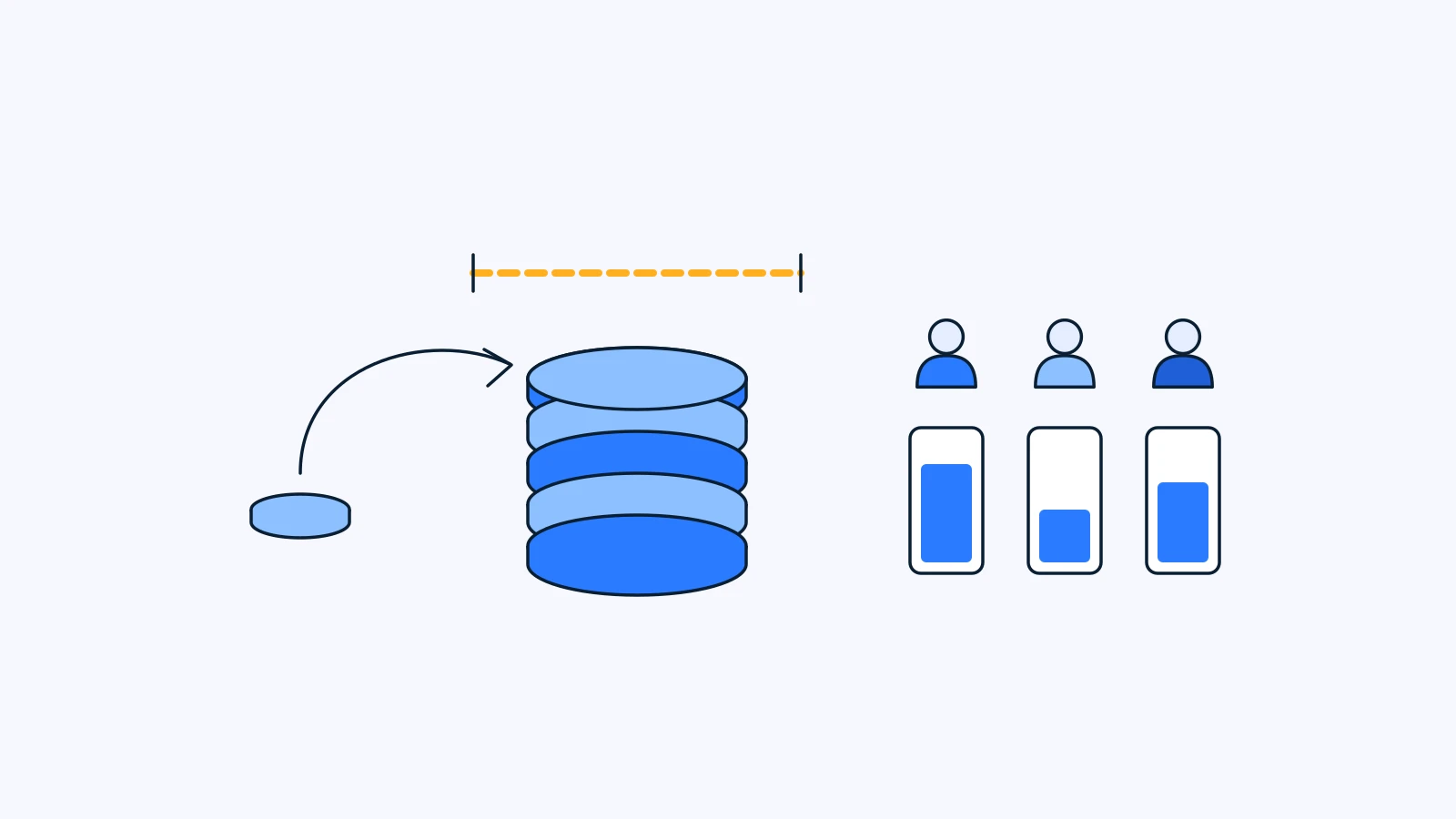
AI generation credits are the usage unit deducted when you create an image or video with AI. In YouViCo, before you press generate, the modal shows the maximum number of credits this run can use and reserves that amount. If the run costs less, you are charged less. If it fails, the full reservation comes back. On a team, each member can have their own credit limit.
This post is for anyone meeting credits for the first time, and for team leads deciding whether to open AI generation to several people. Credit amounts and prices depend on your plan, so this post covers only how credits move and how to work so you use fewer of them. For numbers, check the YouViCo pricing page.
Key Takeaways
- Reserve: before you press generate, you see the maximum credits for this run, and that amount is held.
- Refund: if a generation fails, the full reservation is returned. If you cancel mid-run, you pay only for what already ran.
- Top up: when plan credits run low, you can buy more. Plan credits and purchased credits are shown separately.
- Limit: on a team, per-member credit limits stop one person from spending the whole budget.
When are credits reserved? Before you press generate
Inside a project, open New file ▸ AI and choose a prompt, reference files, an output type (image or video) and a model. The modal then shows the maximum credits this run will reserve.
That number is a cap, not an estimate. Here is what it means in practice:
| What happens | What you are charged |
|---|---|
| The run costs less than the cap | Only what it actually cost |
| The run costs more than predicted | The cap. YouViCo covers the difference |
| The run fails | Nothing. The full reservation comes back |
For a team lead, this answers “what is the most this one run can cost?” before anything happens, not on an invoice later.
The cap changes with your choices. Switching models changes it, and adding reference files raises it, because YouViCo reads those files before generating. Trying a few combinations and watching the cap move is a quick way to get a feel for credits. The reasoning behind this design is in how AI generation in YouViCo is designed.
Do failed generations get a credit refund?
Yes. When a generation fails, the reserved credits are returned in full. You do not pay for a result you never got.
Generations can fail. A reference image in an aspect ratio the model does not accept, a safety policy block, or a temporary error are common causes. There is more on failure causes in what is AI video generation.
The failed file does not disappear. It stays in the project tree with the reason it failed, so you can decide whether to run it again as is or fix the prompt or references first. If the same reason keeps coming up, fix what it points to instead of retrying.
Cancelling works differently. The waiting screen has a cancel button, and if you cancel, you are charged only for the part that already ran. If you spot a typo in the prompt or the wrong reference attached, cancel right away instead of waiting for the result.
Plan credits vs. purchased credits
The generation modal shows your balance on two lines:
- Plan credits: the credits included with your subscription. They have an expiry date.
- Purchased credits: credits you bought separately.
Since September 11, 2026, you can buy extra credits. If plan credits run out right before a deadline, you can top up without changing plans.
The modal also translates what is left into something concrete: how many more seconds of video or how many more images you can make with the model you picked. If “credits” still feels abstract, think in those terms.
Because plan credits expire, check the expiry date before scheduling a big batch of work. For the terms on purchased credits, and which balance is used first, follow the pricing page and the purchase screen.
Team AI spend: per-member credit limits and folders
Team leads usually hesitate for one reason: what if someone experiments a little too freely and spends the whole team’s credits?
Since August 29, 2026, you can set a credit limit for each member, a separate ceiling on how many credits that person can use. One way to split it:
| Role | How to set the limit |
|---|---|
| Designers or video leads who do most of the generating | Generously, matched to real workload |
| Planners who occasionally try a draft | Enough to experiment |
| Clients and outside reviewers | Keep them on review, not generation |
Five-level folders arrived the same day and help with spend too. You can nest folders up to five levels, so a structure like client ▸ campaign ▸ deliverable shows at a glance which generation was made for which job. Generated results are ordinary project files, and each file’s info records the model, prompt and references used. That structure is what you look at when you review how much AI work went into each client.
For a team starting out, this order works well:
- Pick two or three people to do the generating. Everyone else joins as reviewers.
- Set per-member limits for those people from day one.
- Create client and campaign folders first, and generate only inside them.
- After two or three weeks, look at real usage, then adjust limits or add people.
How to save AI generation credits
The surest way to save credits is to need fewer reruns. In order of impact:
- Lock the look with images first. Get the character, product and setting right with image generation. If you try to fix the look in video, every miss costs a whole video run.
- Get team sign-off, then move to video. Approve the final image in comments, then attach it as a reference for the video. The result comes back as a normal file, so you review it in the same place.
- Attach only the references that matter. References make results steadier but also raise the cap. There is no reason to attach files that do not shape the result.
- Use spot edit when only one place is wrong. Regenerating a whole image because of feedback like “just change the sign color” changes everything else too, and the review starts over. Since September 16, 2026, you can pin a spot on an image, give a short instruction, and change only that area. The idea is explained in what is spot AI image editing.
- Cancel bad starts immediately. You pay only for what already ran.
Can you use AI generation on the free plan?
No. The free plan does not include AI generation. It starts from the Standard plan, and everything above (reservations, refunds, top-ups and per-member limits) applies when you generate on that plan or higher. For current credit amounts and prices per plan, check the YouViCo pricing page.
FAQ
When do AI generation credits expire?
Plan credits have an expiry date, and the generation modal shows plan credits and purchased credits separately. Check the plan credit expiry date before a big batch of work. Terms for purchased credits are on the purchase screen and the pricing page.
What happens to my credits if a generation fails?
The full reservation is returned. The failed file stays in the project tree with the reason it failed, so you can fix the prompt or references and try again. If you cancel a run yourself, that is different from a failure: you are charged for the part that already ran.
Can a generation cost more than the number shown?
No. The number shown before you generate is the maximum for that run. If it costs less, you are charged less. If it costs more than predicted, YouViCo covers the difference.
How do I stop one team member from using all the credits?
Set a per-member credit limit. Each person gets their own ceiling, so no single member can drain the team balance. Adjust the limits once you see real usage.
Does spot edit use credits?
Yes. Spot edit is an AI generation, so it uses credits, and the cost is shown before you run it. When feedback is about one place only, it is still the more efficient workflow, because you avoid regenerating the whole image and reviewing everything again.