
ChatGPT Images vs a Project: Where Team Feedback Should Live
ChatGPT image team feedback gets lost in group chats. Two ways to collect comments and approvals in one place without giving up the tools you already use.
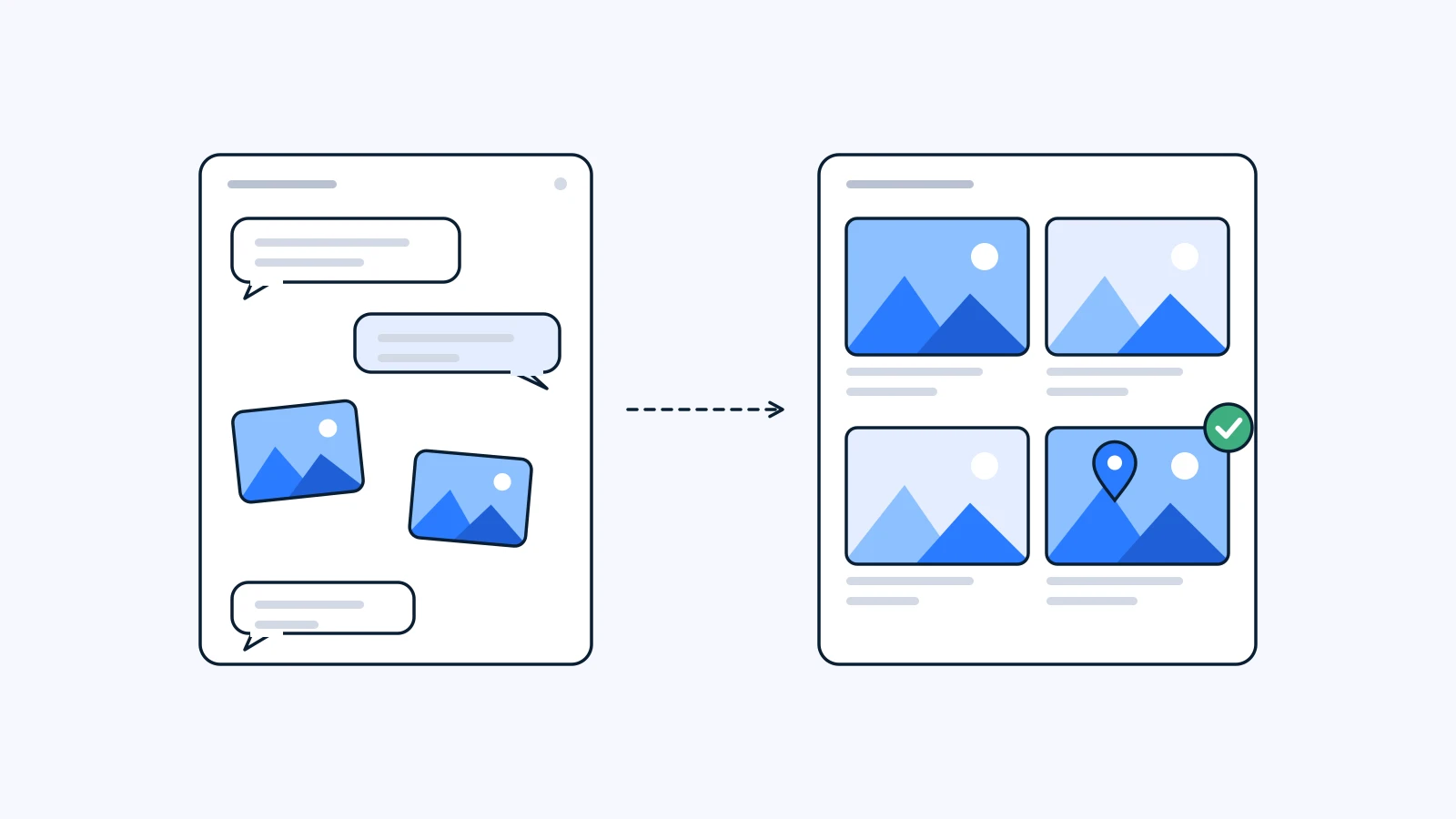
Team feedback on ChatGPT images is easier to manage in a project, where the image sits as a file, than in a group chat. If the images already exist, upload them to a project and collect comments and approval status on the file itself. If the work is a team job from the start, generate inside the project. This is not about switching tools. ChatGPT is where you make; the project is where you decide.
The short version
- The problem is location, not the image. The moment you download a draft and drop it into a group chat, it scatters between messages and “which one?” begins.
- Feedback belongs on the image. A comment and a quick drawing on the file beat “the logo, top left, the second one” in a thread.
- Versions and approval status should be visible at a glance. Nobody should scroll back through a chat to find out what is final.
- A record of how it was made makes the next round easier. If the prompt and references are saved, the next draft starts from them.
Why ChatGPT drafts get lost in the group chat
OpenAI released ChatGPT Images 2.5 on September 8, 2026, and making drafts in ChatGPT got faster again. What happens after that usually looks like this:
- You generate three or four images in ChatGPT.
- You download the good ones and post them in Slack or a messenger.
- Your lead replies, “The second one is nice, just change the color.”
- You make a new one and post it, and someone says, “I meant the second one from before.”
- The client gets a separate email, and their answer arrives somewhere else again.
Most of the confusion comes from three things. The image and the feedback live apart, so “the second one” depends on whose screen you are looking at. Files keep names like image (3).png, so nobody is sure which is latest. And finding who said “let’s go with this” means scrolling to the bottom of the conversation.
ChatGPT is not doing anything wrong here. A chat is built for one person going back and forth with a model, not for several people reaching a decision about one image. Splitting the roles fixes most of it.
Sharing ChatGPT images: chat thread vs project
Here is the common habit of downloading images and passing them around in chat, next to keeping them as files in a project.
| What you need | Downloaded and passed around in chat | Kept as a project file |
|---|---|---|
| Context | Re-explained in every message | Brief and earlier drafts sit in the same project |
| Reference files | Everyone hunts and attaches their own | Project files attached as references when generating |
| Where feedback sits | Scattered between messages | Comments on the image file, with drawings to mark a spot |
| Versions | Guessed from file names and dates | Revisions stacked as versions and compared |
| Approval | Find the “let’s go with this” message | A status on the file |
| How it was made | Somewhere in the chat history | Model, prompt, and references in the file’s info panel |
The right-hand column describes YouViCo. The reference-file and how-it-was-made rows apply only to files generated with AI inside YouViCo.
Option 1: Already made the images in ChatGPT? Bring them into a project
If your drafts already came out of ChatGPT, keep them. The only thing that changes is where they circulate.
- Upload the drafts to one folder in a YouViCo project.
- Teammates leave comments on the image and draw on it when pointing is easier than describing.
- Upload each revision as a new version and compare it with the previous one.
- When the decision maker sets the status to approved, that file is final.
Clients and outside partners can leave feedback on the same image through guest access, without signing up. Skipping the “please create an account” step keeps outside feedback from drifting back into email and messengers. What is guest access? covers the idea in more detail.
If you get a lot of small requests like “just the color” or “remove that cup,” image AI spot edit helps. Added on September 16, 2026, it lets you pin a spot and give a short instruction, and only that area changes. It is an AI feature that uses credits, so it is available from the Standard plan. What is spot AI image editing? explains how it works.
Option 2: Generate with GPT Image 2.5 inside the project
If the drafts are for the team to review, you can generate them inside the project and skip the download-and-upload round trip.
- In the project, click New file and choose AI, next to Upload and YouTube link.
- Set the output type to image and pick an image model from the list. GPT Image 2.5 is one of the options.
- Attach up to five files from the project as references: a brand guide, an earlier draft, a product photo, anything that is hard to describe in words.
- Keep the prompt short. The references carry a lot, so the prompt can focus on what to make.
- Before you generate, YouViCo shows the maximum credits this run will reserve. Check it and create. If generation fails, the credits come back.
The result is a normal project file. Comments, drawings, and status work on it the same way they do on an upload. It also carries one more thing: a generation block in the file’s info panel showing the model, output type, prompt, and reference files used. When the client picks a draft, the next one starts from that record. The reasoning behind this design is in How AI generation in YouViCo is designed.
When ChatGPT alone is enough
Not every image needs to move into a project. Staying in ChatGPT is faster when:
- The image is a one-off for your own use.
- Nobody on the team or client side needs to review it.
- You are still exploring ideas broadly and there is nothing to decide yet.
The rule of thumb is simple. Once two or more people need to agree on “is this the one,” move it into a project.
Bringing AI draft feedback to your team in three steps
The usual mistake with a new tool is trying to move everything at once. Start small.
- One folder. Move a single piece of work, such as this campaign or this week’s drafts. Leave past work where it is.
- One review rule. Something like “feedback goes on the image; the chat only gets the link” is enough.
- One decision maker. Pick one person who changes the approval status. The “which one is final?” question ends there.
If you are still working out how to structure approval stages, What is a video approval workflow? is written for video but applies just as well to image drafts.
FAQ
Can I upload images I made in ChatGPT?
Yes. Upload the downloaded images to a project and you get comments, drawings, status, and version comparison like any other file. The generation block only appears on files generated inside YouViCo.
Does this work on the free plan?
The free plan does not include AI generation. AI generation, including spot edit, starts from the Standard plan. See youvico.com for plan details.
How do I choose a model?
In New file ▸ AI, set the output type to image and the list shows the image models you can use; pick one from there. GPT Image 2.5 is on the list. You can also run the same prompt twice with different models, keep both files in one folder, and let the team pick. Each file’s generation block records which model made it.
Do clients need to sign up?
No. With guest access, people without an account can view the image and leave feedback.