
What is Guest Access? How Stakeholders Review Video Securely
Guest access lets external stakeholders review videos without signing up for an account. Learn how it works, why it matters, and security best practices.
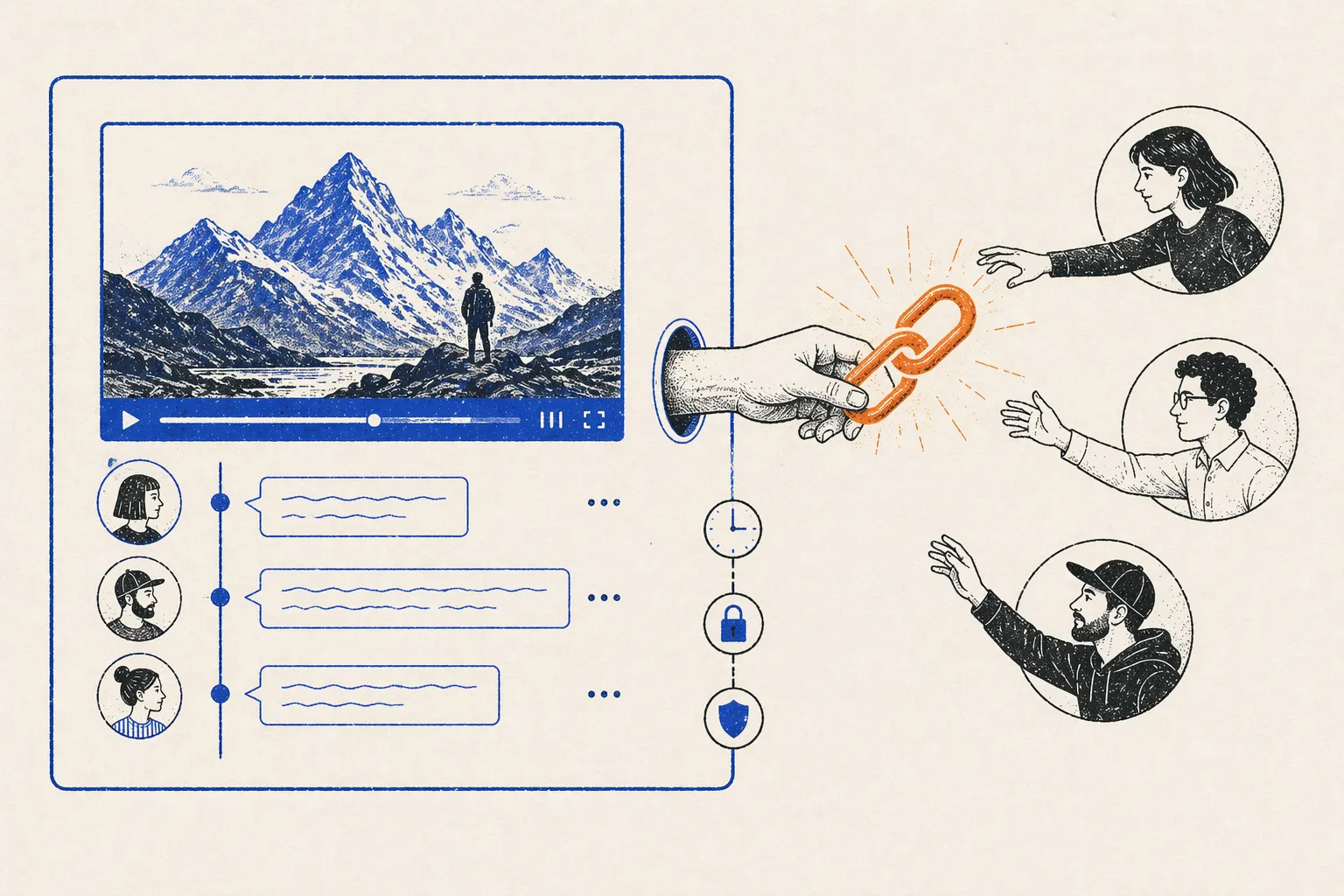
What is Guest Access?
Guest access is a feature that allows external stakeholders (clients, vendors, executives, talent) to review videos without creating an account or logging in. Instead, they receive a secure link (e.g., app.youvico.com/share/abc123xyz) and can watch the video, leave comments, and provide feedback as “guests.” When the guest closes the link, their access ends—no account to manage, no password to forget, no cluttered user directory.
Guest access is critical for workflow efficiency. Without it, you’d need to create an account for every external reviewer, manage their passwords, and eventually deactivate them. That overhead—multiplied across 50+ videos per year—is why guest access became table-stakes for video collaboration tools.
Why Guest Access Matters
Pain Point: External Reviewer Friction
Without guest access, your workflow looks like this:
- Client wants to review the video. You send them an email: “Sign up for a free account here.” Link to sign-up page.
- Client signs up. They create a password, choose a username, enter contact info.
- You invite them to the project. They get an email, click it, now they’re in your workspace.
- Client reviews the video. Leaves comments.
- Client disappears. Project ends. Now you have an inactive account cluttering your user directory.
- Six months later, client wants to review another video. You hope they remember their password. Often they don’t. “Reset password” email goes out. Repeat the whole process.
Time wasted: 30+ minutes per client per project. If you work with 50 clients a year: 1,500+ minutes (25 hours) of friction.
Solution: Single-Click Invite
With guest access:
- Client wants to review the video. You click “Generate guest link.”
- You send them a link. They click it. They watch. They comment. Done.
- No account. No password. No cleanup. When they close the link, access ends.
Time: 2 minutes.
Across 50 clients: 100 minutes saved. Plus better client experience. Guests don’t have to remember yet another password.
How Guest Access Works
Step 1: Generate Guest Link
In YouViCo, Filestage, or Frame.io, you click “Share” or “Generate Guest Link.” Options appear:
- Can this guest see only this video, or all videos in the project? (usually just this video)
- Can this guest download the video? (usually yes for clients, no for talent)
- When does this link expire? (48 hours, 7 days, or never)
- Does this guest need a password? (optional)
You generate the link. It looks like: app.youvico.com/share/abc123xyz
Step 2: Share the Link
You copy the link and send it to the guest via email, Slack, SMS, or however they prefer.
Message might look like:
“Hi Jane, here’s the rough cut for the Acme commercial. Please review and leave feedback by EOD Thursday. [link]“
Step 3: Guest Reviews
Jane clicks the link. No login required. She sees the video in a branded player, with comment/annotation tools available.
She can:
- Watch the video
- Leave timestamped comments
- Draw/markup the video
- View other guests’ comments
- Download the video (if enabled)
She cannot:
- Access other projects or videos (only this video)
- Invite other people
- Download project files or metadata
Step 4: Guest Access Expires
After 48 hours (or your chosen expiration), the link becomes invalid. If Jane tries to access it later, she sees “This link has expired.”
This is good for security: you don’t want the link floating around forever. And it prompts Jane to save any notes before the link expires.
Types of Guest Access
Public Link (No Password)
Best for: Open feedback, non-sensitive content Anyone with the link can access. Useful for sharing rough cuts with teams, getting broad feedback, or public voting. Security risk: Link could be leaked.
Password-Protected Link
Best for: Confidential content, specific stakeholders Link is useless without the password. You send the password separately (phone call, separate email). Security benefit: Even if link is leaked, it’s not useful without password.
Allowlist / Email Requirement
Best for: Strict security, high-value clients Only specific email addresses can access the link. You provide a list: “alice@acme.com, bob@acme.com” and only they can view. Trade-off: More friction (guest must sign in with email), but highest security.
Watermarked / Tracking
Best for: Intellectual property protection Video is watermarked with guest’s name/email. If guest screenshots and leaks the video, you know who did it. Trade-off: Video quality slightly reduced, and guests see watermark (psychological reminder: this is tracked).
Guest Access in Different Scenarios
Scenario 1: Client Review
Agency: “Hey client, review the rough cut.” Client: Clicks link, watches, leaves feedback (“Trim the opening, music feels slow”). Agency: Revises based on feedback.
Guest access type: Password-protected or email allowlist (confidential work) Expiration: 7 days (enough time for client to watch and comment) Download allowed: Yes (client may want to share internally)
Scenario 2: Talent Review
Director: “Actor, here’s the raw footage from yesterday’s shoot.” Actor: Clicks link, watches, comments (“That take at 3:42 looks better”). Director: Notes the feedback, addresses in the edit.
Guest access type: Public link (talent already knows the project, minimal security concern) Expiration: 24 hours (quick turnaround) Download allowed: No (raw footage is proprietary)
Scenario 3: Broad Feedback (Voting)
Content creator: “Help me pick the thumbnail. Here are 3 versions.” Audience: Clicks link, votes (Comment: “Version 2 is best”). Creator: Picks winner based on votes.
Guest access type: Public link, no password (maximize participation) Expiration: 3 days (voting window) Download allowed: No Multiple versions: All 3 are visible
Scenario 4: Legal/Compliance Review
Company: “Compliance team, review this ad for regulatory compliance.” Compliance officer: Clicks link, watches, comments (“Remove the unsubstantiated claim at 0:55”). Company: Revises before publishing.
Guest access type: Email allowlist (only compliance team can access) Expiration: 48 hours (compliance team has limited bandwidth) Download allowed: Yes (compliance team needs to save records) Watermark: Optional (internal use, low leak risk)
Security Best Practices for Guest Access
1. Use Password Protection for Sensitive Content
If the video contains confidential information (unreleased product, proprietary process), use password protection. Send password via separate channel from the link.
2. Set Expiration Dates
Don’t create guest links that last forever. 48 hours to 7 days is typical. After expiration, the link is dead.
3. Monitor Guest Activity
Good tools (YouViCo, Ziflow) show you who accessed the link, when, and what comments they left. Review this for security red flags.
4. Use Watermarks for Sensitive Content
If you’re worried about leaks, watermark the video with the guest’s email. Discourages sharing and creates accountability.
5. Disable Download When Unnecessary
If the guest only needs to watch and comment, disable download. This prevents them taking a copy outside the secure link.
6. Use Email Allowlist for High-Security Situations
If only 2 people should access a video, use email allowlist. Don’t rely on “the password is secret.”
7. Log Everything
Keep records: who accessed the link, when, what they commented. Helpful for disputes and compliance audits.
Common Misconceptions About Guest Access
Myth: “Guest access is less secure than creating accounts.” False. Guest access with expiration and password protection is MORE secure than inactive accounts. Inactive accounts are security liabilities.
Myth: “Guests can see other projects if they access one guest link.” False. Guest links are scoped to specific videos. Guest can’t navigate to other projects or videos in the workspace.
Myth: “If I delete a guest link, the guest loses access immediately.” Depends on the tool. Some delete immediately. Others let current sessions finish. Check your tool’s policy.
Myth: “Guest comments are separate from team comments.” False. Guest comments appear in the same comment timeline. Team can see what guests said.
Comparison: Guest Access Across Tools
| Tool | Public Link | Password | Email Allowlist | Expiration | Watermark | Download Control |
|---|---|---|---|---|---|---|
| YouViCo | ✅ | ✅ | ✅ | ✅ | ✅ | ✅ |
| Frame.io | ✅ | ❌ | Limited | ✅ | Limited | ✅ |
| Filestage | ✅ | ✅ | ✅ | ✅ | Limited | ✅ |
| Wipster | ✅ | Limited | ❌ | ❌ | ❌ | ✅ |
| Ziflow | Limited | ✅ | ✅ | ✅ | ✅ | ✅ |
YouViCo and Filestage offer the most flexible guest access controls.
Best Practices for Guest Access Workflows
1. Set Clear Deadlines
“Please review and comment by EOD Thursday.” Guests don’t comment after the deadline, and you might close the link before they have a chance.
2. Provide Context in the Invitation
“Hi Jane, here’s the rough cut for the Acme commercial. Key points to consider: (1) Does the pacing feel right? (2) Does the color grade match the brand guidelines? (3) Any technical issues you notice?”
Clear criteria = more actionable feedback.
3. Follow Up if Needed
If the guest doesn’t comment by deadline, send a reminder. Some guests forget or miss emails.
4. Document Guest Feedback
If guest feedback is important for project history, log it. Example: “Client approved V3 rough cut via guest link on 2026-03-28.”
5. Close Guest Links After Project Ends
If a project is archived, disable old guest links. Prevents confusion if someone finds an old link and thinks the project is still active.
6. Consider Privacy Regulations
If guests are in GDPR regions (EU, UK, CA), guest access must comply with privacy laws. Data about guest access (who viewed, when, IP address) may be subject to GDPR. Check your tool’s privacy policy.
FAQ
Can guests edit the video? No. Guests can watch, comment, and annotate, but not edit. Only workspace members can edit.
Can I track if a guest downloaded the video? Most tools log when a guest downloads. Some tools prevent download altogether (if you disable the feature).
What if a guest link is accidentally leaked? Depends on your security settings. If it’s password-protected, leaked link is useless. If it’s public with no password, anyone can access. If you catch the leak, you can delete/revoke the link immediately.
Can guests invite other guests? No. Guests can’t create new links or invite others. Only workspace members can generate guest links.
How long can a guest link last? Typically 48 hours to 30 days. Some tools offer custom durations. Never set to “never expires” unless absolutely necessary.
Do guests need the same device to review? No. Guest can start on desktop, continue on mobile, no problem. Some tools remember scroll position, others don’t.
What happens to guest comments after the link expires? Comments stay in your workspace. Expiration only prevents NEW access via the link. Old comments are preserved for your records.