
Why Frame Numbers Drift at 29.97fps in Video Review
A 29.97fps video counted as 30fps ends up 3.6 seconds off after an hour. Here's why frame numbers drift in video review tools and how to check yours.
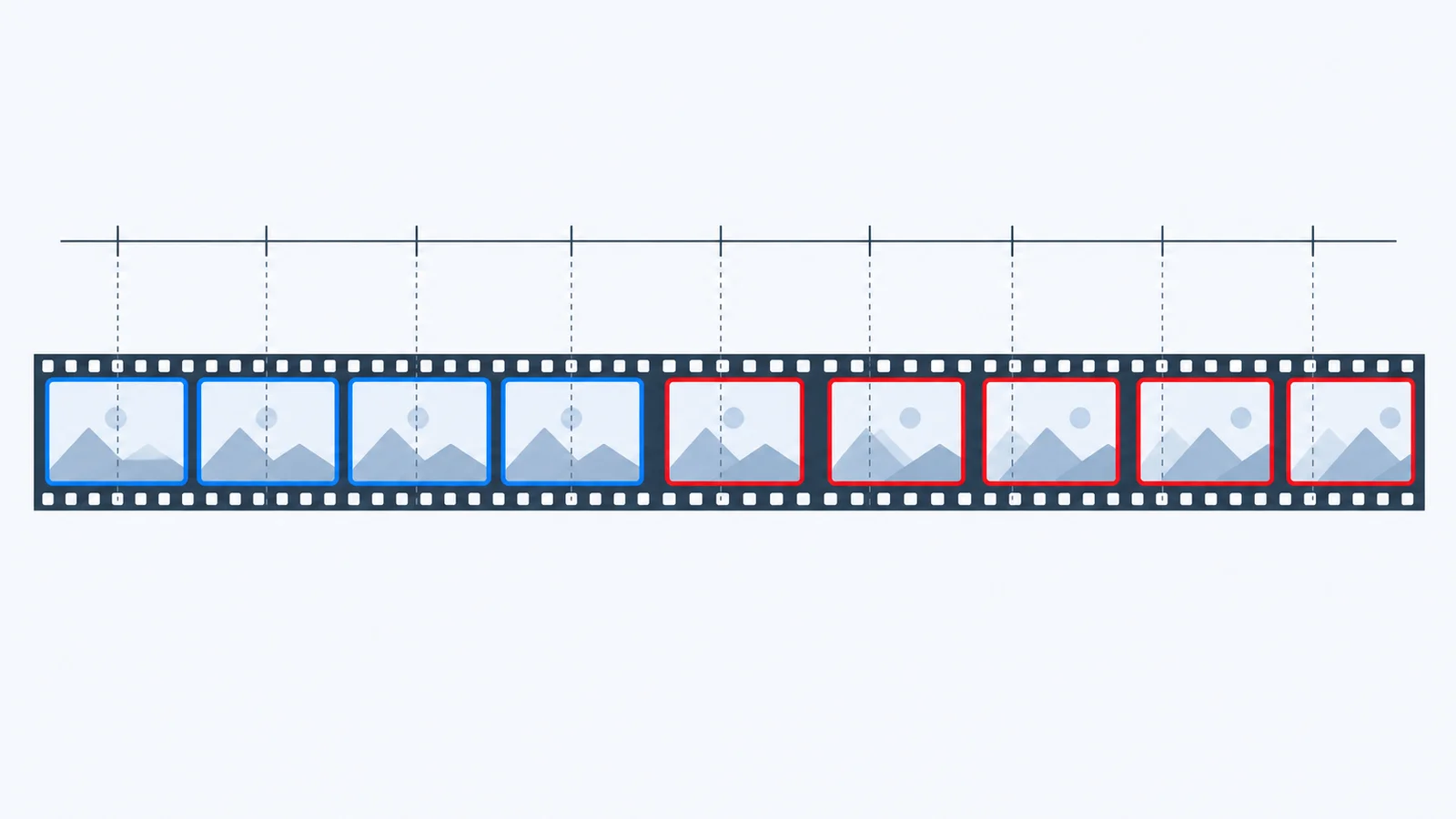
A frame number is only accurate if it is calculated from the video’s real frame rate. When a video review tool assumes every file runs at 30fps, the frame numbers and timecodes it shows on comments slowly drift away from what the editor sees in their NLE, and on 24fps or 60fps files they are wrong from the very first second.
Key Takeaways
- 29.97fps is not 30fps. It is exactly 30000/1001 frames per second, about 0.1% slower.
- Counting 29.97fps video as 30fps drifts 3.6 seconds per hour (108 frames). After 10 minutes the gap is already 18 frames.
- On 24fps and 60fps files the error is immediate. A comment that says “frame 300” can land 2.5 seconds late or 5 seconds early in the editor’s timeline.
- Drop-frame timecode fixes the clock drift, not the conversion bug. If a tool converts seconds to frames with the wrong rate, no timecode mode will save it.
- You can test your own tool in 5 minutes with one ffmpeg command and a burned-in timecode.
What does 29.97fps actually mean?
29.97fps is the NTSC broadcast frame rate, defined as exactly 30000/1001 frames per second (29.97002997…). It exists for historical reasons: when color was added to American television in 1953, the frame rate was lowered by 0.1% to keep the new color signal from interfering with audio.
That decision is still with us. Many cameras and phones sold in former NTSC regions, including North America, Korea, and Japan, record at 29.97fps or its relatives: 23.976fps (24000/1001) and 59.94fps (60000/1001).
The difference looks tiny. It isn’t, once you count frames for a few minutes.
Why do frame numbers drift in video review tools?
Review tools usually store a comment’s position as a time in seconds, because that is what the browser’s video player reports. To show “frame 1,204” or “00:00:40:04” next to the comment, the tool has to convert seconds into frames.
That conversion needs one number: the frame rate. This is where things go wrong.
The 30fps shortcut
The easiest implementation is to multiply by 30 for every file. It looks correct on 30fps test clips, so the bug often ships unnoticed.
Here is what that shortcut does to a comment left exactly 10 seconds into a video:
| Source frame rate | Real frame at 10.0s | Frame shown if tool assumes 30fps | Where “frame 300” lands in the NLE |
|---|---|---|---|
| 24fps | 240 | 300 | 12.5s (2.5s late) |
| 29.97fps | 299 | 300 | 10.01s (1 frame late) |
| 30fps | 300 | 300 | 10.0s (correct) |
| 60fps | 600 | 300 | 5.0s (5s early) |
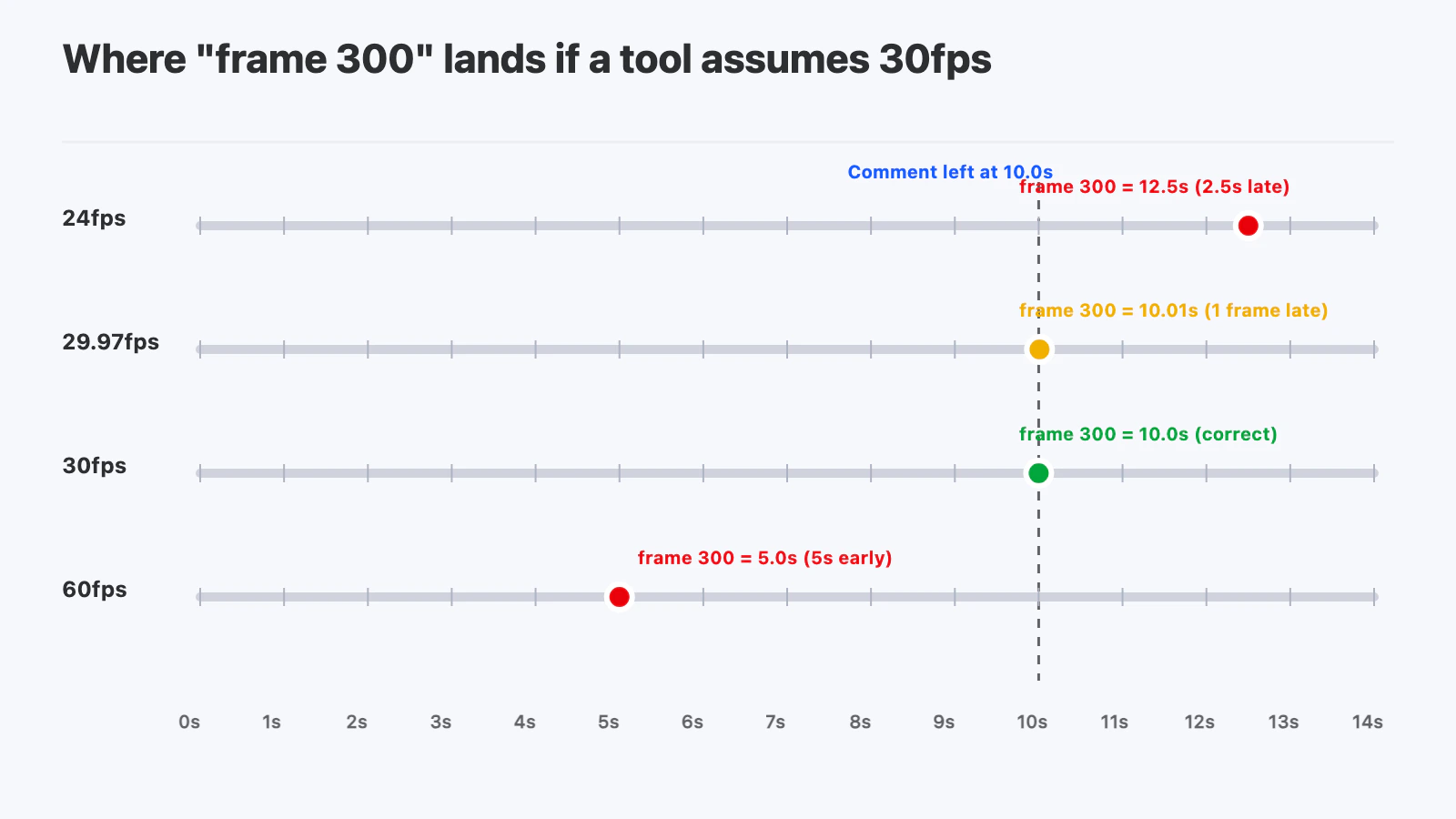
On a 24fps or 60fps project, the editor jumps to the wrong shot entirely. On 29.97fps the error starts at one frame and grows.
How fast does 29.97fps drift?
If you label 29.97fps footage with a plain 30-frames-per-second counter (non-drop timecode), the labels fall behind the wall clock:
| Real time elapsed | Frames played | Non-drop timecode reads | Behind the clock by |
|---|---|---|---|
| 1 minute | 1,798 | 00:00:59:28 | 2 frames (0.07s) |
| 10 minutes | 17,982 | 00:09:59:12 | 18 frames (0.6s) |
| 1 hour | 107,892 | 00:59:56:12 | 108 frames (3.6s) |
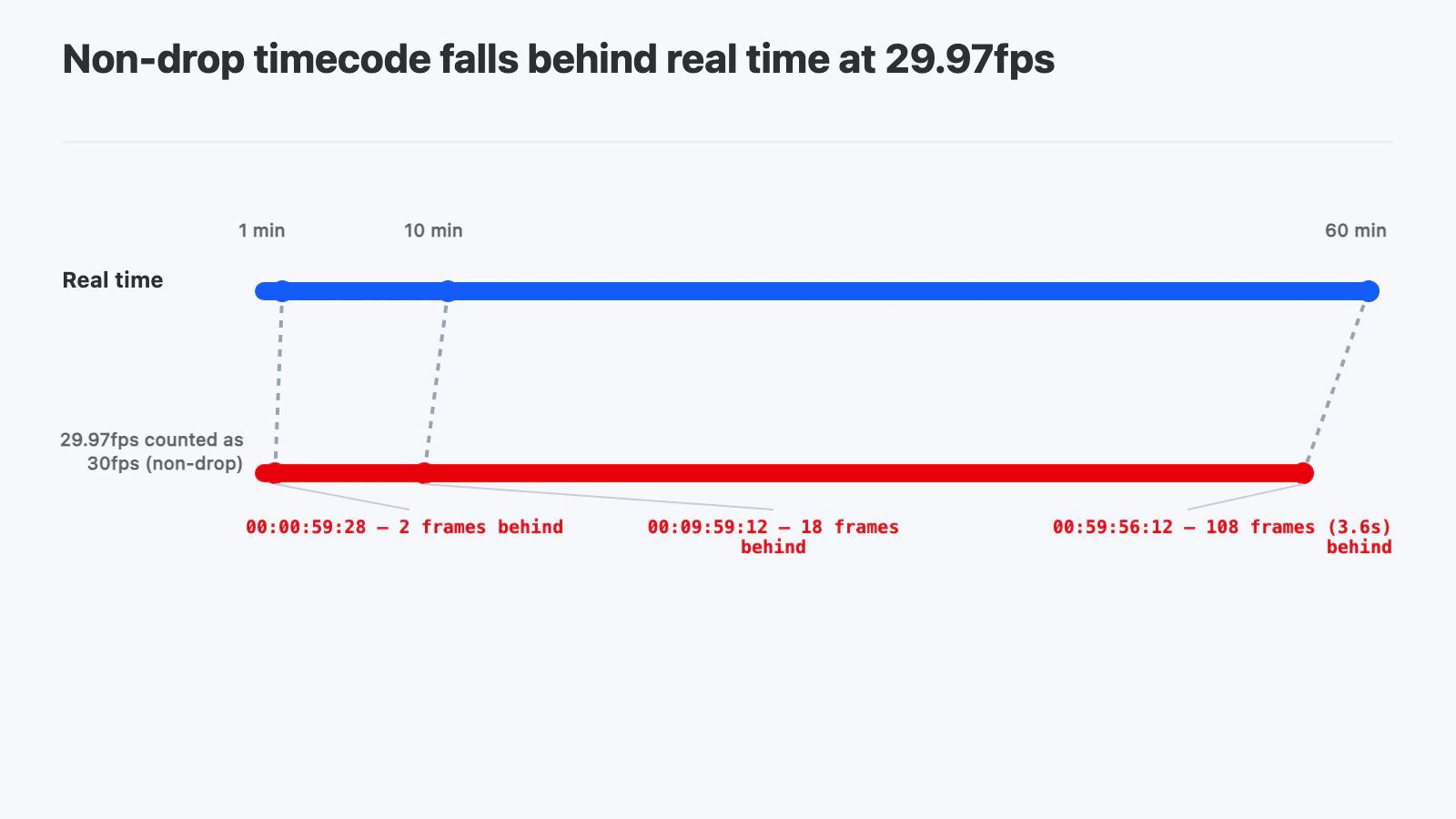
For a 30-second ad, 2 frames might go unnoticed. For a 20-minute YouTube video or a long-form documentary, a comment that says “cut here” can point at the wrong line of dialogue.
What is drop-frame timecode, and does it fix the problem?
Drop-frame timecode is a labeling scheme that keeps 29.97fps timecode in sync with real time. It skips the frame labels ;00 and ;01 at the start of every minute, except every tenth minute. No actual frames are removed, only numbers.
So the counter goes from 00:00:59;29 straight to 00:01:00;02. Over an hour that skips 108 labels, exactly the 108 frames of drift from the table above. Drop-frame timecode is usually written with a semicolon before the frame field.
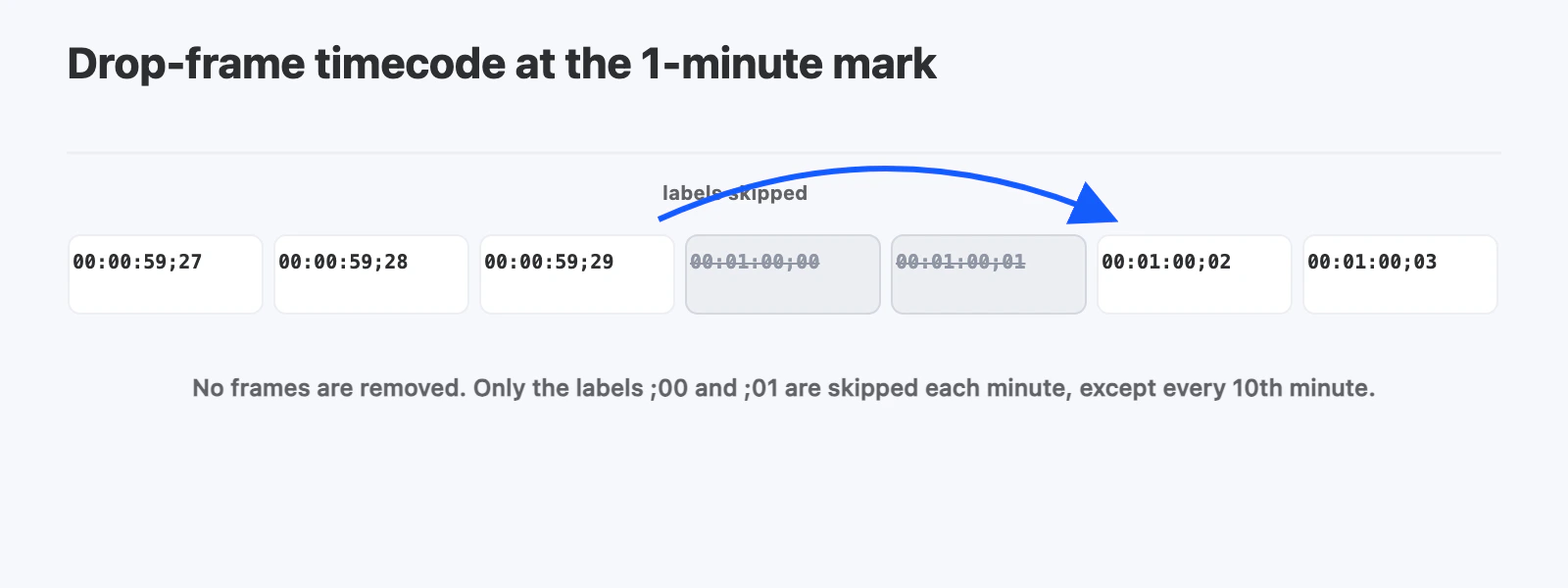
Drop-frame solves a display problem: it makes timecode agree with the clock. It does not fix a tool that converts seconds to frames with the wrong frame rate. If the math uses 30 instead of 30000/1001, every label is built on a wrong frame count, drop-frame or not.
Which one should reviewers use?
Use whatever your editor’s timeline shows. The goal of a review comment is that the editor can type the number into their NLE and land on the same frame. Broadcast deliveries usually use drop-frame; many web and social workflows use non-drop or plain frame numbers.
How can you check if your review tool gets frame numbers right?
You don’t need to trust anyone’s documentation. Build a test clip and look.
Step 1: Check the real frame rate of your file
ffprobe -v error -select_streams v:0 \
  -show_entries stream=r_frame_rate -of csv=p=0 your-video.mp4
A 29.97fps file returns 30000/1001, not 30/1.
Step 2: Make a clip with the timecode burned into the picture
ffmpeg -f lavfi -i testsrc2=size=1920x1080:rate=30000/1001 -t 600 \
  -vf "drawtext=timecode='00\:00\:00\:00':rate=30000/1001:fontsize=72:fontcolor=white:box=1:boxcolor=black@0.6:x=40:y=40" \
  test-2997.mp4
Swap the rate for 24, 60, or 24000/1001 to test other frame rates.
Step 3: Compare the burned-in number with the tool’s number
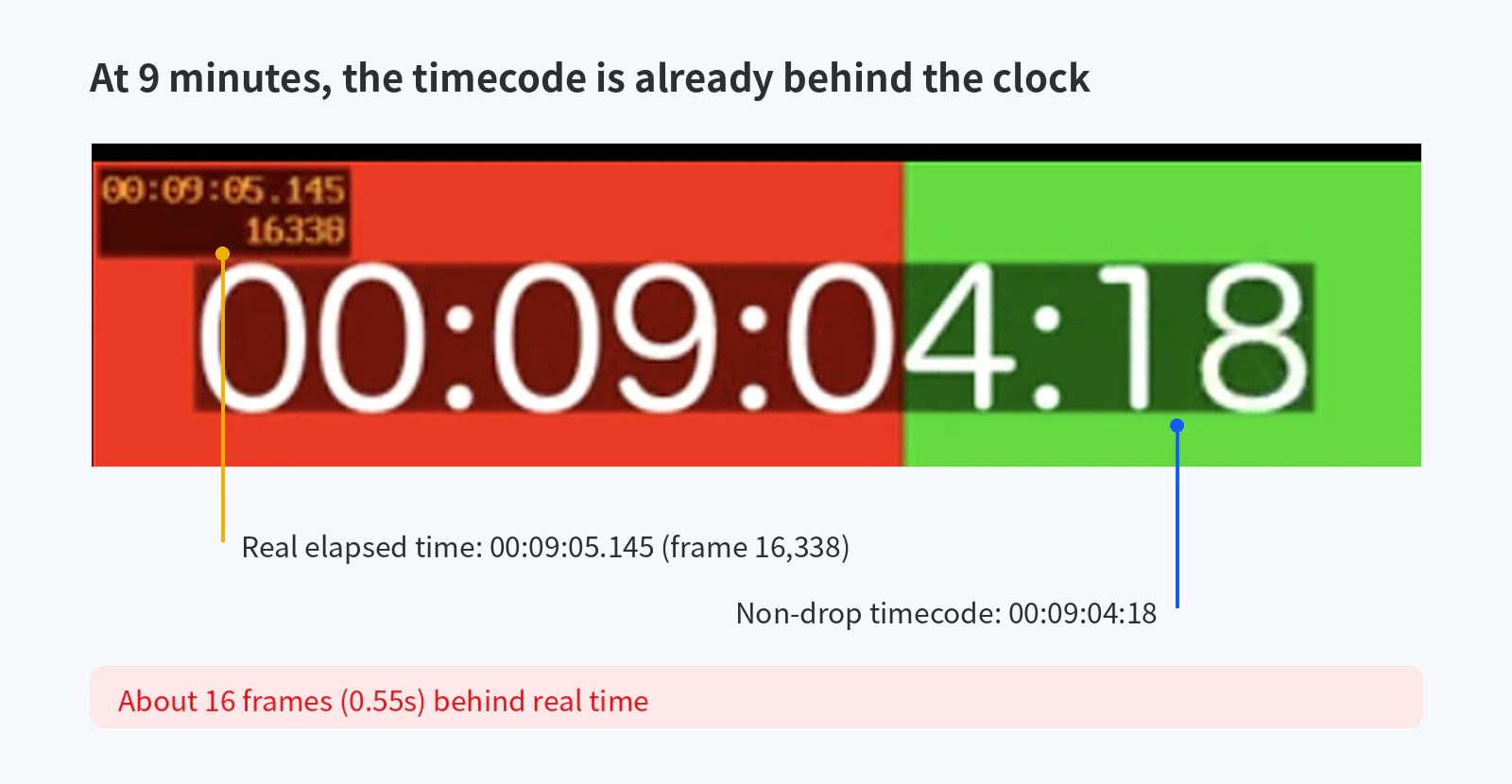
Upload the clip, jump to around the 9-minute mark, and leave a comment. The number your review tool shows next to the comment should match the timecode printed in the frame. If it is off by about 16 frames at 29.97fps, the tool is counting at 30fps.
The test pattern also prints its own real-time clock in the corner, which makes the drift visible in a single frame:
Step 4: Step one frame at a time
Use the tool’s frame-step control a few times. Each step should change the burned-in number by exactly one. Skipped or repeated numbers mean the tool’s frame boundaries don’t match the file.
How does YouViCo display time in feedback?
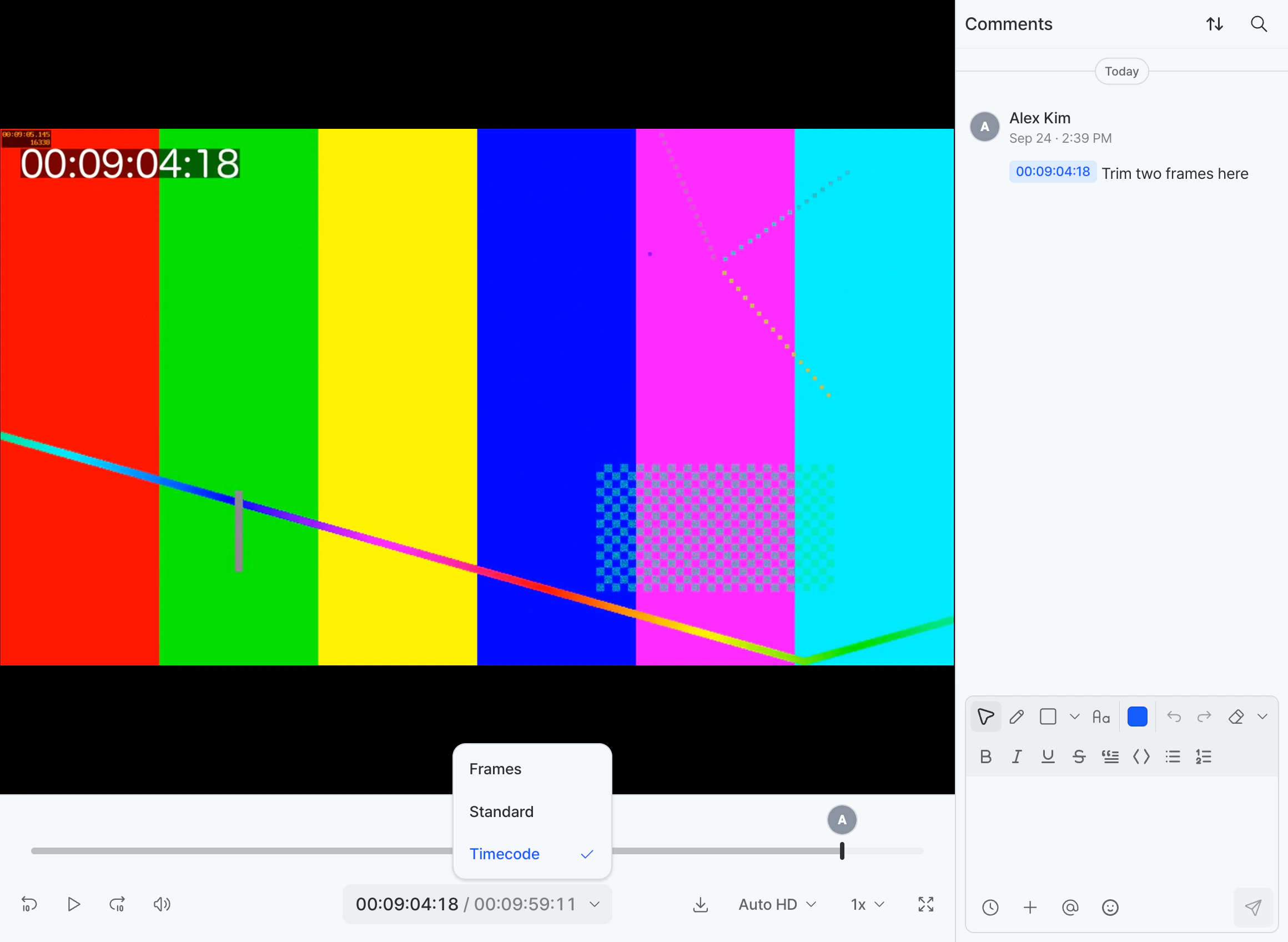
YouViCo, a video collaboration platform for creative teams, calculates frame numbers from each file’s own frame rate instead of a fixed value. A 23.976fps film cut, a 29.97fps vlog, and a 60fps game capture each get frame numbers that match what the editor sees in their NLE.
The time format is chosen once in the player’s control bar, with three options: Frames, Standard clock time, and Timecode. The same format then applies everywhere a time appears in the feedback view: comment chips, threads, replies, marker labels, and the timestamp in the comment composer. A reviewer and an editor looking at the same comment read the same number.
Frame stepping follows the file’s real frame boundaries, so moving one frame forward lands on the next actual frame.
For more on leaving precise, frame-level feedback, see our guide to frame-accurate video comments.
Frequently Asked Questions
Is 29.97fps the same as 30fps?
No. 29.97fps is exactly 30000/1001 frames per second, about 0.1% slower than 30fps. The difference adds up to 108 frames, or 3.6 seconds, per hour of video.
Why is my review comment a few frames off in Premiere Pro?
The most common cause is a review tool that converts comment times to frames at 30fps while your sequence runs at 29.97fps, 23.976fps, or 59.94fps. Check the file’s frame rate with ffprobe and compare it with a burned-in timecode test clip.
Should I use drop-frame or non-drop-frame timecode for review?
Match your editor’s timeline setting. Drop-frame keeps 29.97fps timecode aligned with real time and is common in broadcast. Non-drop is common in web and social workflows. What matters most is that reviewer and editor use the same format.
Does drop-frame timecode delete frames from my video?
No. Drop-frame only skips frame labels (;00 and ;01 at most minute boundaries). Every frame of the video is still there.
Does this matter for 24fps and 60fps video too?
Yes, and more so. A tool that assumes 30fps is wrong from the first second on 24fps and 60fps files. At 10 seconds in, “frame 300” is really 12.5 seconds into a 24fps video and 5 seconds into a 60fps video.