
What is Timestamped Feedback? Why Frame-Accurate Comments Matter
Timestamped feedback links comments to exact frames in video, eliminating confusion and reducing revision rounds. Learn how it works and why it matters.
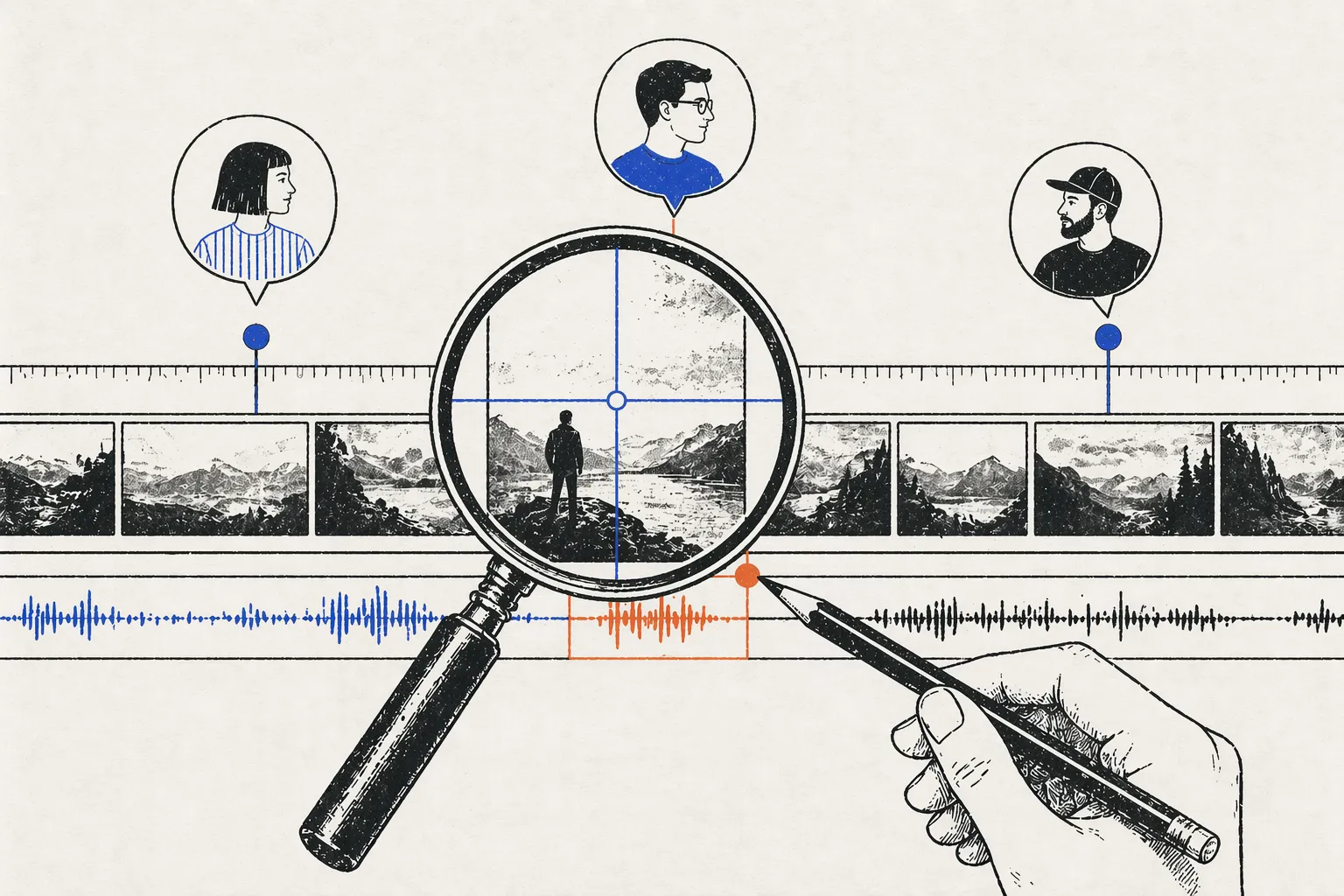
What is Timestamped Feedback?
Timestamped feedback is a comment linked to an exact moment in a video—down to the frame. When a reviewer writes “This shot needs a trim,” the comment is anchored to, say, 1:22:15 (1 minute, 22 seconds, 15 frames). When the editor clicks that comment, the video player jumps to that exact frame. No ambiguity, no “which part are you talking about?”
Timestamped feedback is different from regular comments on YouTube or Google Docs because the timestamp is the comment’s primary context. The frame-accurate anchor is what makes the feedback actionable. Without it, feedback becomes a guessing game.
Why Timestamped Feedback Solves a Real Problem
The Old Way: Feedback Without Timestamps
Your editor finishes a 5-minute video. You watch it and send feedback:
“The transition at 2 minutes feels abrupt. The color grade in the second half is too warm. Also, the music comes in too late.”
Now your editor has a problem. She doesn’t know if you meant:
- 2:00 exactly, or roughly “around the 2-minute mark”?
- “The second half”—does that start at 2:30, 3:00, or halfway through?
- Which music cue? There are three different pieces of music.
She guesses, re-edits, and sends the video back. You watch and say “No, I meant the OTHER transition.” Two more rounds of back-and-forth. What should have taken 30 minutes takes 2 hours.
The New Way: Frame-Accurate Comments
With timestamped feedback, the same feedback looks like:
- At 2:14: “This transition feels abrupt—hard cut instead of dissolve?”
- At 3:47: “Color grade feels warm here (and rest of video). Consider -15 saturation or cooler white balance.”
- At 4:02: “Music cue comes in 3 frames too late. Should align with the title card at 4:00.”
Now your editor knows exactly what you mean. She jumps to 2:14, sees the transition, understands the issue in 5 seconds. No guessing, no confusion.
One revision round solves it.
How Timestamped Feedback Works Technically
Behind the Scenes
When you write a comment in a video review tool like YouViCo:
- You click the “Add Comment” button while the video is playing
- The tool captures the exact timestamp (1:22:15, for example) and the video file information
- Your text is stored with that metadata (comment text + timestamp + user + timestamp)
- When the editor opens the video, the comments appear on a timeline (some tools show them as markers on the playback bar)
- The editor clicks a comment, and the player jumps to that exact frame
Some tools store the timestamp to the frame (24-30 frames per second = sub-frame precision). Others store to 0.1 seconds. Either way, it’s light-years better than “around the 2-minute mark.”
Visual Examples
Most video review tools display timestamps in one of these ways:
Timeline View: The video player shows a scrubbar with comment markers. Editor can see all feedback visually before clicking.
Comment List: A sidebar showing all comments, sorted by timecode. Editor can skim: “0:15, 1:22, 3:47” and jump directly to problem areas.
Inline Markers: Small badges on the playback bar indicating where comments exist. No clutter, but quick reference.
Frame Accuracy Matters More Than You Think
Not all timestamps are created equal.
0.1-second precision (what most tools do):
- Good enough for most feedback
- 0.1 seconds = 2-3 frames at 24fps
- Works for most editing feedback
Frame-accurate (24-30 frames per second):
- Essential for color grading feedback (“this frame is too cool, but the next one is fine”)
- Critical for sound design (“the music cue should hit at frame 1800, not 1801”)
- Overkill for pacing feedback (“this shot feels long”)
YouViCo and Frame.io support frame-accurate timestamps. Wipster does 0.1-second precision, which is still solid for most workflows.
Real-World Impact: The ELBA Case Study
We manage six YouTube channels and coordinate 140+ video campaigns annually. For each video, we work with multiple editors, colorists, and stakeholders. Timestamps were our biggest pain point before we built YouViCo.
Here’s what changed:
Before timestamped feedback:
- Average revision rounds per video: 4-5
- Average feedback time per round: 2-3 hours (reading emails, watching from the start, guessing what reviewers meant)
- Total feedback time per video: 8-15 hours
After timestamped feedback:
- Average revision rounds per video: 1-2
- Average feedback time per round: 30 minutes (jump directly to marked frames, feedback is unambiguous)
- Total feedback time per video: 1-2 hours
That’s a 10x improvement. Across 140 videos annually, that’s 1,400+ hours saved. Real time. Real money.
The difference is entirely due to timestamping. When a colorist says “The skin tones in this frame are green,” and you can see exactly which frame, you fix it. When she just says “skin tones look off,” you spend 10 minutes hunting for the problem.
Timestamped Feedback in Different Contexts
Color Grading
“At 1:34, the shadows are crushed. Open them up by 15%.” → Editor jumps to 1:34, sees the problem, adjusts curves. Done.
Sound Design
“Music hits at 2:15, but the title card appears at 2:14. Shift music cue 1 frame earlier.” → Mixer sees the exact mismatch, fixes sync. Done.
Pacing
“The shot starting at 0:47 feels 4 frames too long. Trim it.” → Editor trims exactly 4 frames. Done.
Graphics/Compositing
“At 1:22, the lower-third is off-center by ~10 pixels. Move it left.” → Designer sees the misalignment, adjusts. Done.
Client Approvals
Client: “I like the first version of the product shot (at 0:55) better than the second one (at 1:33). Use the first one throughout.” → Editor knows exactly which versions the client prefers. Done.
Without timestamps, all of these would require follow-up clarifications.
Timestamped Feedback vs. Other Methods
| Method | Clarity | Speed | Scalability |
|---|---|---|---|
| Email feedback | Low (ambiguous) | Slow (loops) | Poor (manual) |
| Messaging app (Slack) | Low (lost context) | Fast typing | Poor (no history) |
| Phone call | High (verbal clarity) | Moderate | Poor (not recorded) |
| Shared document with notes | Moderate (context missing) | Slow (manual linking) | Moderate (hard to organize) |
| Timestamped feedback | High (frame-accurate) | Very fast (jump directly) | Excellent (all recorded, organized) |
Timestamped feedback wins because it combines clarity, speed, and scale.
Best Practices for Timestamped Feedback
1. Leave Feedback While Watching
Pause the video the moment you see an issue and add the comment immediately. Don’t wait until the end—you’ll forget the exact moment.
2. Be Specific
- ✅ “At 0:15, the transition feels abrupt. Consider adding a 12-frame dissolve.”
- ❌ “Around the 15-second mark, something feels off.”
The timestamp alone doesn’t guarantee clarity. Be specific about what you’re seeing.
3. One Comment Per Issue
- ✅ At 0:15: “Transition feels abrupt.”
- ✅ At 1:22: “Color grade is too warm.”
- ❌ At 0:15: “Transition abrupt, color warm, music late, text is small…”
Multiple issues in one comment = confusion about which feedback applies where.
4. Reference the Exact Frame for Critical Feedback
For color grading, sound design, or animation:
- “At 1:22:15 (specifically frame 15), skin tones are green.”
- “Music cue should hit at 2:30:00, not 2:30:03.”
For casual feedback, second-level precision is fine:
- “At 1:22, this shot feels slow.”
5. Use Comments to Document Decisions
Not just feedback—use timestamps to record decisions:
- “At 0:55, client approved the first product shot version.”
- “At 3:00, legal approved the disclaimer text.”
This creates an audit trail.
Common Misconceptions About Timestamped Feedback
Myth: “Timestamps only work if everyone has the same video file.” False. Timestamps are based on timecode and frame numbers, which are embedded in the video file. As long as the frame rate is the same (24fps, 30fps, etc.), timestamps work across exports.
Myth: “Timestamped comments don’t work with live video.” Partially true. Livestreams can’t rewind to exact frames, so timestamps are less useful for live feedback. But if you record the livestream, timestamps work on the VOD.
Myth: “I need special software to use timestamped feedback.” You just need a tool that supports it (YouViCo, Frame.io, Wipster, etc.). Your editor doesn’t need to learn anything new—the tool handles the technical part.
Myth: “Timestamps break when you edit the video.” Depends on the tool. If the video is re-edited (scenes added/removed), old timestamps may point to the wrong moment. Good tools handle this by comparing against the original file. Others require you to re-review the new version.
FAQ
Can I add timestamps after watching the video? Yes. Some tools let you scrub to any moment and add a comment retroactively. But it’s easier and more accurate to comment while watching.
What if the editor changes the video length? Old timestamps become inaccurate. The tool should flag this and let you re-review the new version. Or the editor can note “re-edited—old timestamps may not match.”
Do all video review tools support timestamped feedback? Most dedicated tools do. YouTube, Vimeo free tier, and other consumer platforms don’t. Frame.io, YouViCo, Wipster, Ziflow, and Filestage all support timestamps.
Can I export timestamped feedback? Yes. Most tools export feedback as a CSV or PDF with timecode references. Helpful for archiving or sharing with stakeholders who weren’t in the tool.
Does timestamped feedback work with 4K, 8K, or RAW video? Yes. The timestamp is based on timecode, not resolution. Works with any video format.
What if two people add comments at the same timestamp? That’s fine. They appear as separate comments. The tool shows which reviewer added which feedback.