
How to Review Spreadsheets and Docs Without Email Threads
Budgets, scripts and decks get feedback in scattered email threads. How to review XLSX, DOCX and PPTX files in the browser, with comments tied to the exact cell or page.
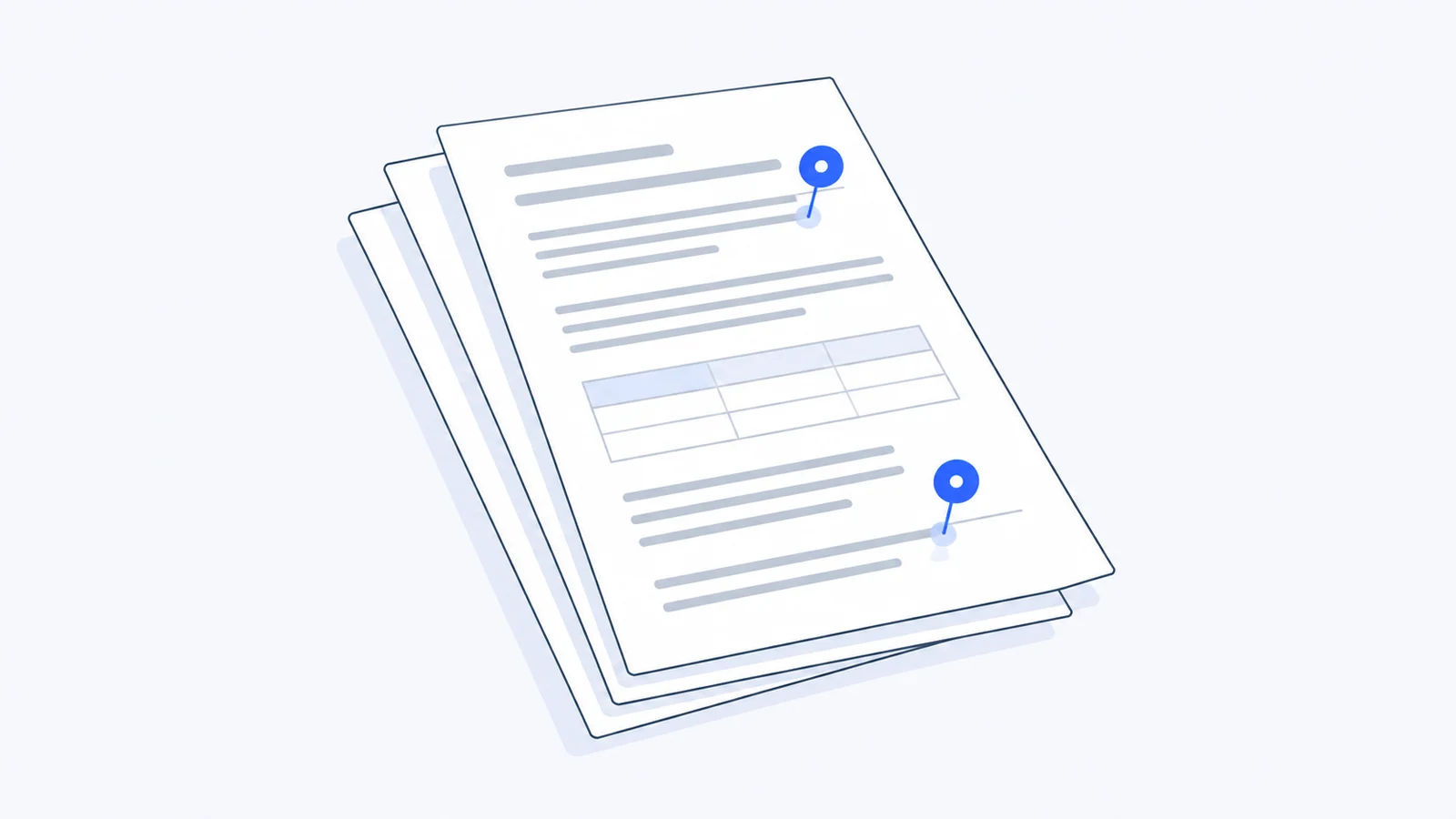
Reviewing a spreadsheet or document means leaving feedback that points to one exact place: a cell in a budget, a line in a script, a slide in a deck. When that feedback lives in email threads and chat messages instead, the editor spends more time finding what the comment refers to than fixing it.
Key Takeaways
- A video project is more than video. Budgets, scripts, shot lists and pitch decks all go through review too.
- Feedback should point to a place, not a file. “Check the numbers” is vague. A comment on cell D7 is not.
- Keep documents in the same project as the footage. Then the budget comment and the cut comment live in one place.
- Reviewers shouldn’t need the original app just to read a file and leave a note.
- One comment per issue keeps it easy to see what is resolved and what is still open.
Why does document feedback get lost?
A typical production has a budget in Excel, a script in Word and a treatment in PowerPoint, alongside the video files. The video gets reviewed in a dedicated tool. The documents get attached to emails.
That split causes predictable problems:
- Feedback on the same file arrives in three different threads.
- Comments like “the second number looks high” force the owner to guess which number.
- Two people review two different versions of the same deck.
- Nobody can tell which notes have already been handled.
How should you review spreadsheets and documents?
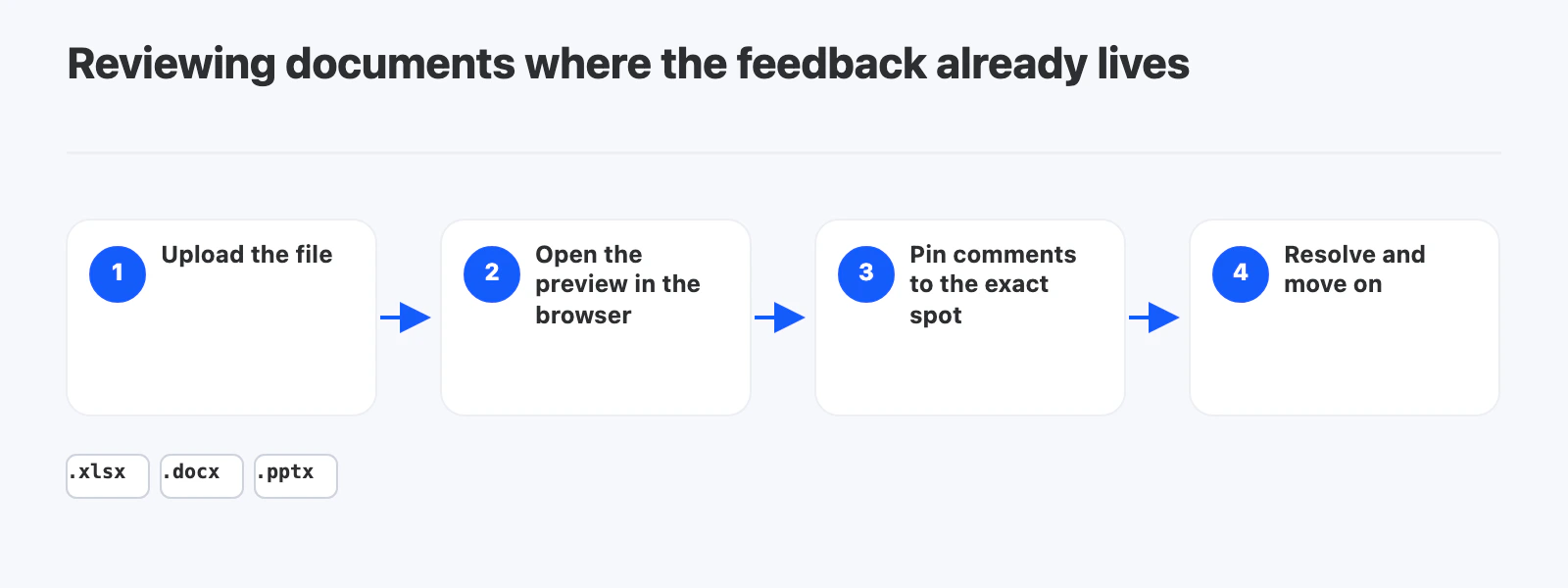
Step 1: Put the documents where the project lives
Upload the budget, script and deck to the same project as the footage. Everyone reviewing the cut can then find the paperwork without asking for it.
Step 2: Open the file in the browser
Reviewers should be able to read the file without downloading it or owning a license for the app that made it.
Step 3: Comment on the exact spot
In a spreadsheet, attach the comment to the cell. In a document or deck, attach it to the page or slide. Write what should change, not just that something is wrong.
Step 4: Resolve comments as you fix them
Make the change in the original app, upload the updated file, and mark each comment as handled. Open comments then show exactly what is left.
What makes a good document comment?
| Vague | Specific |
|---|---|
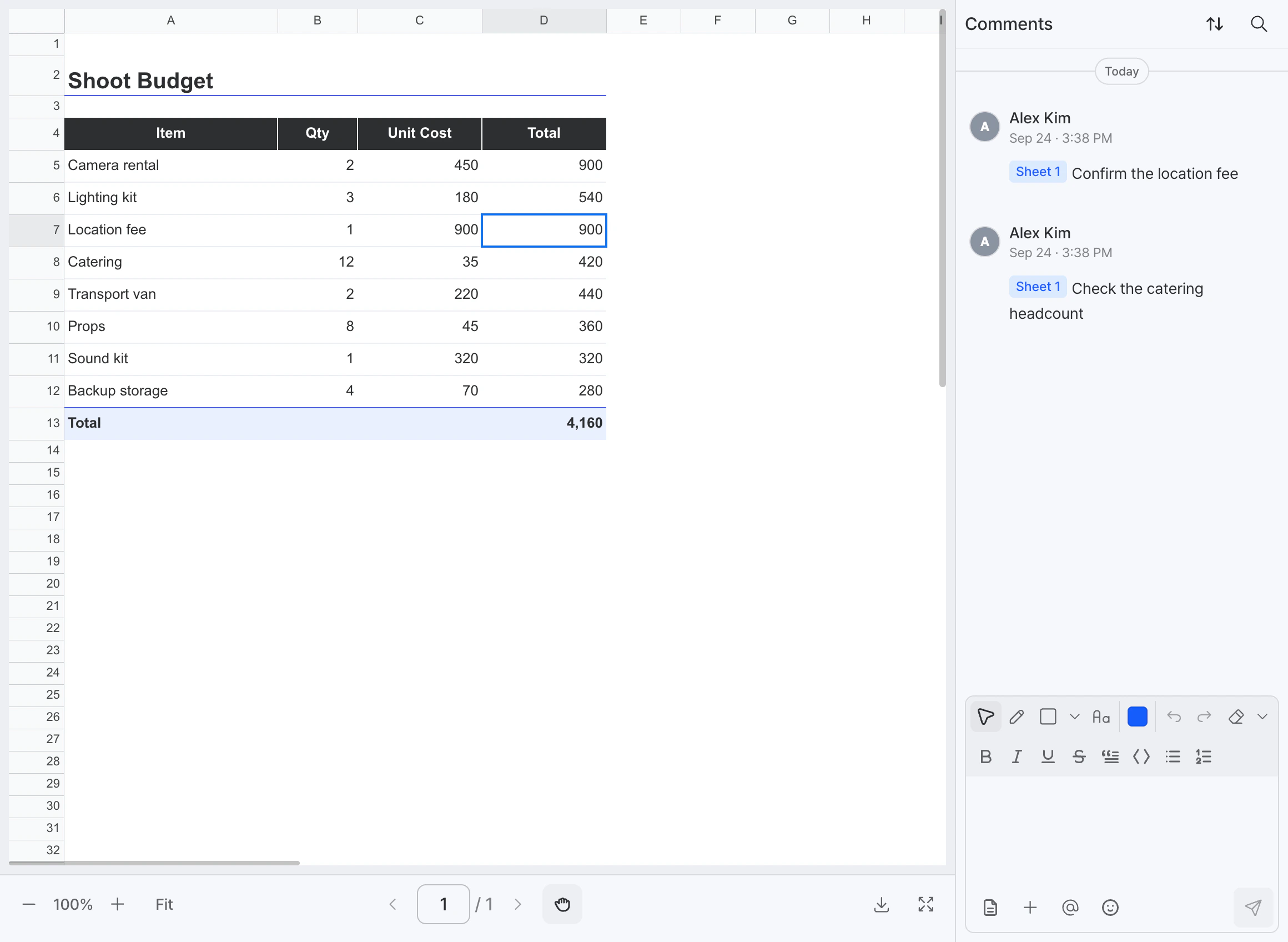
| ”Budget looks high” | On D7: “Confirm the location fee" |
| "Check catering” | On B8: “Check the catering headcount" |
| "Slide needs work” | On slide 4: “Swap the chart for last quarter’s numbers” |
A specific comment names the place and the action. It can be fixed without a follow-up question.
How do you review documents in YouViCo?
YouViCo, a video collaboration platform for creative teams, previews XLSX, DOCX and PPTX files in the browser, next to the videos and images in the same project.
- Upload the file to your project.
- Open it. The preview loads in the browser, with a comment panel on the side.
- In a spreadsheet, select a cell and write your comment. The comment stays tied to that cell.
- In documents and decks, move through the pages and comment where the change is needed.
Precise feedback matters for video too. See why frame numbers drift at 29.97fps.
Frequently Asked Questions
Do reviewers need Excel, Word or PowerPoint installed?
Not to read and comment. YouViCo shows XLSX, DOCX and PPTX files in the browser. Edits to the file itself are still made in the original app.
How are comments attached in a spreadsheet?
They are tied to a cell. Select the cell, write the comment, and anyone opening it later sees which cell it refers to.
Why keep documents in the same place as the video?
A budget change often affects the cut, and a script change always does. When both live in one project, the whole team works from the same set of files and the same comment history.
What file types can I review?
YouViCo previews video, images, and office documents including XLSX, DOCX and PPTX.