
How to Ripple Edit in a Browser Video Editor
A ripple edit closes the gap when you delete or trim a clip. What ripple editing is, how it behaves on multi-track timelines, and how to use it in the browser.
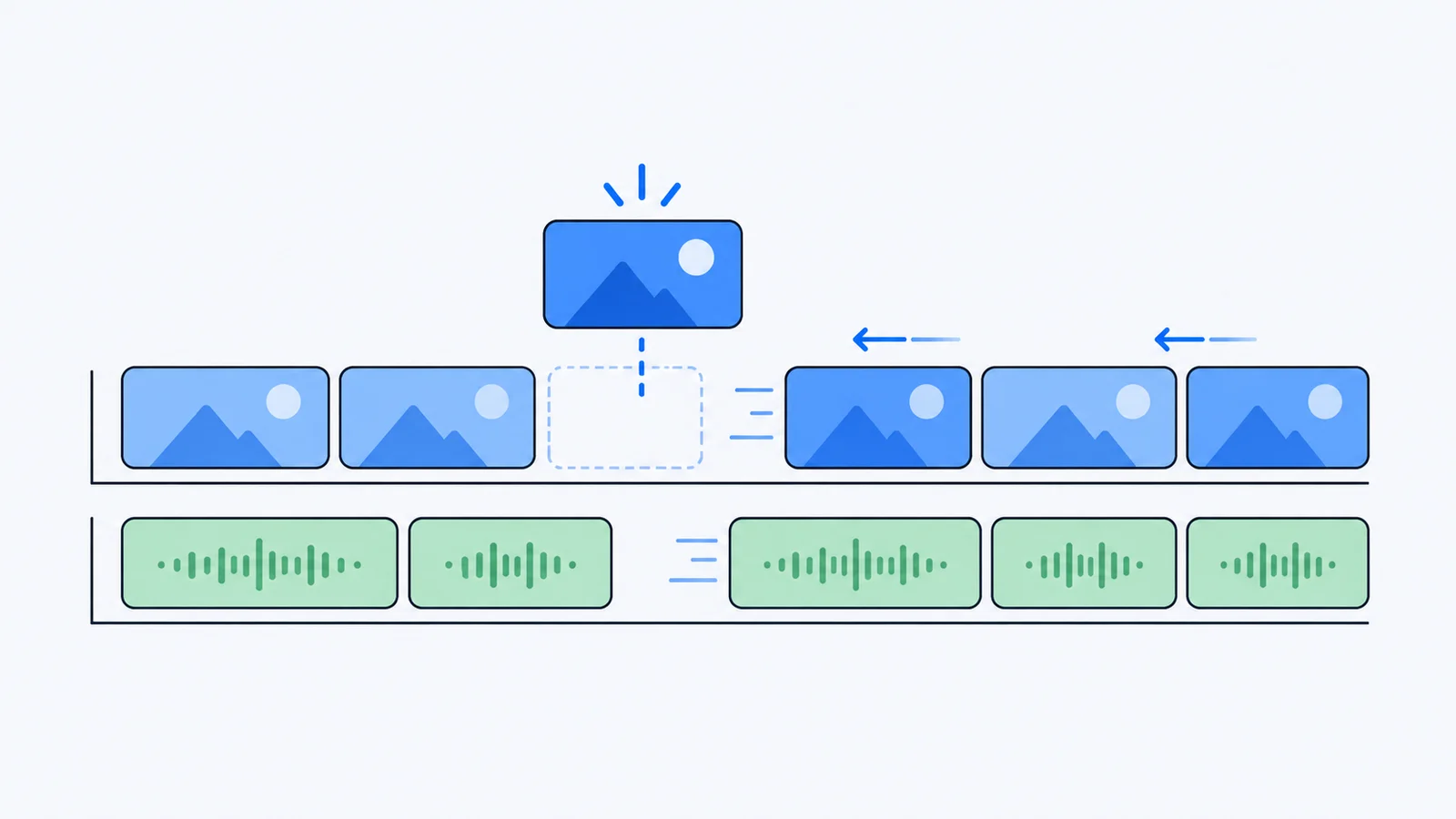
A ripple edit is any timeline edit that moves everything after it so no gap is left behind. Delete a clip with a ripple delete, and every later clip slides left to fill the space; trim the end of a clip, and everything after it follows.
Key Takeaways
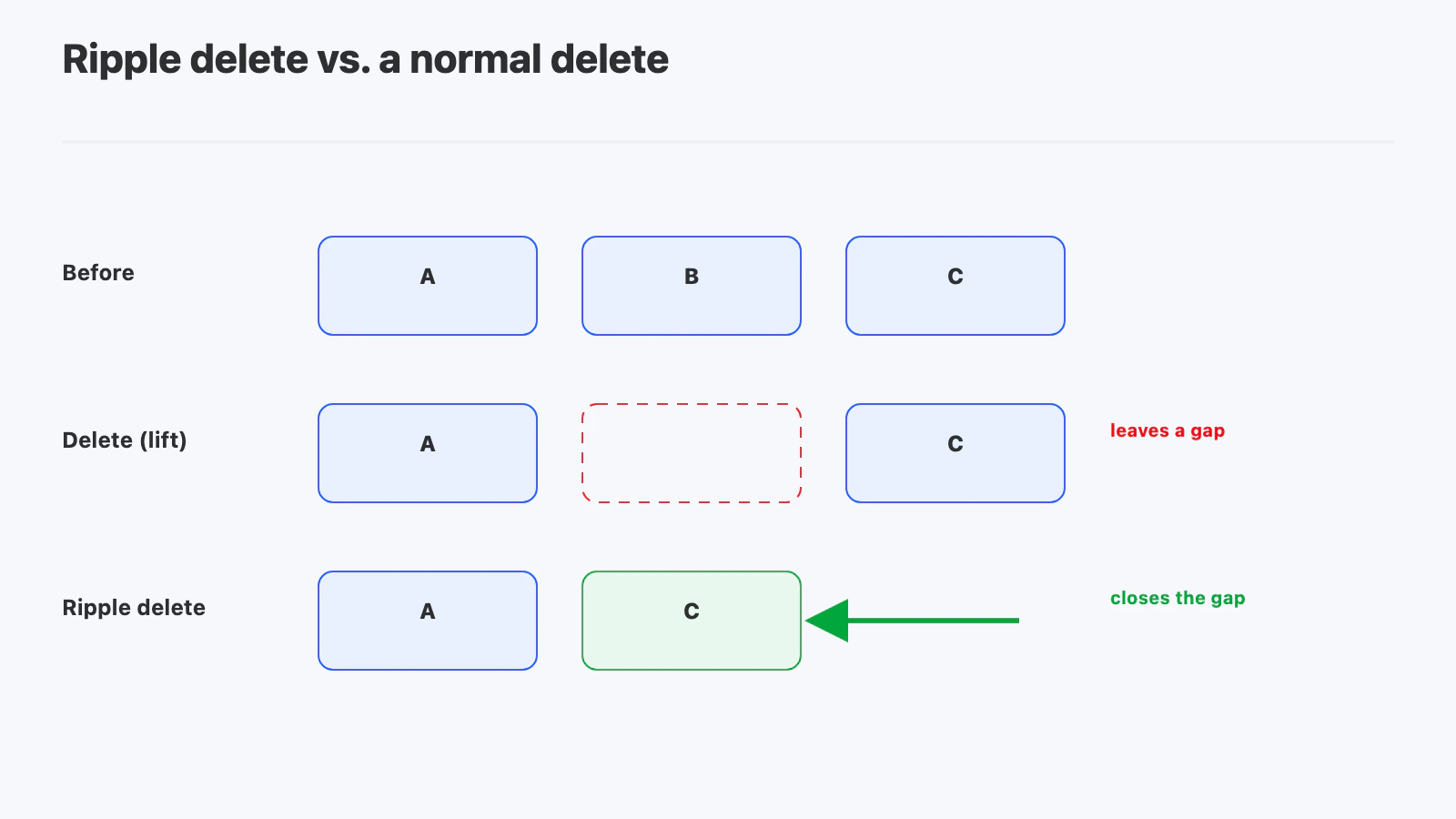
- A normal delete leaves a hole; a ripple delete closes it. Both remove the clip. Only one keeps the timeline continuous.
- Ripple edits are about everything downstream. The clip you touch changes, and so does the position of every clip after it.
- Multi-track timelines need care. Rippling one track while the audio underneath stays put is the fastest way to knock dialogue out of sync.
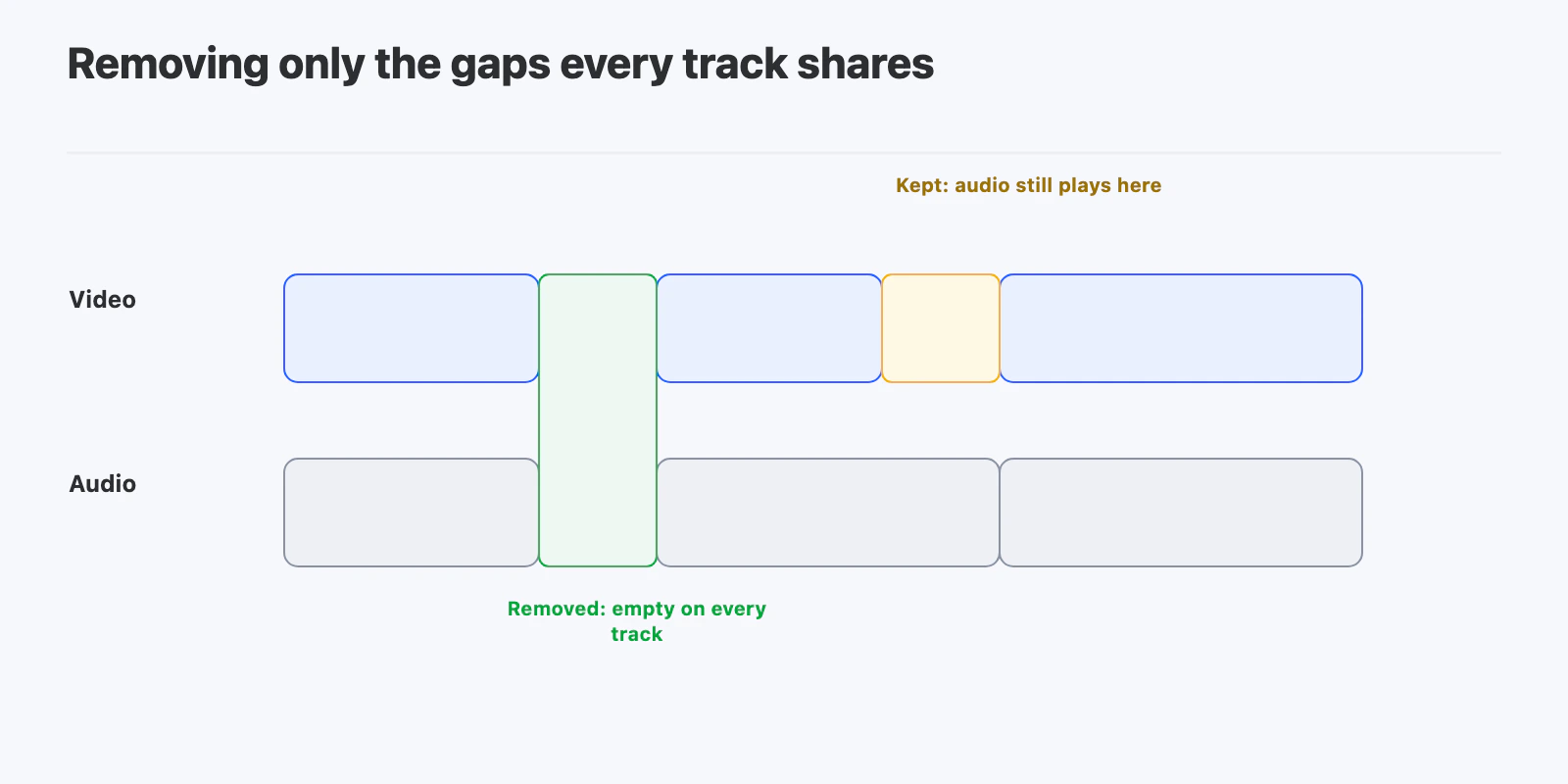
- Removing only the gaps shared by every track is the safe default. A gap on the video track with audio playing underneath is usually intentional.
- Multi-clip trim saves repetitive work when several clips need the same edge adjusted.
What is the difference between a delete and a ripple delete?
A regular delete (often called a lift) removes the clip and leaves empty space in its place. The clips after it don’t move. A ripple delete removes the clip and pulls everything after it left by the same length.
Desktop editors use the same idea under slightly different names. Premiere Pro has a Ripple Delete command and a Ripple Edit tool, and DaVinci Resolve offers Ripple Delete as well.
| Edit | What happens to the clip | What happens after it |
|---|---|---|
| Delete (lift) | Removed | Stays in place, gap remains |
| Ripple delete | Removed | Moves left, gap closes |
| Ripple trim | Shortened or lengthened | Moves to follow the new edge |
What happens to other tracks during a ripple edit?
This is where most ripple mistakes happen. On a timeline with video and audio tracks, closing a gap on one track can pull that track out of line with the others.
Picture a talking-head clip on the video track with its audio on the track below. If you remove a gap on the video track only, the picture moves earlier but the sound doesn’t. Every word after that point is now out of sync.
The safer rule is to remove a gap only where every track is empty at that moment. A gap on the video track with music or dialogue still playing underneath is usually deliberate: a beat of black, a pause, or a spot waiting for B-roll.
How do you trim several clips at once?
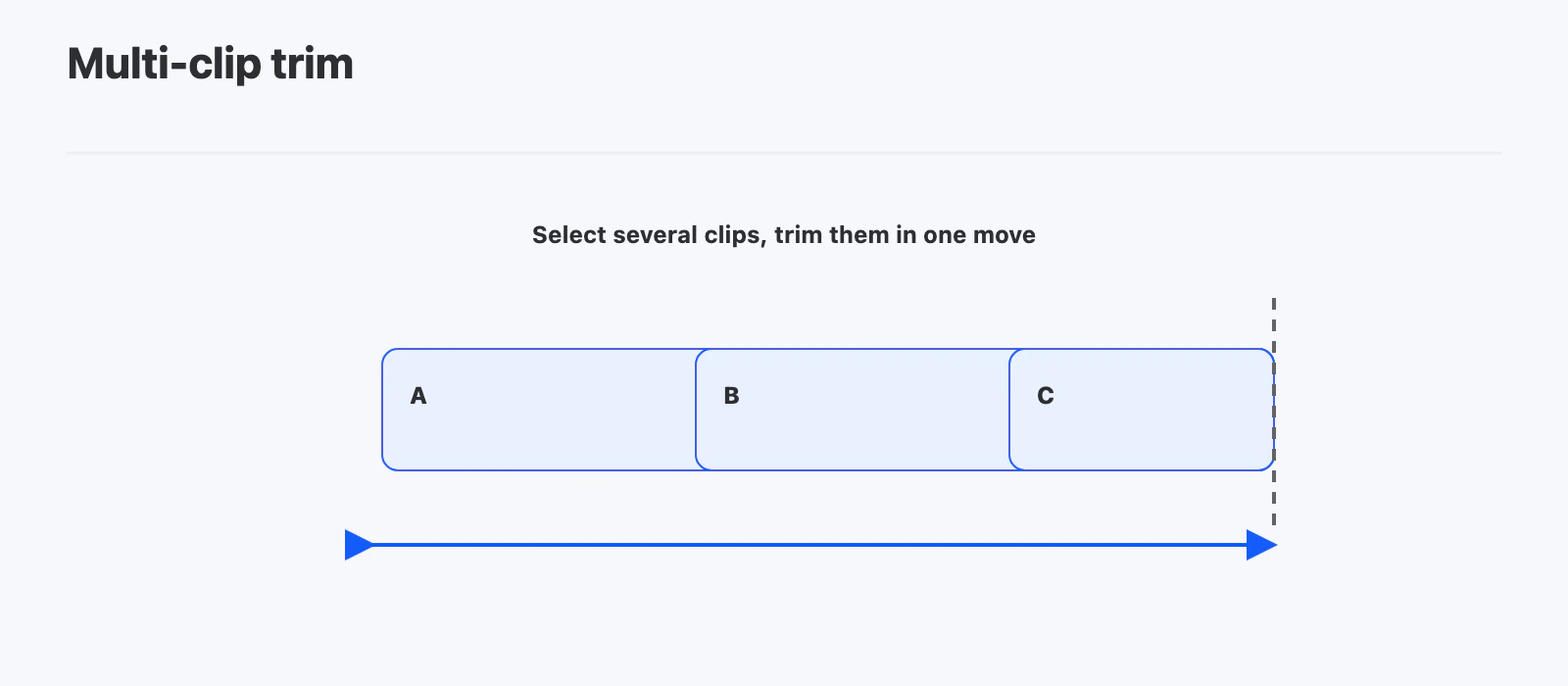
Sometimes several clips need the same change, such as shaving the last half second off each shot in a montage. Trimming them one by one is slow and easy to get slightly wrong.
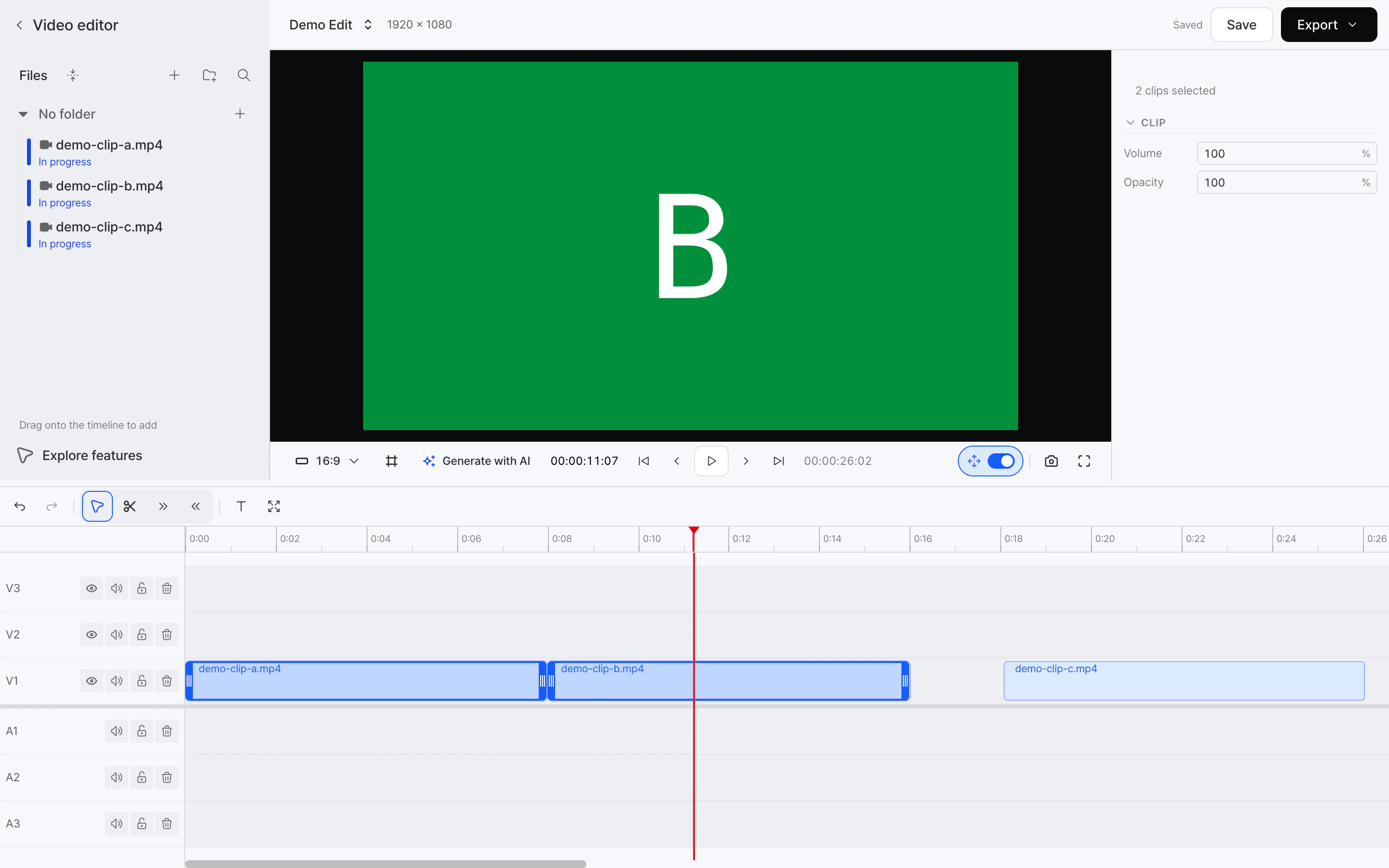
Multi-clip trim lets you select several clips and drag their edges together, so each clip changes by the same amount in one move.
How do you ripple edit in YouViCo’s browser editor?
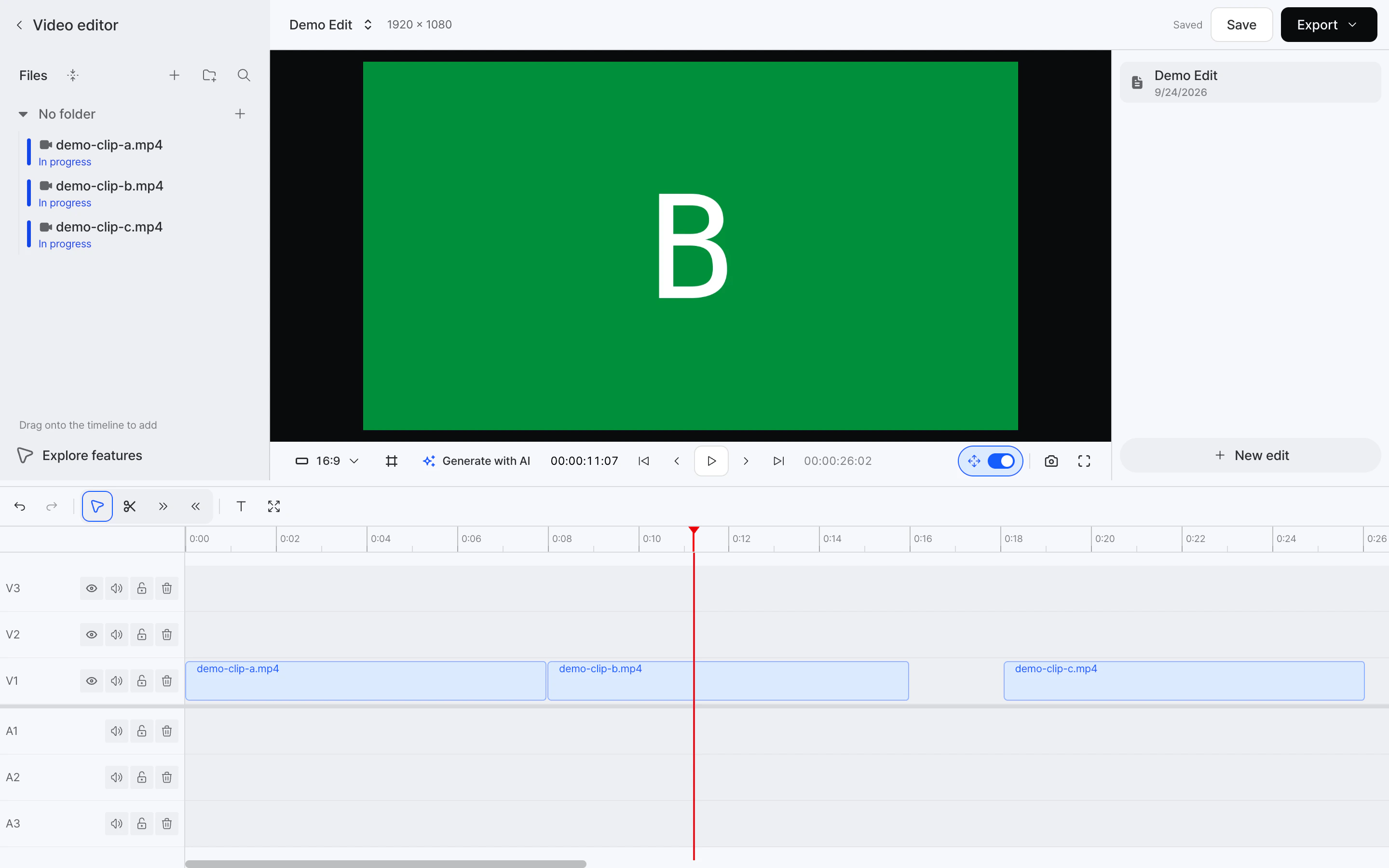
YouViCo, a video collaboration platform for creative teams, includes a video editor that runs in the browser, in the same project where footage gets reviewed. The timeline has multiple video and audio tracks, and supports ripple edits, multi-clip trim and gap removal.
- Open the video editor from your project and drag clips from the file list onto the timeline.
- To remove a clip and close the gap, use a ripple delete instead of a normal delete.
- To clean up empty space, use gap removal. YouViCo removes only the gaps that are empty on every track, and asks you to confirm before it changes the timeline.
- To trim several clips together, select them on the timeline. The side panel shows how many clips are selected. Then drag an edge to trim them as a group.
New to editing in the browser? Start with what browser-based video editing is.
Common ripple editing mistakes
- Rippling one track only. Check that audio and graphics above and below still line up after the edit.
- Closing gaps that were meant to be there. A pause before a punchline is a gap too.
- Ripple deleting under a music bed. If the music runs across the cut, the edit can land mid-phrase. Listen back after every ripple edit near music.
Frequently Asked Questions
What is ripple editing in video?
It is an edit that shifts every later clip on the timeline so no gap is left. Ripple delete removes a clip and closes the space; ripple trim changes a clip’s length and moves everything after it to match.
What is the difference between ripple delete and lift?
Both remove the clip. Lift leaves an empty gap where the clip was. Ripple delete closes the gap by moving later clips earlier.
Why did my audio go out of sync after a ripple edit?
The edit probably moved one track but not the others. Remove gaps only where every track is empty, or check that linked audio moved with the video.
Can I ripple edit without desktop software?
Yes. Browser-based editors such as YouViCo’s support ripple deletes, gap removal and multi-clip trim directly in the browser, with no install.