
What is Visual Feedback for Video? Annotating Directly on Video
Visual feedback is annotated comments directly on a video frame—arrows, shapes, text overlays. Learn why it's critical for video collaboration.
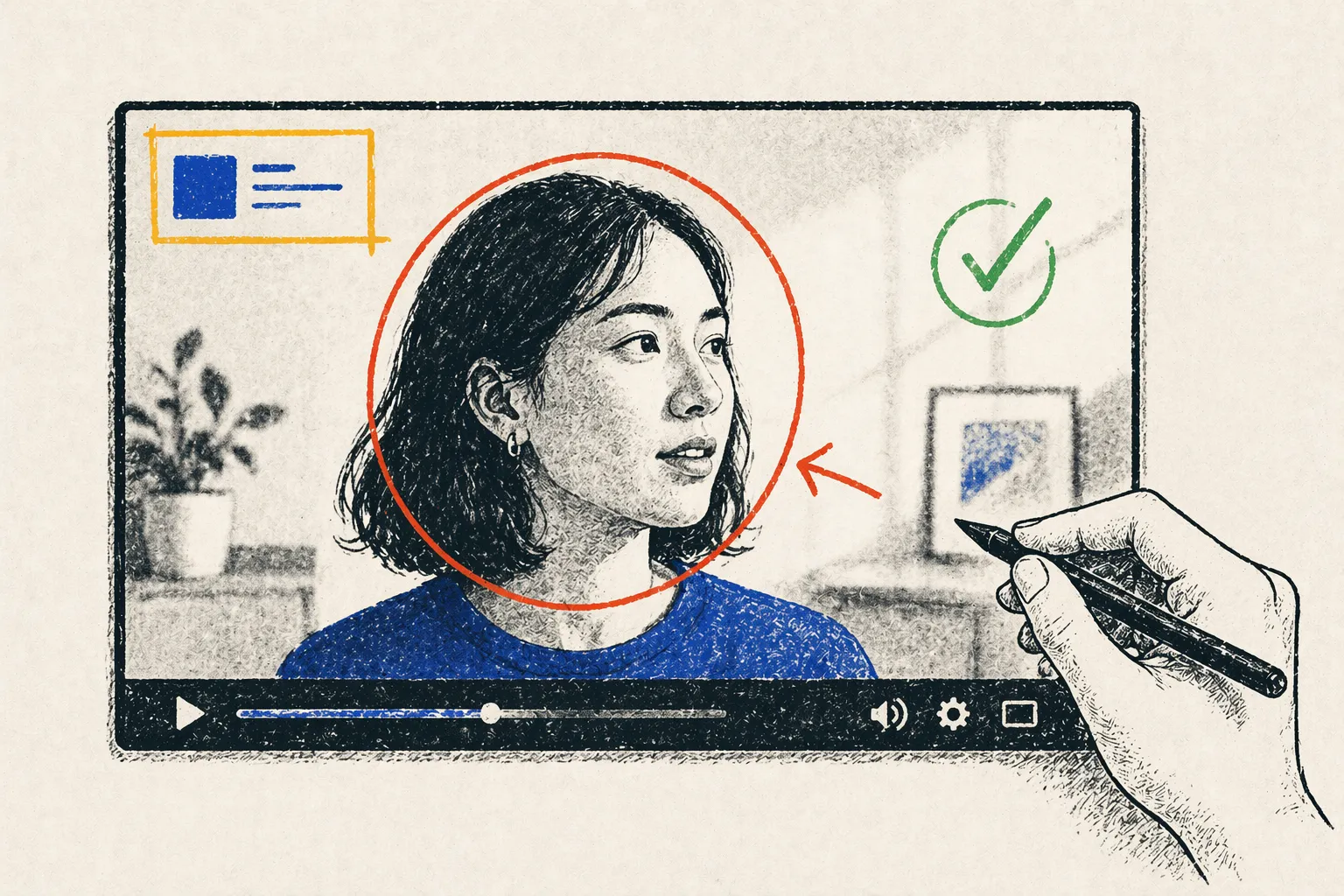
What is Visual Feedback?
Visual feedback is annotated comments drawn directly on a video frame. Instead of saying “Make the title brighter,” you draw an arrow pointing to the title and write “Make this brighter.”
Visual feedback includes:
- Arrows (point to specific elements)
- Rectangles/Circles (highlight areas)
- Text annotations (“Fix this” or “Good!”)
- Color coding (red for issues, green for approval)
- Shapes (checkmarks, X marks, etc.)
Visual feedback is critical because video is visual. Words alone miss context. A picture (with annotations) is worth 1000 words.
Visual Feedback vs. Timestamped Text Feedback
Text Feedback
“At 1:23, the product shot is too dark.”
Problem: Which product shot? The video has 3 product shots. Is it the main one at 1:15? Or the closeup at 1:30?
Visual Feedback
Draw a circle around the specific product shot and write: “This product shot is too dark.”
Advantage: Zero ambiguity. You’re pointing directly at what needs to change.
This is the gap between good communication and great communication in video production.
Why Visual Feedback Matters
Scenario: Without Visual Feedback
Client reviews color grade and emails: “The skin tones look off.”
Color grader wonders:
- Which person? (there are 4 people on screen)
- Which shot? (color grade had 3 takes)
- What specific issue? (too orange? too red? too saturated?)
- How much change? (slightly adjust or redo completely?)
Color grader makes a guess, re-grades, reuploads.
Client watches new version: “Still not right.”
Result: 3 revision cycles instead of 1.
Scenario: With Visual Feedback
Client watches, draws a circle around the main actor’s face at 1:15, and writes: “Skin tones too orange. Compare to 0:30 where the color was perfect.”
Color grader immediately knows:
- Exact person
- Exact shot
- Exact problem (too orange)
- Reference point (0:30 for comparison)
Color grader re-grades that specific scene, reuploads.
Client approves in 1 revision.
This is the power of visual feedback.
Types of Visual Feedback
Type 1: Pointing (Arrows)
“At this moment, the camera shake is noticeable—smooth this out” (Arrow pointing to the camera movement)
Best for: Calling attention to a specific movement or element
Type 2: Highlighting (Rectangles, Circles)
“This text is too small” (Circle around text)
Best for: Isolation of an element that needs work
Type 3: Annotation (Text Overlays)
“Logo placement is off. Move it 20 pixels left” (Arrow + text box)
Best for: Specific, actionable feedback
Type 4: Approval (Checkmarks, Thumbs Up)
Green checkmark over a scene (Text: “Color grade is perfect here”)
Best for: Positive feedback and approval of specific sections
Type 5: Multi-Markup
Combination of annotations
- Red circle: “Fix this”
- Yellow circle: “Maybe this”
- Green checkmark: “Approved”
Best for: Complex scenes with multiple notes
Visual Feedback in Action
Example 1: Color Grade Feedback
Creative director watches V2 Color Grade.
At 1:15:
- Draws circle around actor’s face
- Text: “Skin tone too orange. Reference: compare to 0:30.”
At 2:45:
- Draws rectangle around sky
- Text: “Sky too desaturated. Boost saturation +15%.”
At 3:00:
- Green checkmark
- Text: “Approved. Great color grade.”
Colorist sees these annotations, makes changes, reuploads V3.
Example 2: Motion Graphics Feedback
Producer watches V3 with graphics.
At 0:15:
- Draws rectangle around logo
- Text: “Logo too small. Make it 150% of current size.”
At 0:45:
- Draws arrow toward text
- Text: “This font is hard to read. Choose sans-serif instead.”
At 1:30:
- Draws circle around transition
- Text: “Transition is jarring. Use a slower fade instead.”
Motion graphics artist sees these notes, adjusts, reuploads V4.
Example 3: Sound Design Feedback
Sound designer uploads V4 with audio.
Editor watches and marks:
At 0:30:
- Arrow pointing to audio waveform
- Text: “Music comes in too abruptly. Add 1-second fade-in.”
At 1:45:
- Rectangle around dialog section
- Text: “Dialogue is slightly muffled. Boost high frequencies.”
At 2:15:
- Green checkmark
- Text: “SFX levels are perfect here.”
Sound designer sees these, re-mixes, approves.
Visual Feedback Best Practices
1. Use Arrows for Direction
“Move this element left” → Arrow pointing left
2. Use Circles for Isolation
“This needs attention” → Circle around the element
3. Use Color for Priority
Red = Critical fix Yellow = Nice to have Green = Approved
4. Be Specific with Text
Bad: “This doesn’t look right” Good: “This text is too small. Make it 18pt instead of 12pt.”
5. Add Reference Points
“Skin tone is too orange. Should match the tone at 0:30.” (Text + arrow to reference frame)
6. Approve Good Work Visually
Green checkmarks show what’s working. Encourages the team.
7. Timestamp Your Marks
Marks should be on a specific frame with timestamp: “At 1:23: Fix this”
Tools for Visual Feedback
| Tool | Strength | Visual Feedback |
|---|---|---|
| YouViCo | Real-time collab | Draw arrows, circles, text, color-code |
| Frame.io | Industry standard | Frame-accurate drawing tools, color overlays |
| Wipster | Ease of use | Basic drawing (arrows, circles) |
| Filestage | Enterprise | Advanced annotation, audit trail |
Frame.io and YouViCo lead in visual feedback capabilities.
Visual Feedback + Timestamped Text = Powerful
The best feedback combines both:
Visual: Draw a circle around the problem area Text: Explain what’s wrong and how to fix it
Example:
- Visual: Red circle around actors’ faces
- Text: “Skin tones too orange. Add magenta/blue to cool the color down.”
This combination eliminates ambiguity entirely.
FAQ
Q: Can I add visual feedback on mobile? A: Most tools support mobile. Frame.io and YouViCo have mobile apps with annotation tools.
Q: Can multiple people mark up the same frame? A: Yes. All annotations appear. This is useful for multi-reviewer feedback.
Q: Can I annotate on exported video files or only in the platform? A: Only in the platform. This is why your video must be uploaded to the tool (not just sent as a file).
Q: Can I export visual feedback as part of the video? A: Some tools let you export a video with annotations burned-in (permanent). Others let you export a PDF report of all annotations.
Q: What if I mark the wrong area? A: Delete it and re-mark. Or add a new annotation clarifying: “Ignore previous mark—this is what I meant.”
Q: Can I preset annotation colors for different reviewers? A: Some tools do. Producer comments = blue, Creative Director = red, Client = green.
Q: Is visual feedback better than text feedback? A: They’re complementary. Visual feedback is better for “what,” text feedback is better for “why” and “how.” Use both.